

| Bookmark Name | Actions |
|---|
Approvals and Requests
A business user having approval privileges can view and act on transactions requiring approval and can view the requests that is pending approval and monitor the status.
Use the feature to view the list of pending transactions that requires your approval and the transaction requests you raised that needs approval.
 See more on approval management
- A Financial Institution (FI) and authorized user (Business Owner) can set three types of approvals for transactions at pre-approved level (0-$500 transactions do not require approval), a range of approval threshold for which approval is required from a designated user or approval group, and auto denied amounts (anything over an amount is denied). These are applicable at User Level / Account level / Feature Level.
- A Financial Institution (FI) can revoke the approval permissions from a user role to use a certain feature. The FI can remove a feature that requires approvers to authorize certain actions. The application handles the requests that are already approved or pending approval by such users. When approval permissions are revoked from the user role for a certain feature,
- By default, permissions on all the accounts that the user has access is affected
- Approval permission on all those accounts are revoked as well.
- Handling approvals
- When a request is sent to a list of approvers, the transfer stays in the Pending Approval status until the required number of approvals to meet all the approval rules have been received.
- When all the approvals are received, then the application assesses if the transaction meets the daily limit and weekly limit for the current period, and checks the various limit conditions - D1, D2, D3 and W1, W2, W3. See Approval Matrix and Transaction Limits for more information.
- If all conditions are met there is no failure, the approval is processed and executed.
- In case of a failure in meeting the limit conditions,
- The application alerts the user that the weekly or daily limits set by the FI for the Role and the Company is not being met and hence this transaction cannot be executed.
- The confirmation is taken from the user to auto-reject. This stays in the My Requests queue as rejected and can be submitted again by the user.
- Handling rejections
- When a request is sent to a list of approvers, the transfer stays in the Pending Approval Status until the required number of approvals to meet all the approval rules have been received.
- However, even if one approver rejects the transaction, the transaction is directly rejected. It is taken out of the approval queue and shown in the My Requests queue with rejected status.
- Any authorized user with permissions to manage approvals can set up multiple approvals by group or user for approval thresholds.
- An authorized user can specify different groups or specific users for multiple approvals.
My Approvals
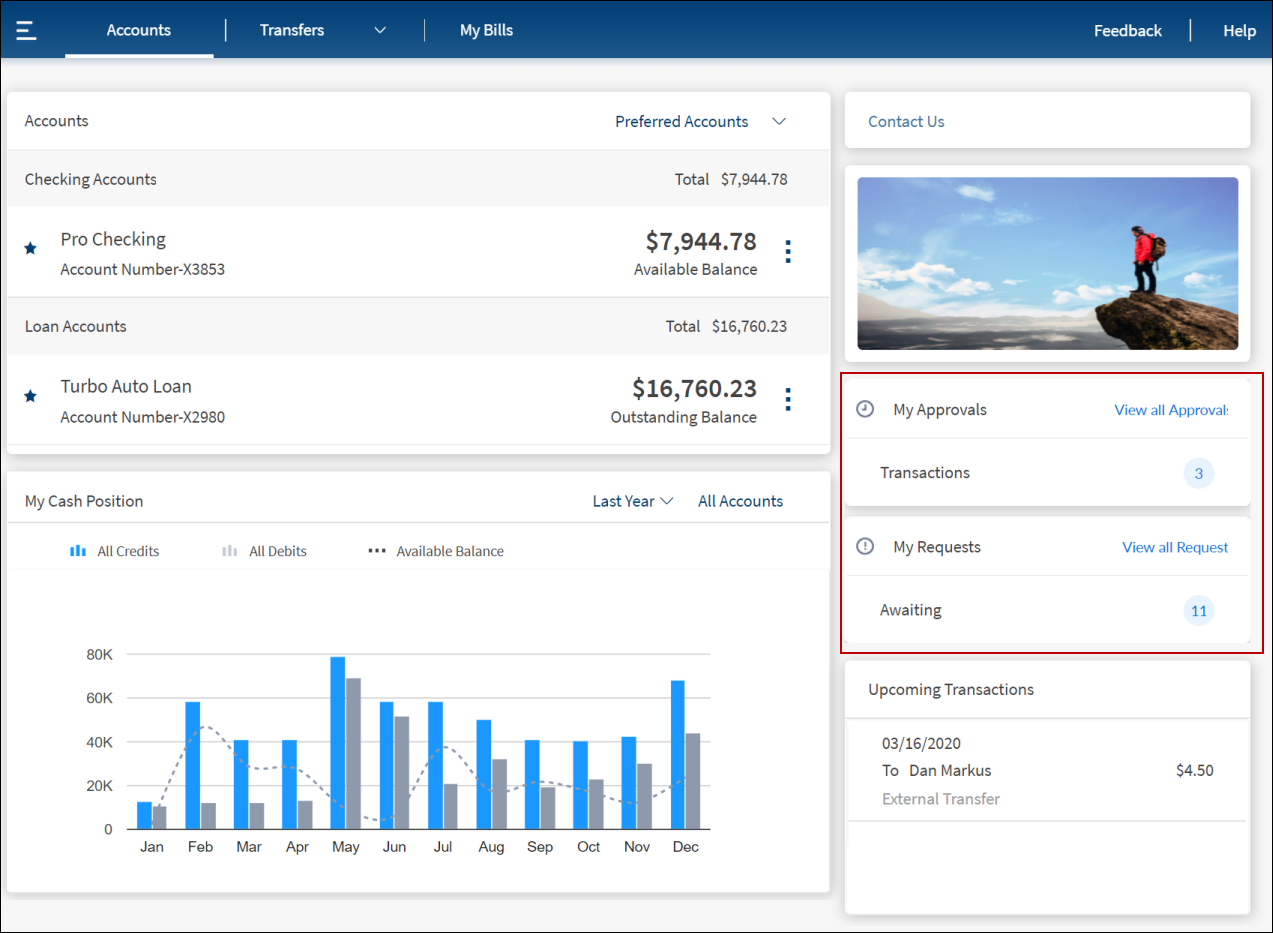
Use the feature to approve or reject the transactions assigned to you provided you have the appropriate permissions.
Menu Path:
- Online Banking:
- Dashboard > My Approvals Widget > View All Approvals
- Side Menu > Approvals & Requests > My Approvals
- Mobile Banking:
- Dashboard > Approvals widget
- Side Menu > Approvals & Requests > My Approvals
The approvals dashboard screen lists the transactions pending for your approval on the following tabs:
The Transactions tab is selected by default.
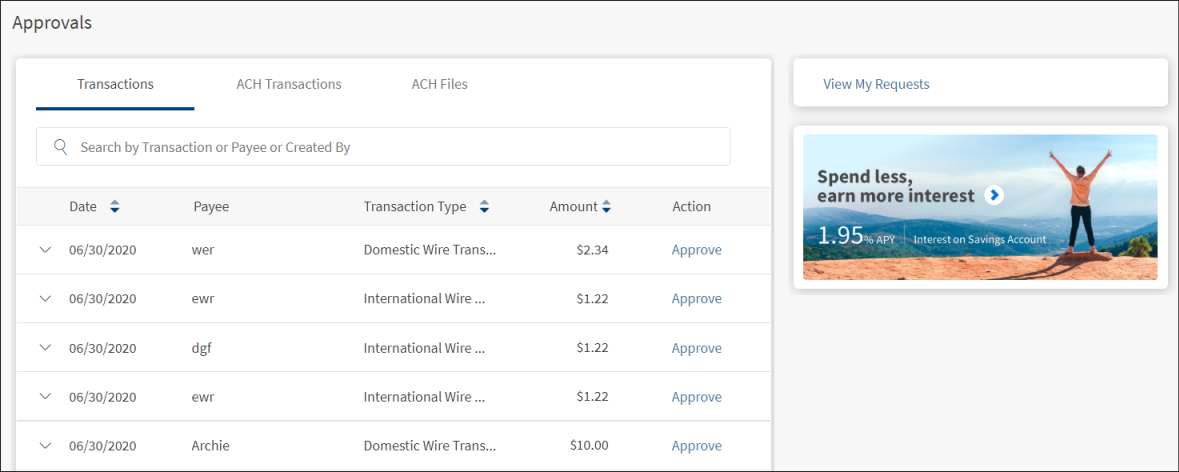
Transactions
View the list of transactions pending for your approval or rejection. Transactions are seen here because you were set as an approver in the approval matrix for the account, feature, and transaction value. If there are no pending transactions that require your approval, then the application displays an appropriate message.
NOTE: All transactions except (automated clearing house) ACH transactions are displayed on the Transactions tab.
The application displays the following information and the list is sorted by Date by default, but you can sort the list based on the Transaction Type or Amount by using the sort icon (
 denotes sorted by that column).
- Date
- Payee name
- Transaction Type
- Amount
- Actions (Approve)
You can do the following on the Transaction tab:
- View basic details of the transaction.
- Approve a transaction.
- Reject a transaction.
- View transaction details.
- Search for the required transaction.
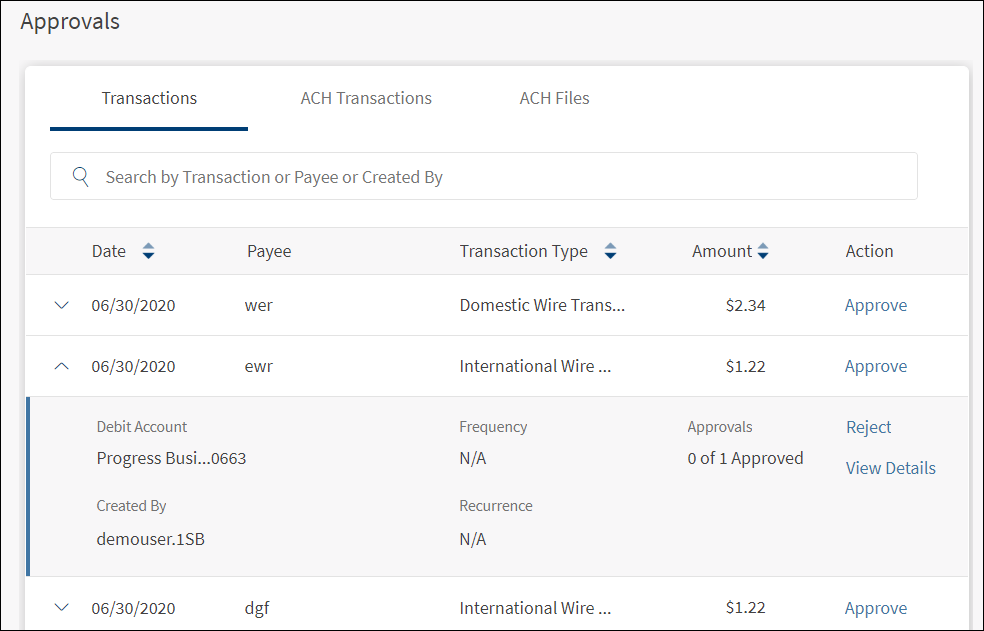
View Basic Details
Click the  arrow displayed beside each transaction to view the transaction details. The application displays the following information:
- Debit account number
- Frequency
- The number of approvals required for the transaction to execute and the number of approvals received.
- Created By
- Recurrence
You can reject the selected transaction from here.
Approve a Transaction
Use the feature to approve a transaction. When a request is sent to a list of approvers, the transfer stays in the Pending Approval status until the required number of approvals to meet all of the approval rules have been received. When all the approvals are received, then the application assesses if the transaction meets the daily limit and weekly limit for the current period, and also checks the various limit conditions. If all conditions are met and there is no failure, the approval is processed and executed.
- Go to the required transaction and click Approve.
- The application displays an acknowledgment screen.

- Click Back to Approvals to go back to the transactions page.
Reject a Transaction
Use the feature to reject a transaction. When a request is sent to a list of approvers, the transfer stays in the Pending Approval Status until the required number of approvals to meet all the approval rules have been received. However, even if one approver rejects the transaction, the transaction is directly rejected. It is taken out of the approval queue and shown in the My Requests queue with rejected status.
- Select the required transaction and click Reject.

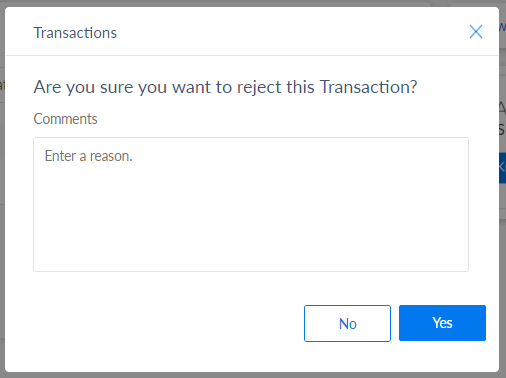
- The application displays the confirmation screen. Enter the reason for rejecting the transaction and click Yes.

View Transaction Details
- Click the arrow displayed beside each transaction to view the transaction details.
- Click View Details.
- The application displays the transaction details screen.
- Click to approve or reject the transaction or go back to the approvals dashboard screen.
Search for a Transaction
Use the search option to search for a transaction using the search criteria.

- Enter the search criteria in the search bar and click
 icon.
icon.
- The search criteria can be the payee name, transaction type or the person who created the transaction.
- The results are displayed based on the search criteria.
ACH (Automated Clearing House) Transactions
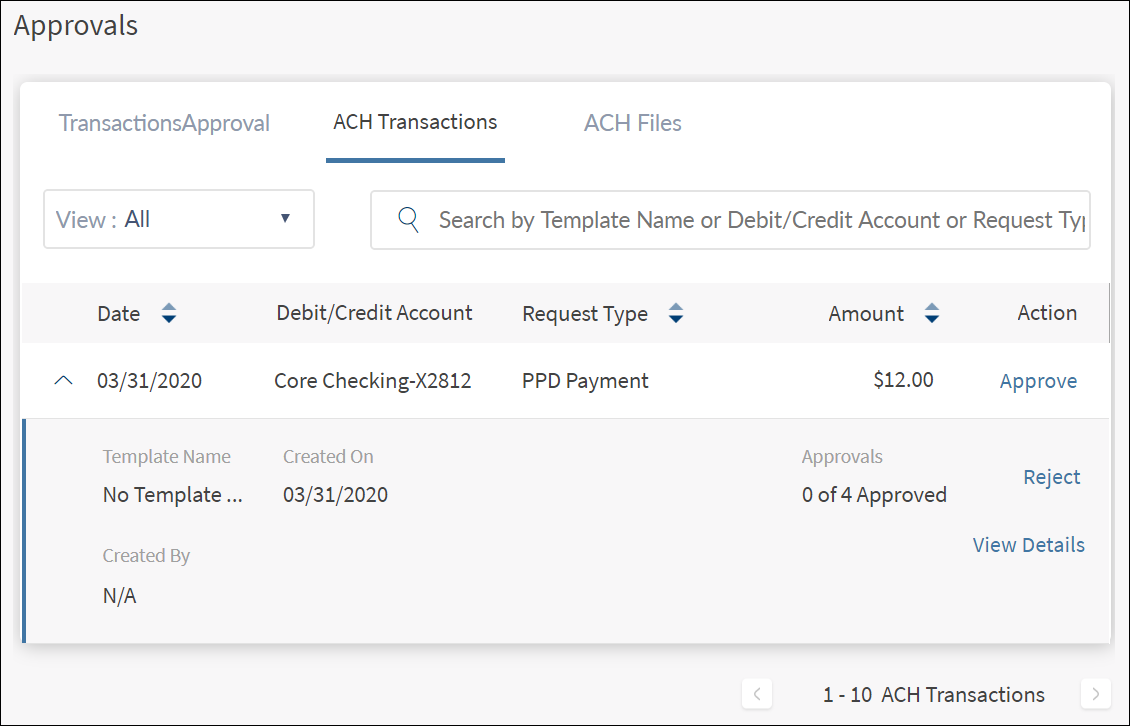
View the list of ACH transactions (payment or collection) pending for your approval or rejection. The application lists only those transactions that have been explicitly sent to you for approval.
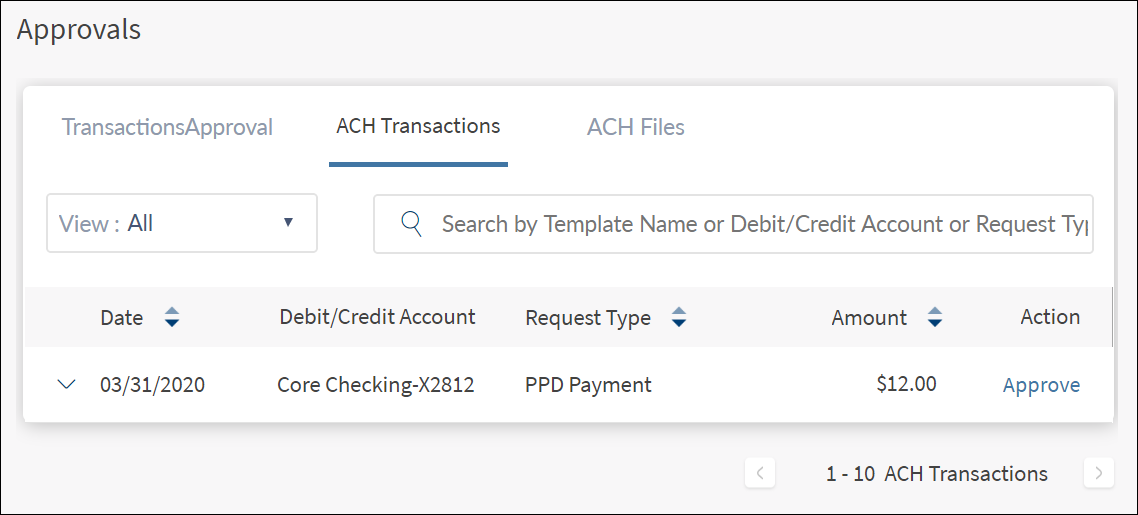
The application displays the following information:
- Date
- Debit/Credit Account
- Request Type
- Amount
- Actions (Approve)
You can filter the list based on the transaction type. Select the required transaction type from the View list. The following types are available:
- Payments: Select Payments from the list, if you want to view only payment requests.
- Collections: Select Collects from the list if you want to view only collection requests.
- All: Select All from the list, if you want to view both payment and collection requests. All is selected, by default.
The list is sorted by Date by default, but you can sort the list based on Request Type or Amount using the sorticon (denotes sorted by that column). You can do the following on the ACH Transactions tab:
- View basic details of the transaction.
- Approve a transaction.
- Reject a transaction.
- View transaction details.
- Search for the required transaction.
View Basic Details
Click the arrow displayed beside each transaction to view the transaction details. The application displays the following information:
- Created On: Displays the date when transaction was initiated.
- Template Name: Displays the name of the ACH template used to perform the ACH transaction. If the transaction was done without using a template, then this will be empty.
- Created By: Displays the name of the logged in user.
- The number of approvals required for the transaction to execute and the number of approvals received.
You can reject the selected transaction from here.
Approve a Transaction
Use the feature to approve a transaction. When a request is sent to a list of approvers, the transfer stays in the Pending Approval status until the required number of approvals to meet all the approval rules have been received. When all the approvals are received, then the application assesses if the transaction meets the daily limit and weekly limit for the current period and checks the various limit conditions. If all conditions are met and there is no failure, the approval is processed and executed.
- Go to the required transaction and click Approve.
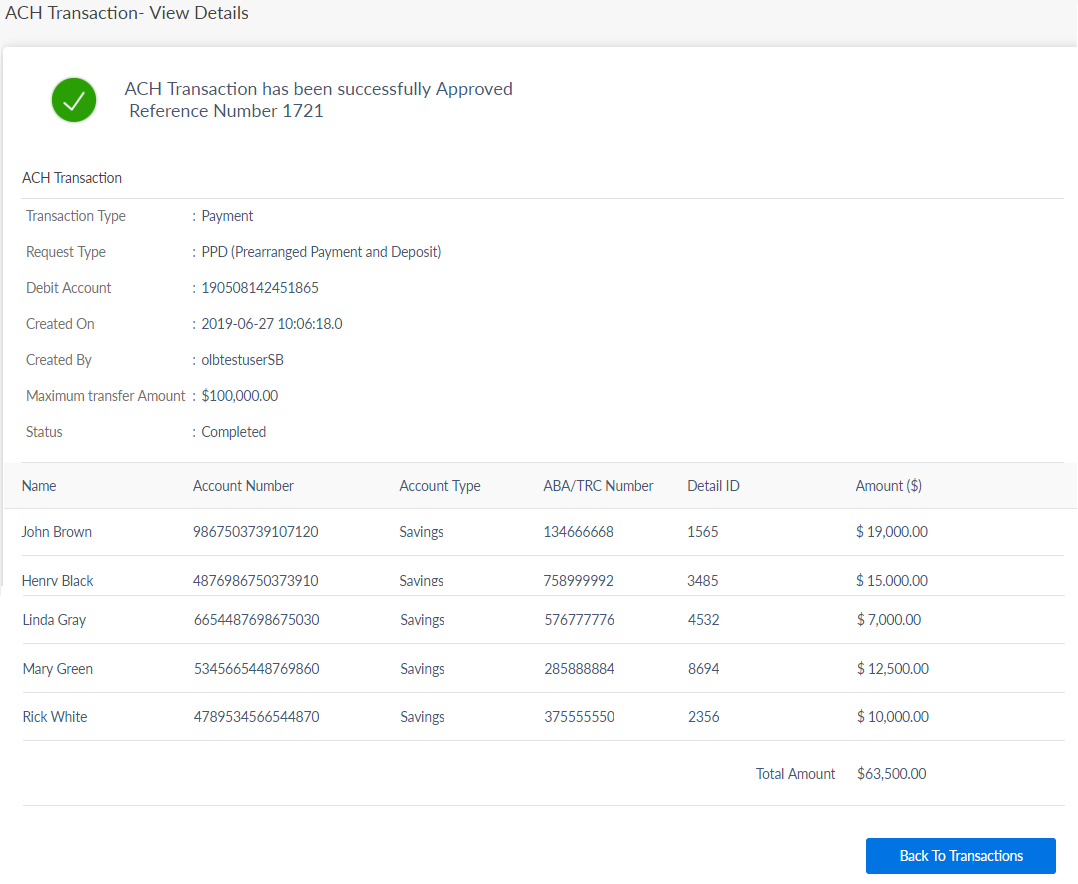
- The application displays an acknowledgment screen.

- Click Back to Transactions to go back to the transactions page.
Use the feature to reject a transaction. When a request is sent to a list of approvers, the transfer stays in the Pending Approval Status until the required number of approvals to meet all the approval rules have been received. However, even if one approver rejects the transaction, the transaction is directly rejected. The transaction is taken out of the approval queue and shown in the My Requests queue with rejected status.
- Select the required transaction and click Reject.
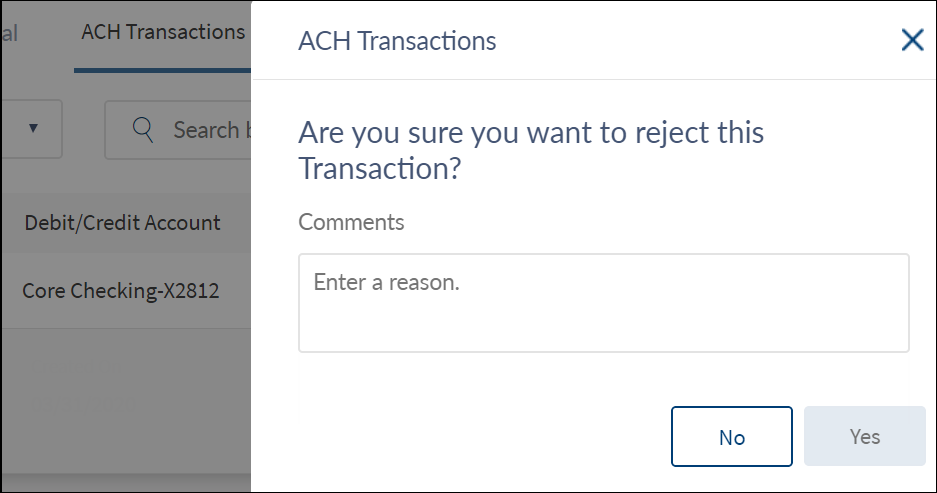
- The application displays the confirmation screen. Enter the reason for rejecting the transaction and click Yes

View Transaction Details
- Click the arrow displayed beside each transaction to view the transaction details.
- Click View Details.
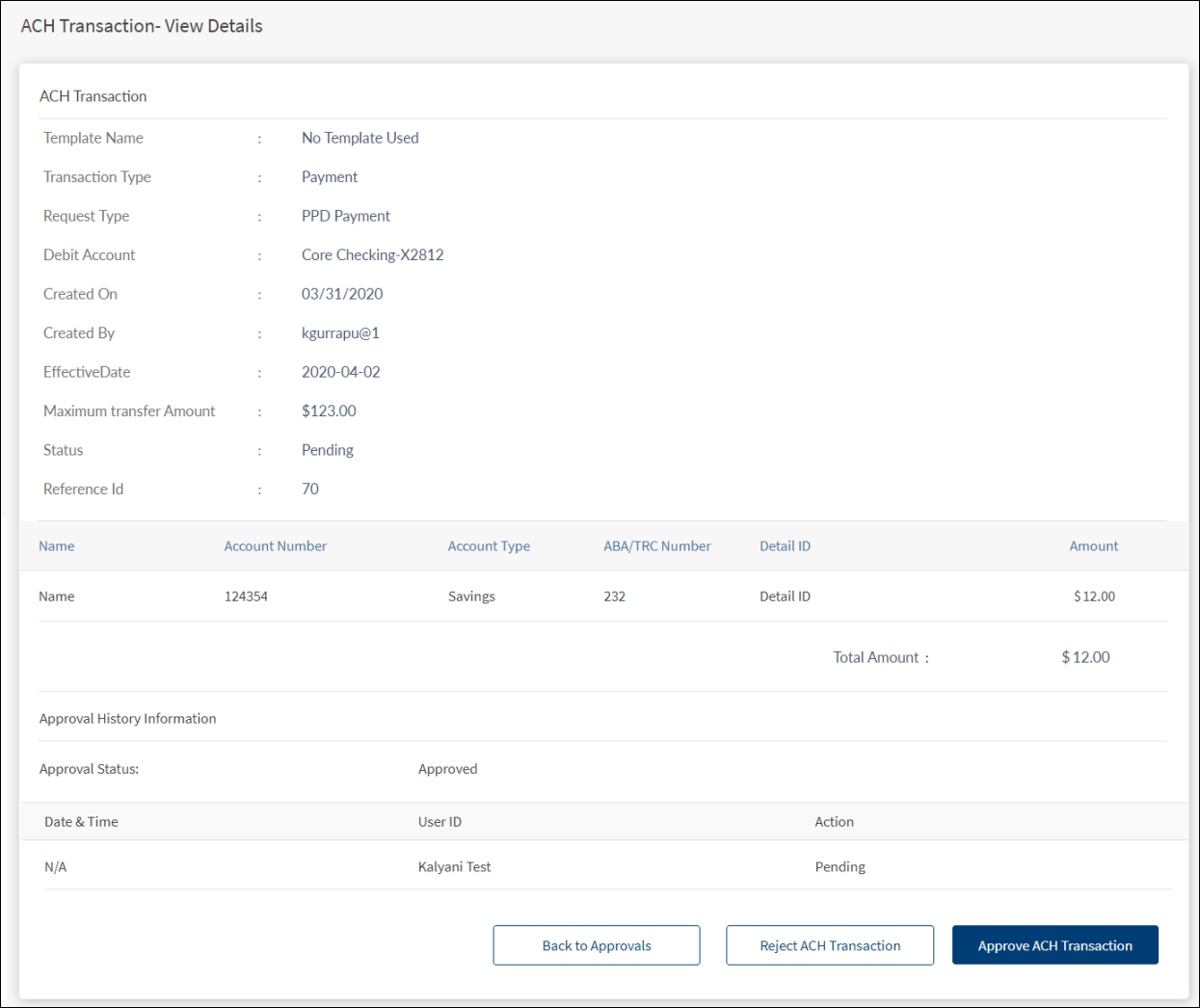
- The application displays the transaction details screen.

- Click to approve or reject the ACH transaction or go back to the approvals dashboard screen.
Search for a Transaction
Use the search option to search for a transaction using the search criteria.
- Enter the search criteria in the search bar and click icon.
- The search criteria can be the template name, debit/credit account number or the request type.
- The results are displayed based on the search criteria.
ACH Files
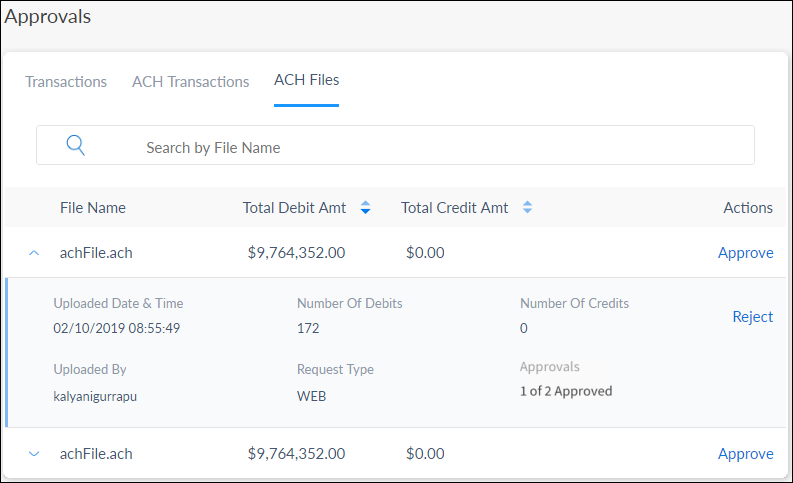
View the list of ACH files pending for your approval or rejection. The application lists only those files that have been explicitly sent to you for approval.
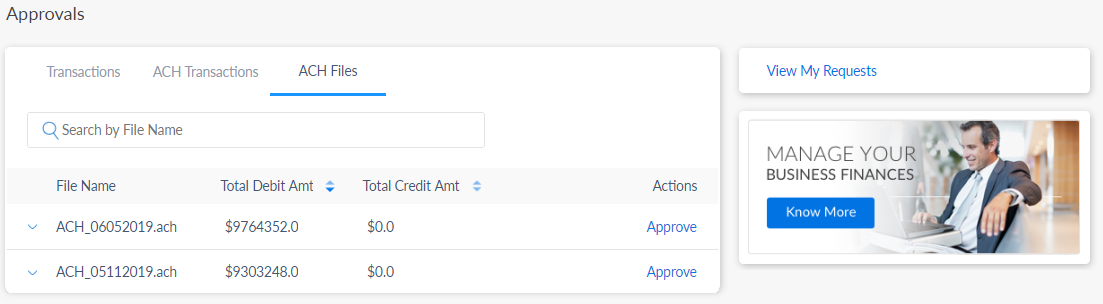
The application displays the following information:
- File Name
- Total Debit Amount
- Total Credit Amount
- Actions (Approve)
The list is sorted by the Total Debit Amount by default. You can also sort the list by Total Credit Amount using the sorticon (denotes sorted by that column). You can do the following on the ACH files tab:
- View basic details of the file.
- Approve a file.
- Reject a file.
- View file details
- Search for the required file.
View Basic Details
Click the arrow displayed beside each file to view the details. The application displays the following information:
- Uploaded Date and Time
- Uploaded By
- Number of Debits
- Number of Credits
- Request Type
- Approvals: The number of approvals required for the transaction to execute and the number of approvals received.
You can reject the selected file from here.
Approve a File
Use the feature to approve a transaction. When a request is sent to a list of approvers, the transfer stays in the Pending Approval status until the required number of approvals to meet all the approval rules have been received. When all the approvals are received, then the application assesses if the transaction meets the daily limit and weekly limit for the current period, and checks the various limit conditions. If all conditions are met and there is no failure, the approval is processed and executed.
- Go to the required transaction and click Approve.
- The application displays the confirmation screen. Click Yes.
Reject a File
Use the feature to reject a transaction. When a request is sent to a list of approvers, the transfer stays in the Pending Approval Status until the required number of approvals to meet all the approval rules have been received. However, even if one approver rejects the transaction, the transaction is directly rejected. The transaction is taken out of the approval queue and shown in the My Requests queue with rejected status.
- Select the required transaction and click Reject.

- The application displays the confirmation screen.
Click Yes.
View Details
- Click the arrow displayed beside each file to view the details.
- Click View Details.
- The application displays the details screen.
- Click to approve or reject the ACH transaction or go back to the approvals dashboard screen.
Search for a File
Use the search option to search for a file using the search criteria (file name).
- Enter the search criteria in the search bar and click icon.
- The search criterion is the file name.
- The results are displayed based on the search criteria.
Approvals - Mobile Banking
Use the feature to approve or reject the transactions assigned to the signed in business user provided the user has the appropriate permissions.
Menu path:
- Dashboard > Approvals section on top of screen
- Side Menu > Approvals & Requests
On the application dashboard, the application displays the Approvals section on top section of the screen. If the user has permission to approve transactions, then this section is displayed with the count in parenthesis. The count is updated for three sections - Transactions, ACH Transactions, and ACH files. On tapping Approvals, the application displays the page with details of the approvals and the user can complete the action. The individual line items cannot be clicked and are for visual representation only. If the count is zero, still the Approval section is displayed with count as zero. If the user does not have access to approvals, then the section is not displayed.
The application displays the Approvals and Requests dashboard with the following information:
- Approvals. Tap to view the list of transactions and ACH Files and approve or reject as required.
- Requests. Tap to view the list of transactions and ACH Files and withdraw the request if required.
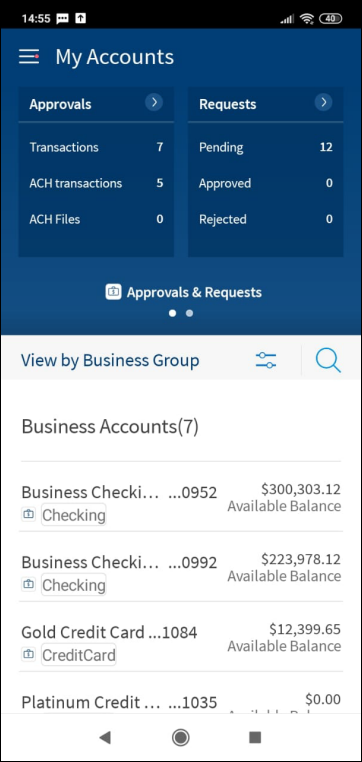
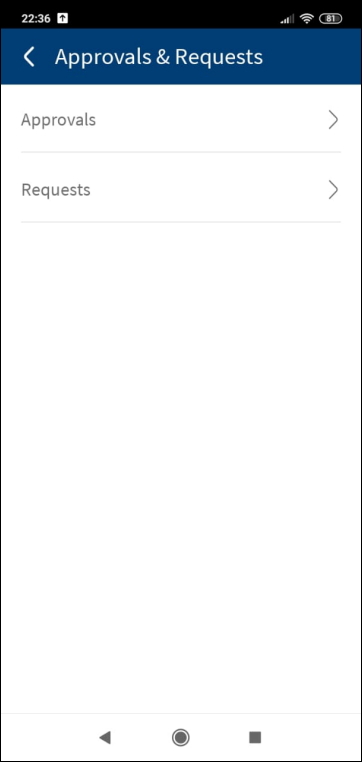
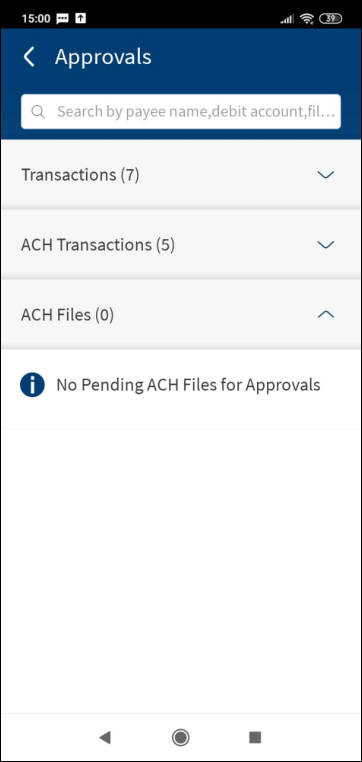
The approvals dashboard screen lists the transactions pending for approval of the signed in user on the following tabs:
- Transactions
- ACH Transactions
- ACH Files
Transactions - Approvals
View the list of transactions pending for approval or rejection. Transactions are displayed if the signed in user is set as an approver in the approval matrix for the account, feature, and transaction value. If there are no pending transactions that requires approval, then the application displays an appropriate message.
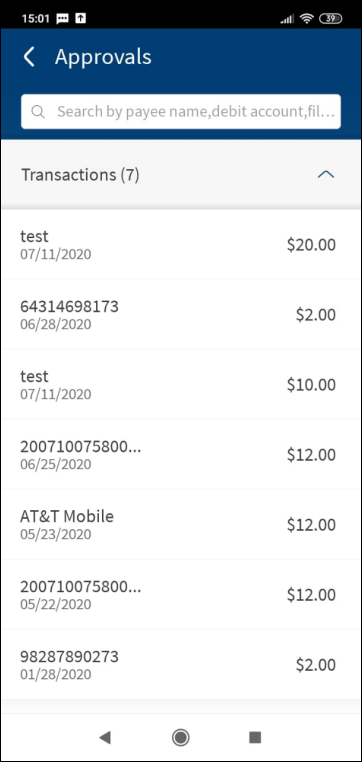
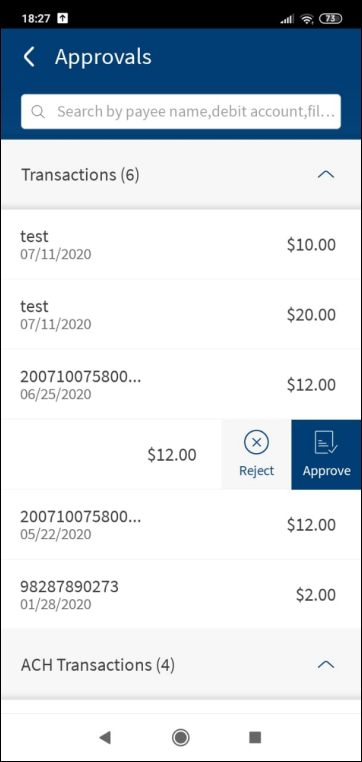
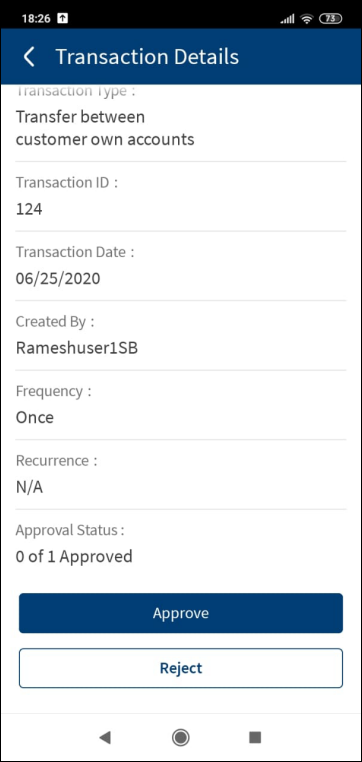
The application displays the list of transactions except ACH transactions on the Transactions tab with the number count.
You can do the following:
- Search for the required transaction. Use the search option to search for a transaction using the search criteria. Enter the search keyword in full or in part. Search by payee name, debit account name, or file name.
- View basic details of the transaction. The application displays the payee name, transaction date, and amount.
- View transaction details. Tap any row to view the transaction details, and approve or reject if required.
- Approve a transaction. Swipe from right to left to approve. Alternatively, tap the transaction row to view the details and then tap to approve the transaction.
- Reject a transaction. Swipe from right to left to approve. Alternatively, tap the transaction row to view the details and then tap to reject the transaction.
- On completion of the action (approve or reject), a confirmation message is displayed whether the transaction has been approved or rejected. The screen is refreshed, and the count is updated.
ACH Transactions - Approvals
View the list of ACH transactions (payment or collection) pending for approval or rejection. The application lists only those transactions that have been explicitly sent to the signed in user for approval.
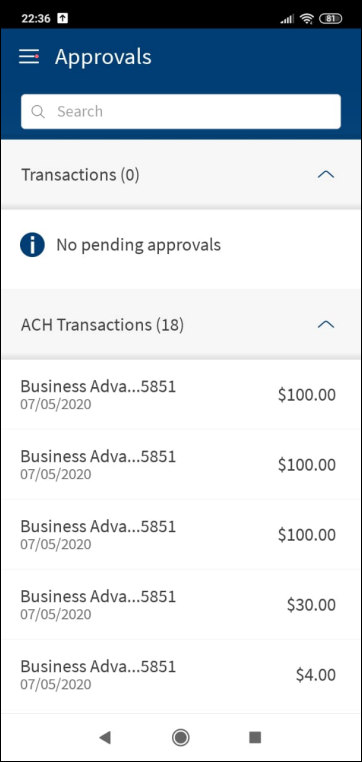
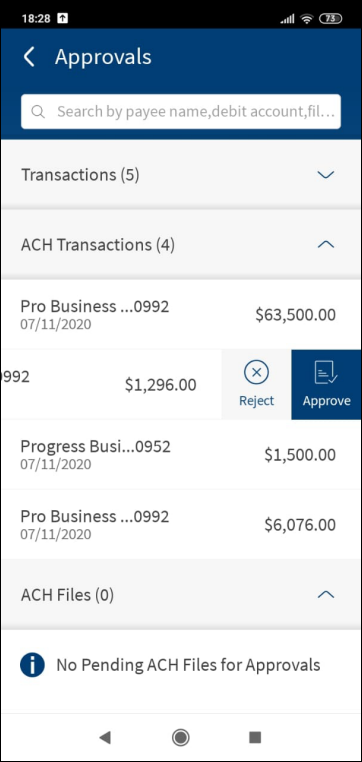
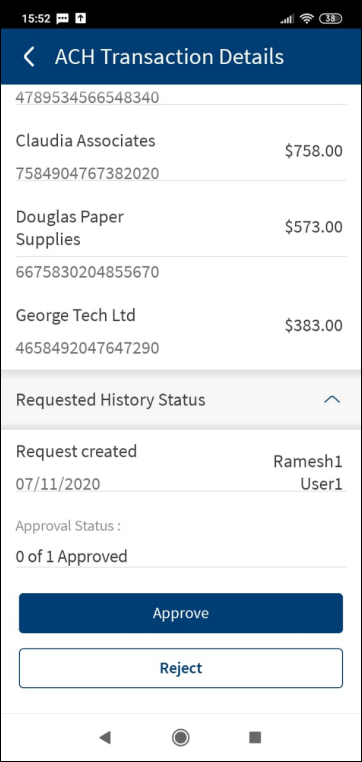
The application displays the list of ACH transactions on the ACH Transactions tab with the number count.
You can do the following:
- Search for the required transaction. Use the search option to search for a transaction using the search criteria. Enter the search keyword in full or in part. Search by payee name, debit account name, or file name.
- View basic details of the transaction. The application displays the debit/credit account, transaction date, and amount.
- View transaction details. Tap any row to view the transaction details, and approve or reject if required.
- Approve a transaction. Swipe from right to left to approve. Alternatively, tap the transaction row to view the details and then tap to approve the transaction.
- Reject a transaction. Swipe from right to left to approve. Alternatively, tap the transaction row to view the details and then tap to reject the transaction.
- On completion of the action (approve or reject), a confirmation message is displayed whether the transaction has been approved or rejected. The screen is refreshed, and the count is updated.
ACH Files - Approvals
View the list of ACH files pending for approval or rejection. The application lists only those files that have been explicitly sent to to the signed in user for approval.
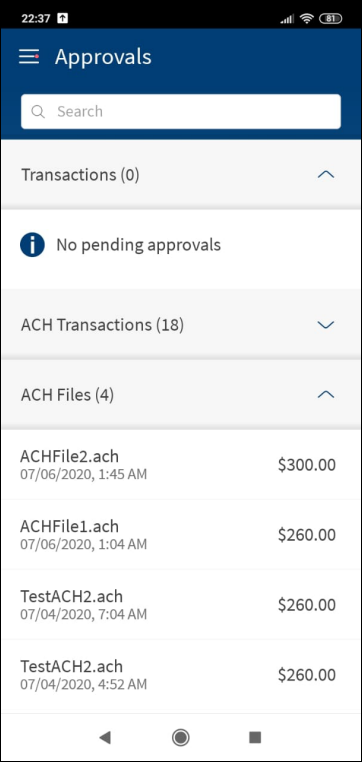
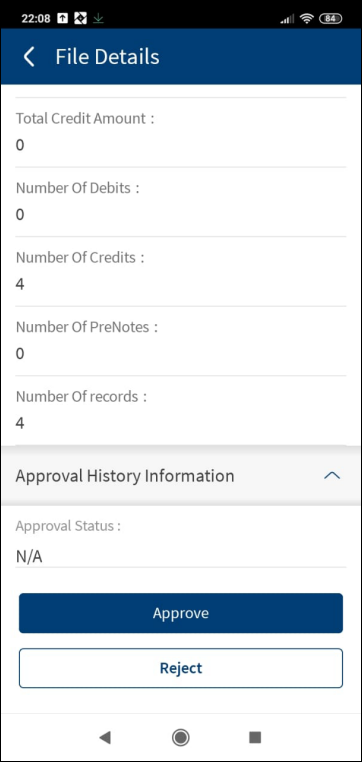
The application displays the list of ACH files on the ACH Files tab with the number count.
You can do the following:
- Search for the required file. Use the search option to search by file name. Enter the search keyword in full or in part.
- View basic details of the file. The application displays the debit/credit account, transaction date, and amount.
- View file details. Tap any row to view the file details, and approve or reject if required.
- Approve a file. Swipe from right to left to approve. Alternatively, tap the row to view the details and then tap to approve.
- Reject a file. Swipe from right to left to approve. Alternatively, tap the row to view the details and then tap to reject.
- On completion of the action (approve or reject), a confirmation message is displayed whether the transaction has been approved or rejected. The screen is refreshed, and the count is updated.
My Requests
Use the feature to view the transaction requests that were raised by you. Transactions are put into an approval queue due to the following:
- If the transaction exceeds the pre-approval limit of the user.
- The transaction does not meet the auto denial limit for the user.
- The approval matrix has approval rules specified.
In these cases, the transaction is sent for approval to the designated approvers.
NOTE: After a transaction is rejected, it will not be listed in the My Requests list.
Menu Path:
- Online Banking:
- Side menu > Approvals and Requests > My Requests
- Dashboard > My Requests widget > View All Requests.
- Mobile Banking:
- Dashboard > Requests widget
- Side Menu > Approvals & Requests > Requests tab
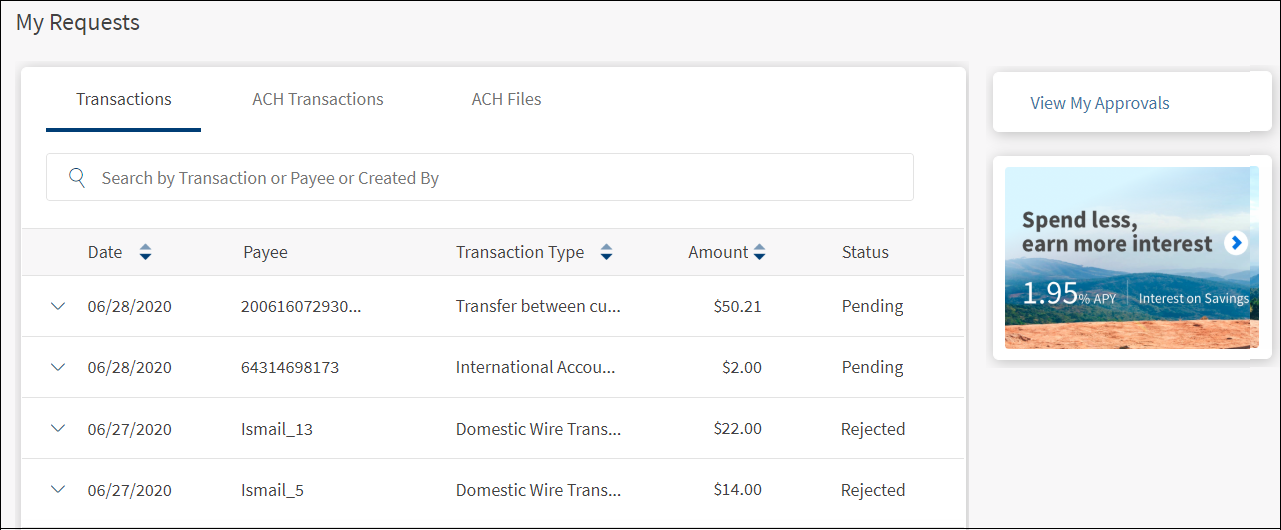
The Requests dashboard screen lists the requests on the following tabs:
The Transactions tab is selected by default.
Conditions seen in pending transactions when approver permissions are changed
A Financial Institution can revoke the approval permissions from a user role to use a certain feature. The application handles the requests seamlessly that are already approved or pending approval by such users. When approval permissions are revoked from the user role for a certain feature,
- By default, permissions on all the accounts that the user has access is affected
- Approval permission on all those accounts are revoked as well.
When the permission of a user who had been added as an approver for the company earlier is changed, the following conditions are met for pending transactions based on the approval rule.
Pending transactions if the Approval Rule is set to "Any One"
The following validation is performed if the user whose access has been revoked as X and Approval Rule = Any One.
- If there are one or more active approvers besides X
- Transaction is removed from the approval queue for X
- Count of required approver is equal to 1
- If X is the only active user
- The transaction is rejected
- Status is displayed as Rejected in the My Requests screen
- Transaction is removed from approver queue in the My Approvals screen
Pending transactions if the Approval Rule has set up to "Any Two"
The following validation is performed if the user whose access has been revoked as X and Approval Rule = Any Two.
- If there are two or more active approvers besides X
- Transaction is removed from the approval queue for X
- Count of required approver is equal to 2
- If there is only one other active approver besides X
- The transaction is rejected
- Status is displayed as Rejected in the My Requests screen
- Transaction is removed from approver queue in the My Approvals screen
Pending transactions if the Approval Rule has set up to "Any Three"
The following validation is performed if the user whose access has been revoked as X and Approval Rule = Any Three.
- If there are three or more active approvers besides X
- Transaction is removed from the approval queue for X
- Count of required approver is equal to 3
- If there are only two other active approvers besides X
- The transaction is rejected
- Status is displayed as Rejected in the My Requests screen
- Transaction is removed from approver queue in the My Approvals screen
Pending transactions if the Approval Rule has set up to "All"
The following validation is performed if the user whose access has been revoked as X and Approval Rule = All.
- If X is the only active user
- Transaction is removed from approver queue in the My Approvals screen
- The transaction is rejected
- Status is displayed as Rejected in the My Requests screen
- If there are other approvers besides X
- The transaction is rejected
- Status is displayed as Rejected in the My Requests screen
- Count of the approvers is changed based on the remaining approvers
NOTE:
Approval count is calculated based on the following formula:
- If sum of (required approvals for each rule) > Number of approvers, then
Required Approvals count = Number of approvers - If sum of (required approvals for each rule) <= Number of approvers, then
Required Approvals count = Sum of (required approvals for each rule)
Transactions
View the list of transaction requests raised by you and needs approval to complete the transaction. If there are no transactions requests raised by you that require approval, then the application displays an appropriate message. All transactions except the (automated clearing house) ACH transactions are shown here.
The application displays the following information:
- Date
- Payee Name
- Transaction Type
- Amount
- Status
The list is sorted by Date by default, but you can sort the list based on Transaction Type or Amount by using the sorticon (denotes sorted by that column).
View Transaction Details
View the details of the selected transaction. The application displays the following information:
- Debit account
- Frequency
- Created by
- Recurrence count
- Approvals required count
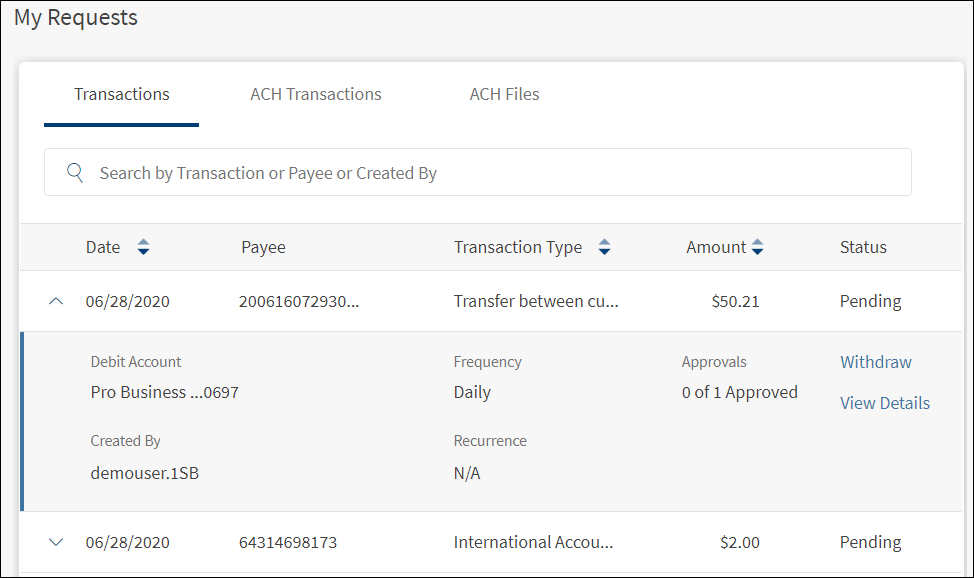
You can do the following:
- Click the arrow displayed beside each transaction to view the details.
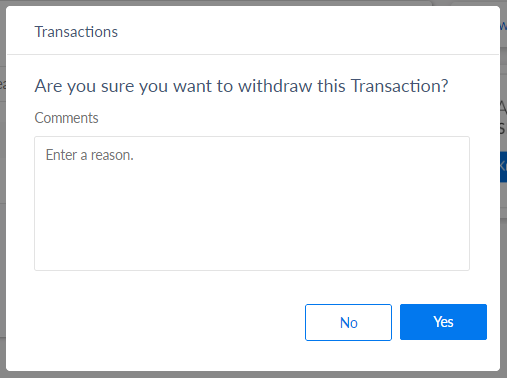
- Withdraw the selected transaction. Click Withdraw and enter the reason to withdraw the transaction. Click Yes. The transaction request is withdrawn. The transaction is removed from the approval queues for all approvers. Even if a few approvals are received, a transaction request can be withdrawn while it has still not been executed.

- Click View Details to view the transaction details. Withdraw the transaction or go back to the request list.
- Search for a transaction by providing the search criteria - transaction, payee name, or the person who created the transaction.
ACH Transactions
View the list of ACH transaction requests raised by you and needs approval to complete the transaction. If there are no ACH transactions requests raised by you that require approval, then the application displays an appropriate message.
The application displays the following information:
- View (Payments or Collections)
- Date
- Debit/Credit Account
- Request Type
- Amount
- Status
You can filter the list based on the type of transactions you want to view. Select the required transaction type from the View list. The available types are as follows:
- Payments: Select Payments from the list, if you want to view only payment requests.
- Collections: Select Collects from the list if you want to view only collection requests.
- All: Select All from the list, if you want to view both payment and collection requests. All is selected, by default.
The list is sorted by Date by default, but you can sort the list based on Request Type or Amount using the sorticon (denotes sorted by that column).
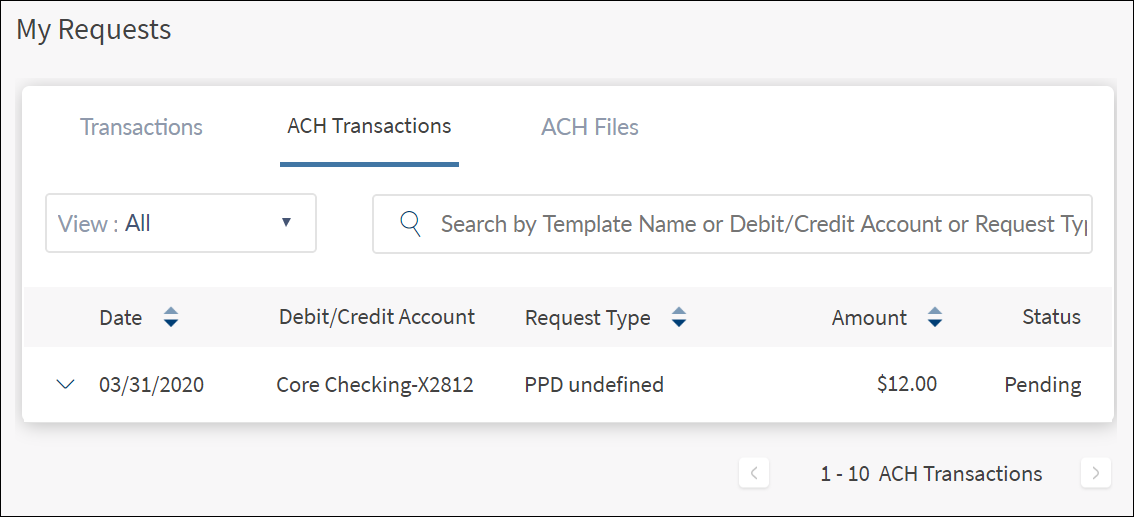
View ACH Transaction Details
View the details of the selected transaction. The application displays the following information:
- Created on - Displays the date when the transaction was initiated.
- Template name
- Created by
- Approvals required count
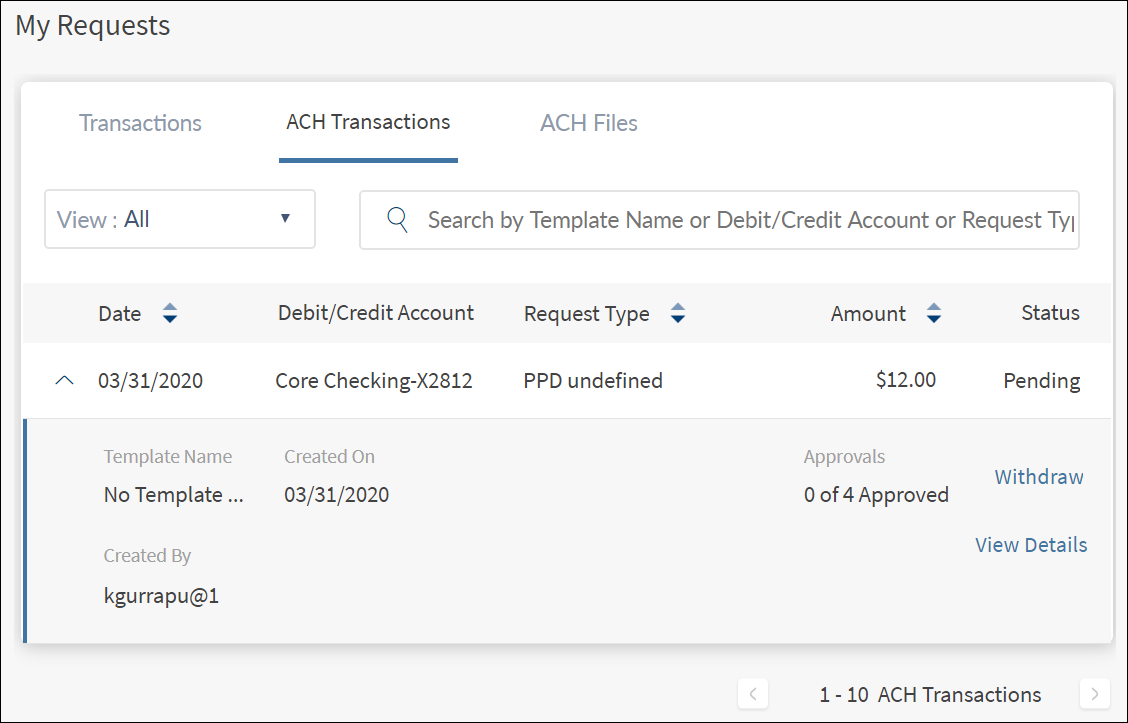
You can do the following:
- Click the arrow displayed beside each transaction to view the details.
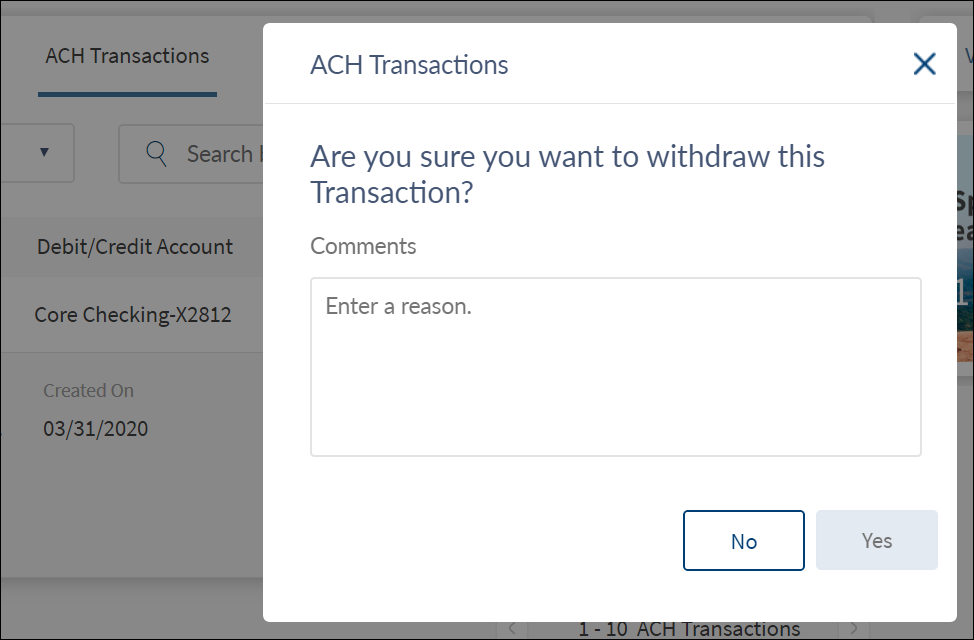
- Withdraw the selected transaction. Click Withdraw and enter the reason to withdraw the transaction. Click Yes. The transaction request is withdrawn.

- Click View Details to view the transaction details. Withdraw the transaction or go back to the request list.
- Search for a transaction by providing the search criteria - template name, debit/credit account number or request type.
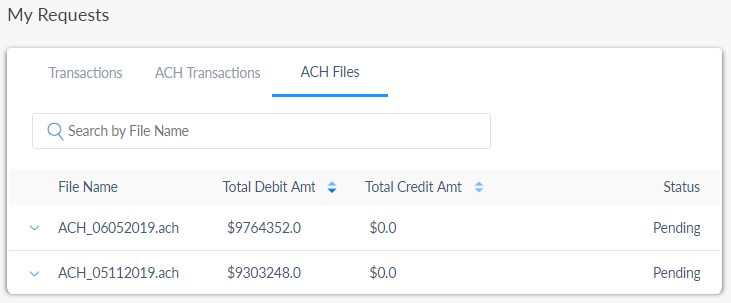
ACH Files
View the list of ACH files uploaded by you and needs approval to complete the process. If there are no pending ACH files that require approval, then the application displays an appropriate message.
The application displays the following information:
- File Name
- Total Debit Amount
- Total Credit Amount
- Status
The list is sorted by the Total Debit Amount by default. You can also sort the list by Total Credit Amount using the sorticon (denotes sorted by that column).
View ACH File Details
View the details of the selected file. The application displays the following information about the selected file:
- Uploaded date and time
- Uploaded by
- Number of debits
- Number of credits
- Request type (for example, Web)
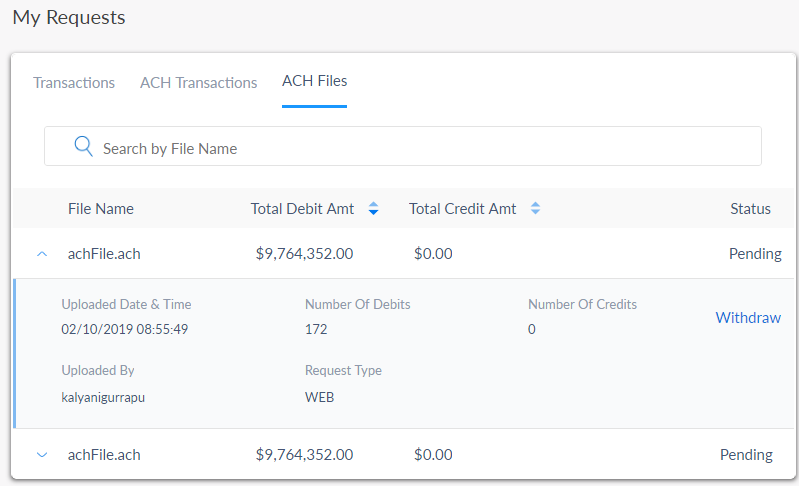
You can do the following:
- Click the arrow displayed beside each file to view the details.
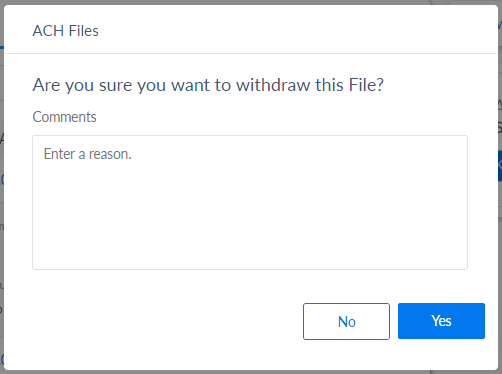
- Withdraw the selected transaction. Click Withdraw and enter the reason to withdraw the file upload request. Click Yes. The upload request is withdrawn.
The transaction is removed from the approval queues for all approvers. Even if a few approvals are received, a transaction request can be withdrawn while it has still not been executed.

- Click View Details to view the details. Withdraw the request or go back to the request list.
- Search for a file by providing the search criteria - file name.
Requests - Mobile Banking
Use the feature to view the transaction requests that were raised by you. Transactions are put into an approval queue due to the following:
- If the transaction exceeds the pre-approval limit of the user.
- The transaction does not meet the auto denial limit for the user.
- The approval matrix has approval rules specified.
In these cases, the transaction is sent for approval to the designated approvers. The withdrawn transactions are not listed in the Requests list.
Menu Path:
- Dashboard > Requests widget
- Side Menu > Approvals & Requests
On the application dashboard, the application displays the Requests section on top section of the screen. If the user has raised few requests, then this section is displayed with the count in parenthesis. The count is updated for three sections - Pending, Approved, and Rejected. On tapping Requests, the application displays the page with details of the requests. The individual line items cannot be clicked and are for visual representation only. If the count is zero, still the Requests section is displayed with count as zero. If the user does not have access to raise requests, then the section is not displayed.
The application displays the Approvals and Requests dashboard with the following information:
- Approvals. Tap to view the list of transactions and ACH Files and approve or reject as required.
- Requests. Tap to view the list of transactions and ACH Files and withdraw transactions if required.
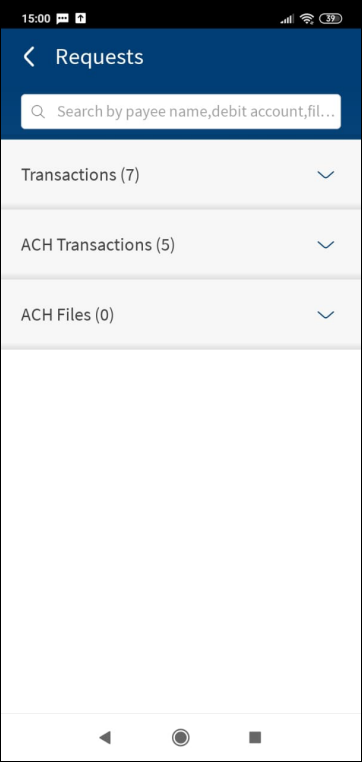
The Requests dashboard screen lists the requests on the following tabs:
- Transactions
- ACH Transactions
- ACH Files
Transactions - Requests
View the list of transaction requests raised by the signed in user and needs approval to complete the transaction. If there are no transactions requests raised that require approval, then the application displays an appropriate message. All transactions except the (automated clearing house) ACH transactions are shown here.
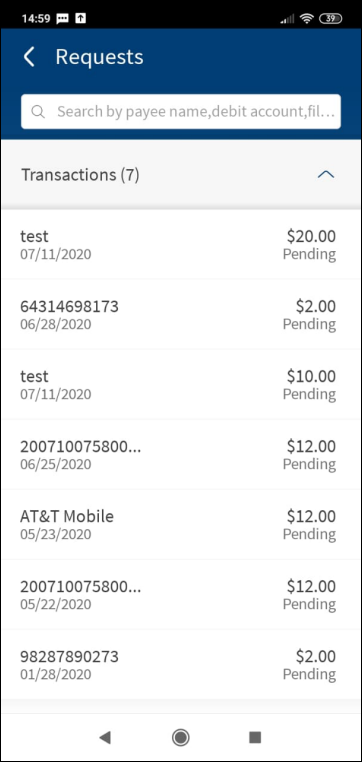
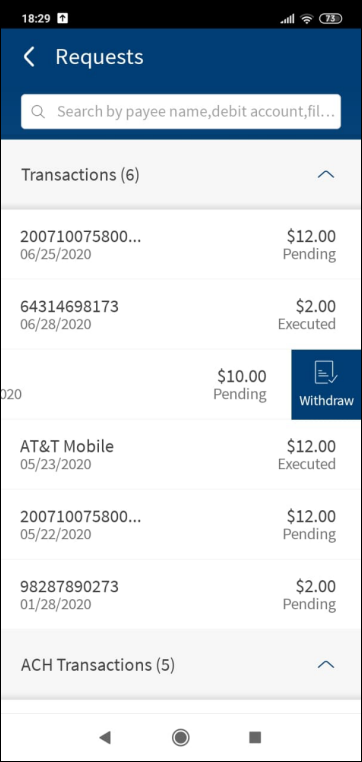
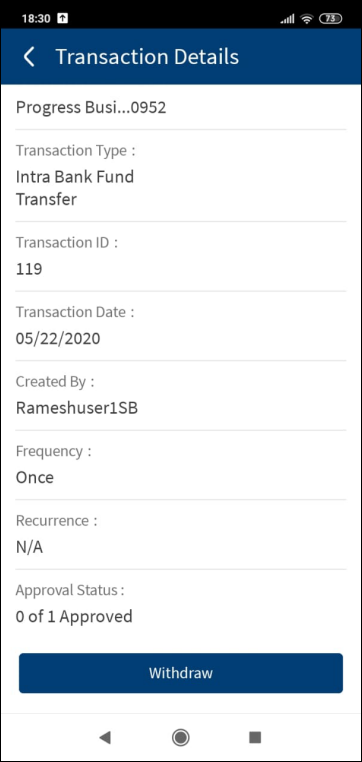
The application displays the list of transactions except ACH transactions on the Transactions tab with the number count.
You can do the following:
- Search for the required transaction. Use the search option to search for a transaction using the search criteria. Enter the search keyword in full or in part. Search by payee name, debit account name, or file name.
- View basic details of the transaction. The application displays the payee name, transaction date, status, and amount.
- View transaction details. Tap any row to view the transaction details, and if required, withdraw the transaction before it is approved or rejected.
- Withdraw a transaction. Swipe from right to left to withdraw. Alternatively, tap the transaction row to view the details and then tap to withdraw the transaction before it is approved or rejected.
- On completion of the action (withdraw), a confirmation message is displayed. The screen is refreshed, and the count is updated.
ACH Transactions - Requests
View the list of ACH transaction requests raised by the signed in user and needs approval to complete the transaction. If there are no ACH transactions requests raised that require approval, then the application displays an appropriate message
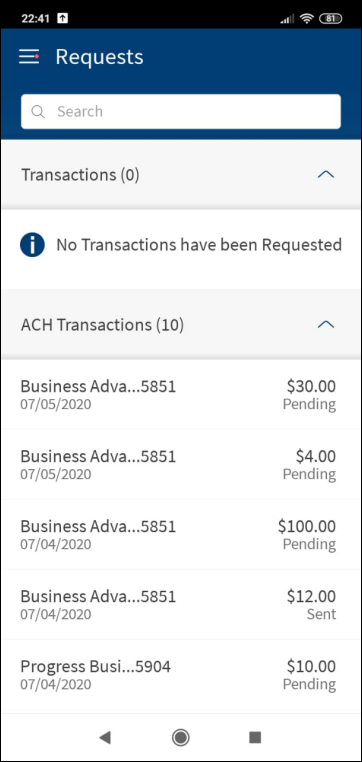
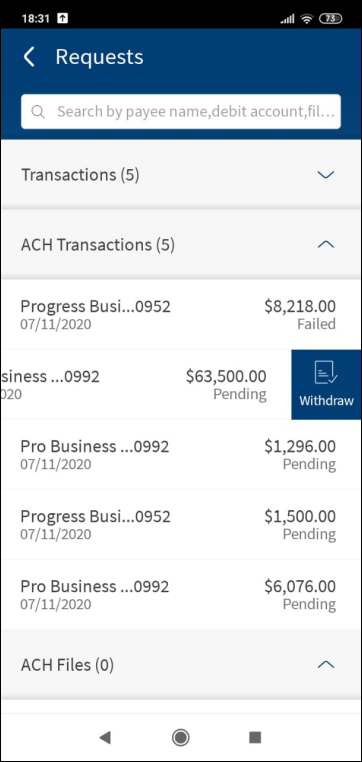
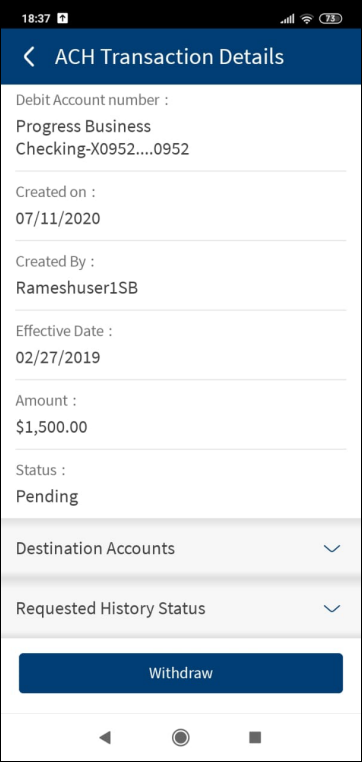
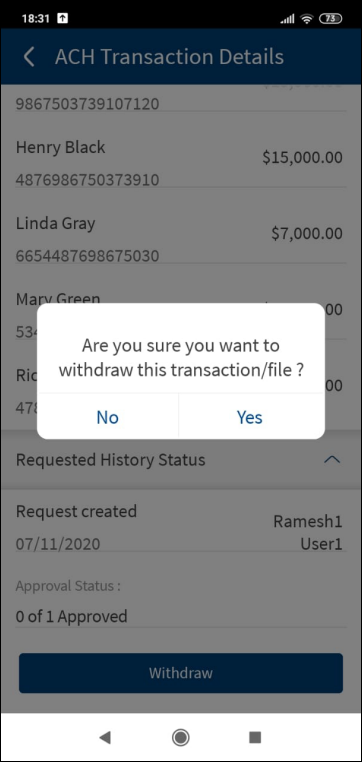
The application displays the list of ACH transactions on the ACH Transactions tab with the number count.
You can do the following:
- Search for the required transaction. Use the search option to search for a transaction using the search criteria. Enter the search keyword in full or in part. Search by payee name, debit account name, or file name.
- View basic details of the transaction. The application displays the payee name, transaction date, status, and amount.
- View transaction details. Tap any row to view the transaction details, and if required, withdraw the transaction before it is approved or rejected.
- Withdraw a transaction. Swipe from right to left to withdraw. Alternatively, tap the transaction row to view the details, and then tap to withdraw the transaction before it is approved or rejected.
- On completion of the action (withdraw), a confirmation message is displayed. The screen is refreshed, and the count is updated.
ACH Files - Requests
View the list of ACH files uploaded by the signed in user and needs approval to complete the process. If there are no pending ACH files that require approval, then the application displays an appropriate message.
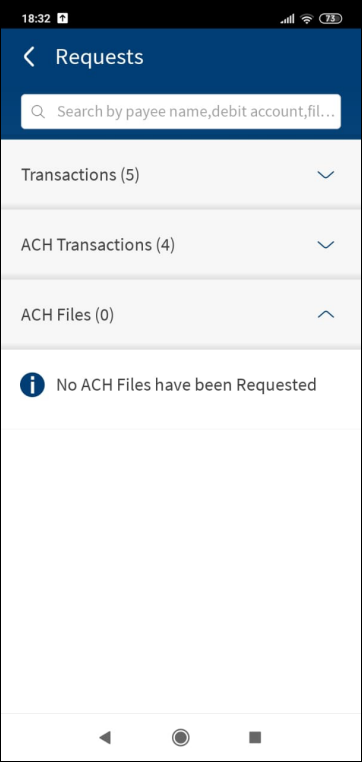
The application displays the list of ACH files with the number count.
You can do the following:
- Search for the required file. Use the search option to search by file name. Enter the search keyword in full or in part.
- View basic details of the file. The application displays the file name, total debit amount, total credit amount, and status.
- View file details. Tap any row to view the file details, and if required, withdraw the file upload request before it is approved or rejected.
- Withdraw a file upload request. Swipe from right to left to withdraw. Alternatively, tap the file row to view the details, and then tap to withdraw the file before it is approved or rejected.
- On completion of the action (withdraw), a confirmation message is displayed. The transaction is removed from the approval queues for all approvers. Even if a few approvals are received, a transaction request can be withdrawn while it is not executed yet. The screen is refreshed, and the count is updated.
Configuration
- The visibility of each feature is controlled through the permissions defined for the user. See permissions for more information. The permissions at user levels are defined during user creation and while editing the user details after the user is created.
- In case the user does not have access to any of the features, that option will not be visible on the form and on the menus.
- The permissions at the company level and role level are defined in the Spotlight application.
APIs
The following APIs are shipped as part of this feature:
| API | Description |
|---|---|
| getCampaignSpecifications | Fetches a list of campaigns and their specifications (image URLs, destination URLs) for a bank customer. This is an authenticated service and invoked in post-login scenarios. |
| getGeneralTransactions | Fetches all the transactions from billpaytransfers, p2ptransfers, wiretransfers, internaltransfers, and externaltransfers tables that are pending for approval and the logged user is in the approver list. |
| getGeneralTransactionsRequestedByMe | Fetches all the transactions from billpaytransfers, p2ptransfers, wiretransfers, internaltransfers, and externaltransfers tables that are pending for approval and created by the logged in user. |
Add Bookmark
save your best linksView Bookmarks
Visit your best links BACK
BACK


Are you sure you want to log-off?