
| Bookmark Name | Actions |
|---|
Designing Rules
This section explains about rule context, system variables, rule variables and rule functions and how they play an important role in Rules Designer.
Adding Rule Context
You can add rule context using the Temenos Transact toolbox.
Procedure
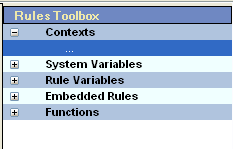
- Open Temenos Transact Rules Designer and go to variables pane.
- Expand the Contexts list from the variables pane.
- Double click on the … element.

The Add Context screen opens.

- Choose the required context for the business rule and click OK. When a context is added to a rule, all fields available in Temenos Transact application context are displayed under the context screen.NOTE: You can add or remove the required context based on the business rule’s requirement.
System Variables
The system variables represents the system state during the rule evaluation and are used when defining a business rule. However, when defining a business rule, you can use only the special system variables. For example, RULE.SCORE.
All other system variables can be used as a reference. For example, a business rule cannot assign a value to the system variable TODAY (that is, TODAY = 20090101 is not valid).
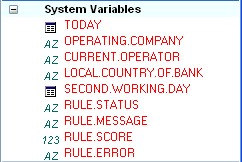
The table below describes the system variables in Rules Designer.
|
Variable name |
Description |
|---|---|
|
TODAY |
Indicates today's date |
|
OPERATING.COMPANY |
Indicates the current company where the user has logged in. |
|
CURRENT.OPERATOR |
Indicates the current logged user. |
|
LOCAL.COUNTRY.OF.BANK |
Indicates the bank’s local country. |
|
SECOND.WORKING.DAY |
Indicates the date of the next working day. |
|
RULE.STATUS |
Indicates to the calling process if the test passed or failed. It is used within the rule. |
|
RULE.MESSAGE |
Indicates to the calling process why the rule failed. It is used within the rule to return a narrative. |
|
RULE.SCORE |
Returns a score to the calling process when the rule is calculating a score. It is used within the rule. |
|
RULE.ERROR |
Returns a string ID for lookup in the EB.ERROR table. It is used within the rule and for internationalisation of messages |
Rule Variables
Rule variables are virtual fields used only for a specific rule. The example below uses the TOTAL.BALANCE rule variable, which at run time holds the total account balance.

Embedded Rule
It is possible to nest (embed) an existing rule with a new rule. However, the rule context should remain the same.

In the above example, both the rules (Sector and Industry) uses the same context CUSTOMER. These rules can be embedded when defining a new rule as below.

In the above embedded rule example, CustomerCheckIndustry and CustomerCheckSector are embedded and their score as well as status are accessed.
Rule Syntax and Functions
You can use the following functions to define a business rule. You can also select functions from the variables pane and such a selection auto scripts the selected function in scripting pane.

The following operators are supported. They are listed in precedence order with the most closely binding operators listed first.
| Description | Operator | Example |
|---|---|---|
|
Logical negation |
not |
not(i eq 10 or i lt 7) |
|
Unary sign operator |
- |
RULE.SCORE = -10 |
|
Multiplying operators |
* / |
RULE.SCORE = i * j / k |
|
Binary adding operators |
+ - |
RULE.SCORE = I + j – k |
|
Comparison operators Equals Not equals Less than (numbers only) Less than or equals (numbers only) Greater than (numbers only) Greater than or equals (numbers only) In range (numbers only) Not in range (numbers only) Like (strings only) Unlike (strings only) |
eq ne lt le gt ge rg nr lk ul |
s eq "fred" or i eq 10 s ne "fred" and i ne 10 i lt 10 i le 10 i gt 10 i ge 10 i rg 10 20 i nr 10 20 S lk "...A..." S nl "...A..." |
|
Boolean and |
and |
i lt 10 and j rg 10 20 |
|
Boolean or |
or |
i lt 10 or j nr 10 20 |
Rule Structure
It is possible to define simple and complex rules. The following screen capture shows the typical structure of a business rule.

Add Bookmark
save your best linksView Bookmarks
Visit your best links BACK
BACK


Are you sure you want to log-off?