| Bookmark Name | Actions |
|---|
Defining an L3 API
You can create an L3 API definition for any exit point except for Delivery Message and Banking Framework.
This additional feature allows you to call an L3 API by associating its parameters with the fields of the Flow Enrichments tab and add the response to the Integration Framework event.
Procedure
- Create an exit point and its associated flow of any type other than Banking Framework Event or Delivery Message. For more information, see Defining the flow.
- Click the API Definition tab that is at the bottom of the Flow editor page.
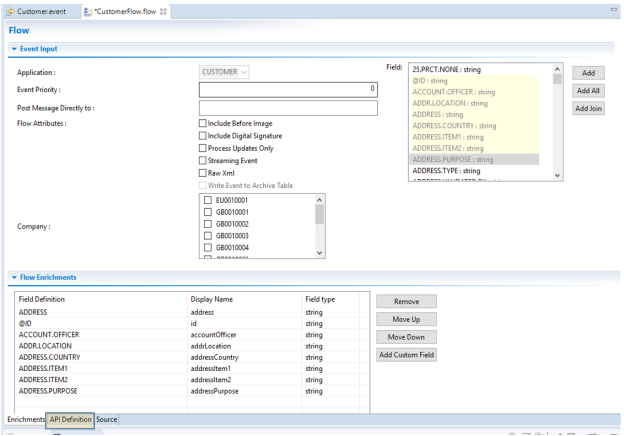
- Expand the API Component Input section and API Component Enrichments.
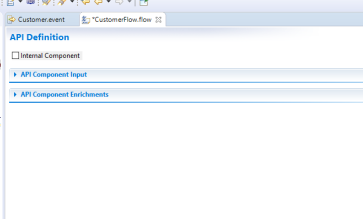
- Decide whether you wish to call and external or internal API.
- To call an internal API:
- Select the Internal Component check box when an internal API is required to be called from the Event Designer project.
The Service Name drop-down list is disabled and the Operation Name drop-down list is enabled. The Operation Name drop-down list is populated with the API names added to the IF.FLOW.API table.
NOTE:To add an API and use this Transact table you must have the appropriate PGM.FILE, SS, and FILE.CONTROL entries.
- Select an entry from the Operation Name drop-down list.
- Select the Internal Component check box when an internal API is required to be called from the Event Designer project.
- To call an external API:
- Leave the Internal Component check box cleared.
The Service Name drop-down list is enabled with the available service names populated in it.
- Select a service name.
The corresponding operation names are populated in the Operation Name drop-down list.
- Select the expected operation name.
The Component Parameters box is populated with the parameters of the chosen API along with their directions listed as IN or OUT.
The Add to Input and Add to Output buttons are disabled initially. These buttons are enabled when you select a parameter based on its specified direction (IN or OUT).
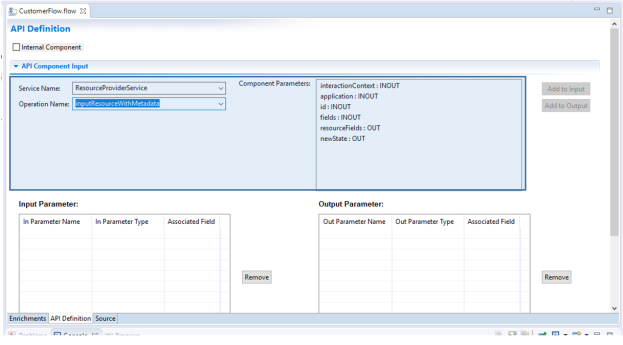 NOTE:
NOTE:Do not select all the parameter and click Add to Input or Add to Output as this would lead to inconsistent flow definition and eventually the event XML.
- Leave the Internal Component check box cleared.
- To call an internal API:
- Select a parameter from the Component Parameters list box.
The two tables below get populated with the actual parameter name and type. Each table has three columns.
The second column Parameter Type has a drop-down list that is populated with the complex type.variable format for complex data types and just with the data type for simple data types.
The third column of each table also has a drop-down list that is populated with the fields to be associated in the Flow Enrichments tab.
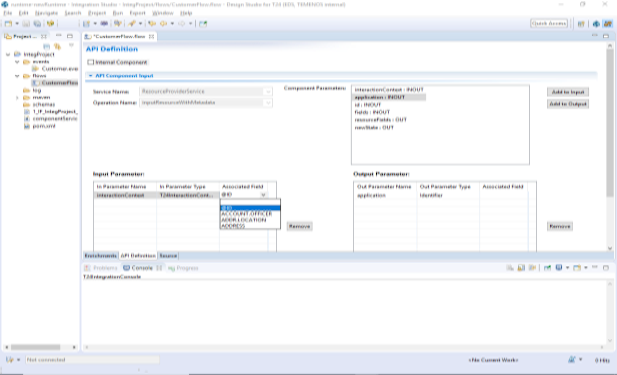
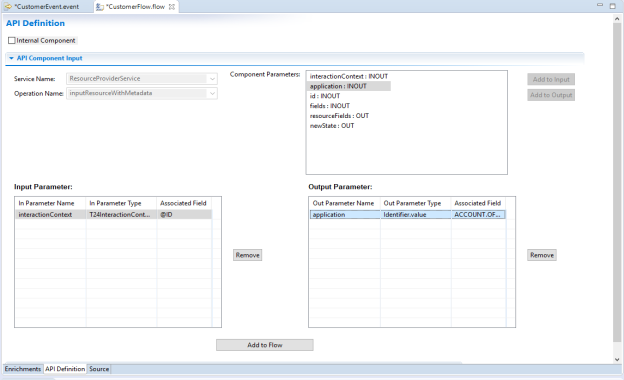
- After you have added all the parameters and you have associated the corresponding fields, click Add to Flow to add the requested API parameters to the API enrichments section.
- Expand the API Component Enrichments section.
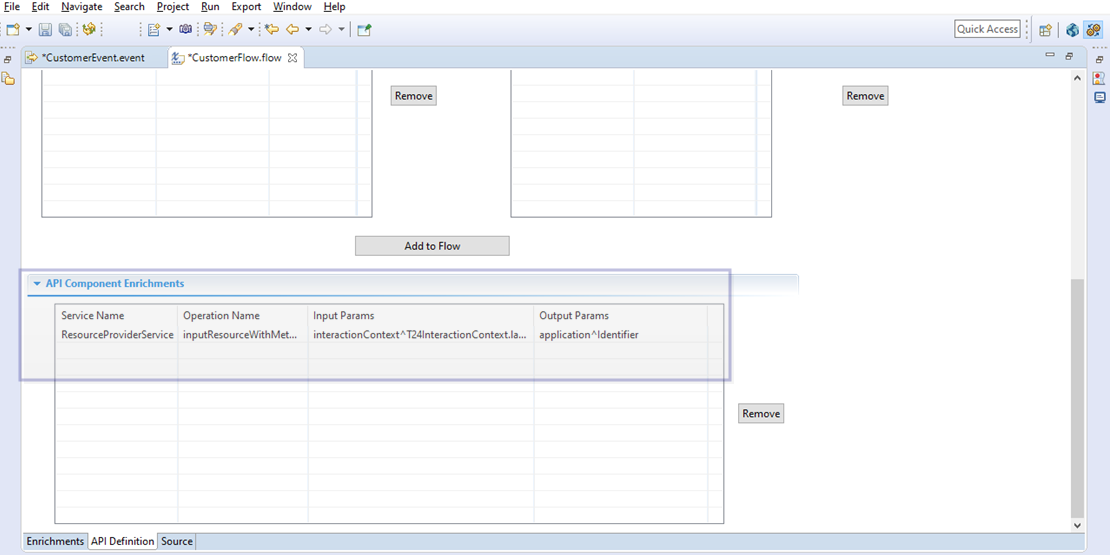
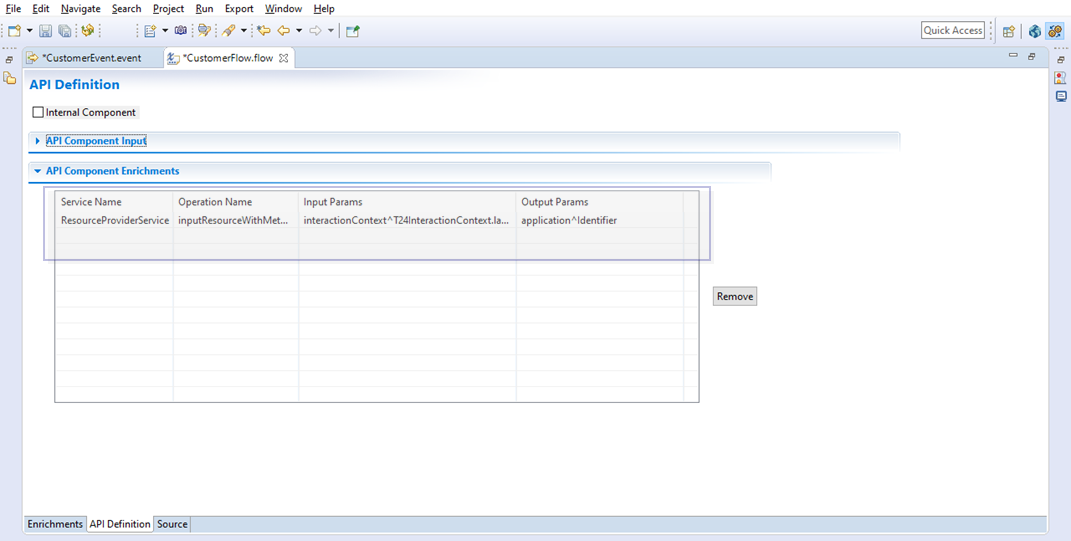
This section has a table with four columns: Service Name, Operation Name, Input Params and Output Params. These columns gets populated with the values chosen from the API Component Input section.
TIP:Click Remove to remove the selected rows from the table. When you click the Remove button after selecting a row, the associated fields present in that row are simultaneously removed from the Flow Enrichments tab.
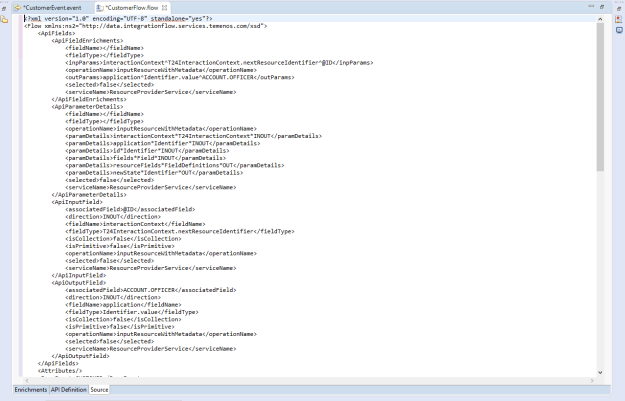
The flow is updated with the ApiFields attribute.
TIP:To view the values, click the Source tab.
- Save the event and flow.
- Publish the event to Transact.
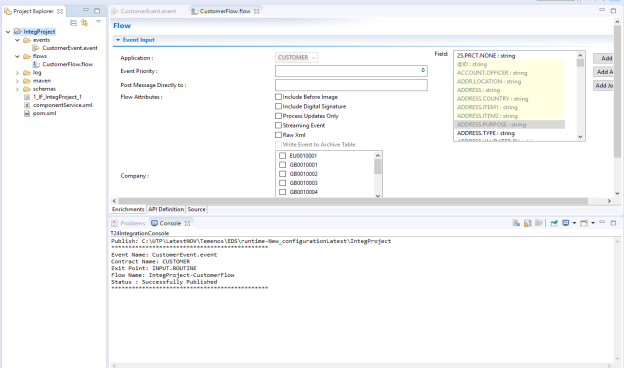
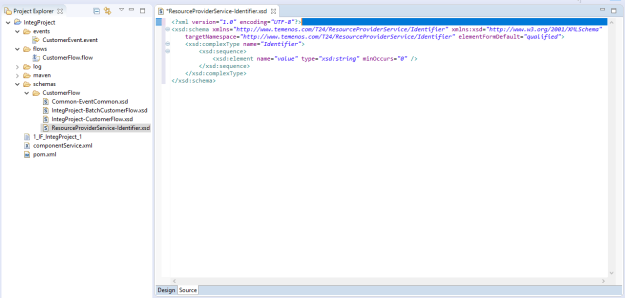
If any API with the output parameter of complex data type is added to the flow, a new schema is added to the schemas folder in the Integration project.
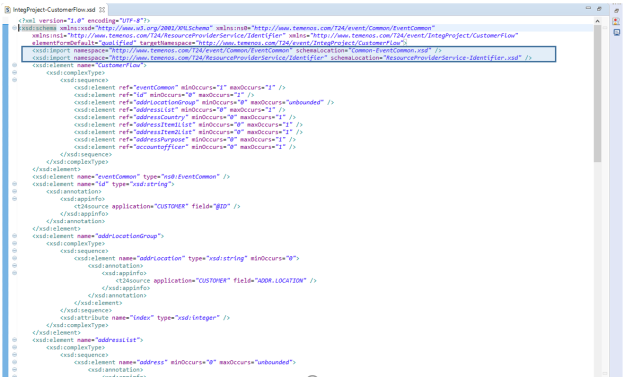
The same complex data type of the API output parameter is added among the namespaces of the master schema as well.
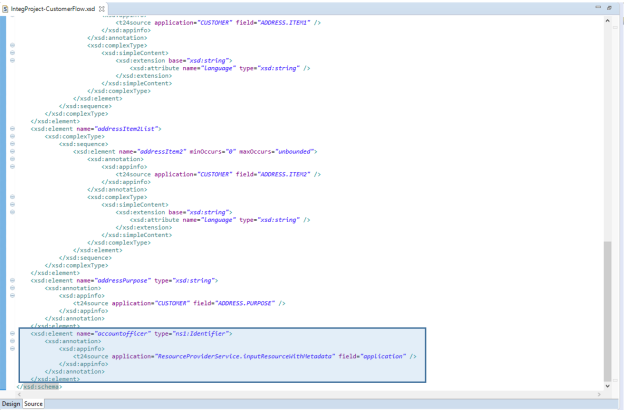
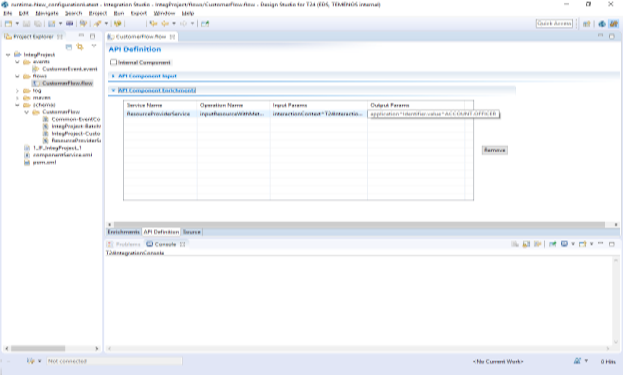
The schema for the field associated with any of the API output parameters has the application tag value replaced with the API name and the output parameter name replaced in the field tag.
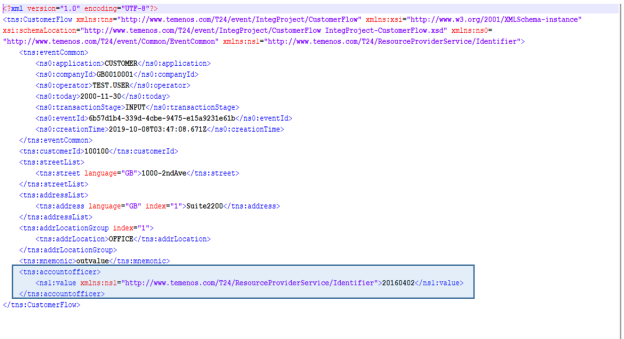
The structure of the polled XML file obtained by adding the API definition has the namespace added in the appropriate field tags.
Internal Component supports only one input and output parameter. The input parameter can be mapped to one single flow field. Value markers separate the output parameter values. The input parameter is optional.
Sample API
SUBROUTINE Test(inValue, outValue)


    $INSERT I_COMMON

    $INSERT I_EQUATE

    BEGIN CASE

        CASE inValue EQ 1

            outValue = "First Value"


        CASE inValue EQ 2

            outValue = "First Value" : @VM : "Second Value"

        CASE 1

            outValue = "First Value" : @VM : "Second Value" : @VM : "Third Value"

    END CASE


RETURN

END
Add Bookmark
save your best linksView Bookmarks
Visit your best links BACK
BACK


Are you sure you want to log-off?