| Bookmark Name | Actions |
|---|
Defining an event for an Activity or Activity Class
Activity or Activity Class exit point type allows you to define an exit point for AA Activity or Activity Class.
Procedure
- Select Activity / Activity Class on the Exit Point designer page.
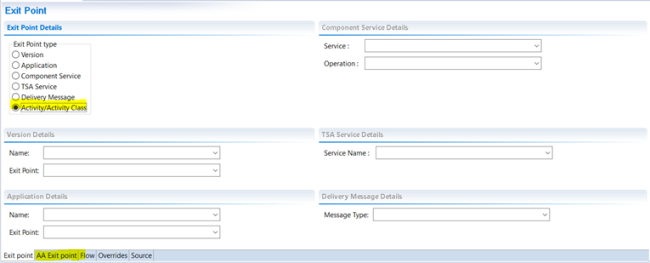
- Click the AA Exit point tab. On the new page, select when the event needs to be triggered. The following options are supported:
- Triggering an event at the AA Activity level during input, modification or authorization.
- Triggering an event at the AA Activity class level during input, modification or authorization.

- Once the option is selected the Product Line drop down box is enabled with the list of Product Lines available in Transact.

- Select the Product Group that is fetched from Transact.
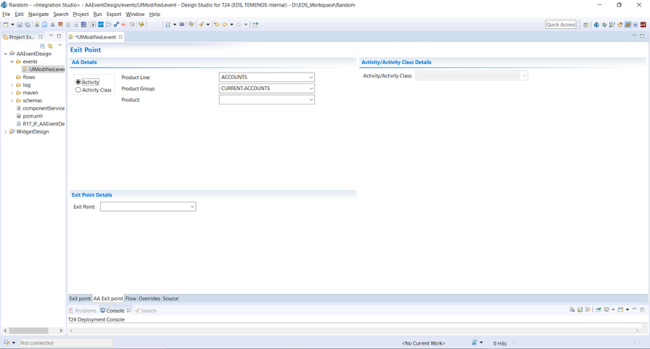
The selection of the product group fetches the list of products from Transact and populates the product drop-down box.

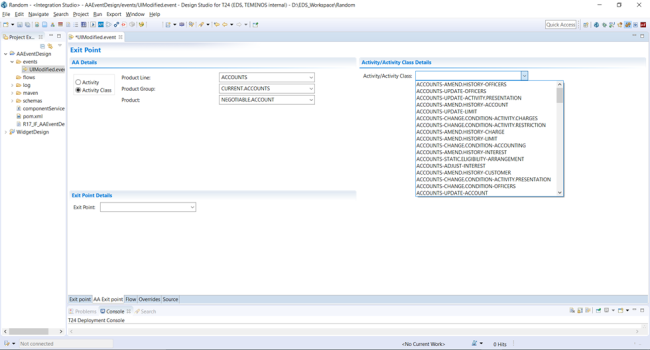
Once the product is selected, all the supported activities or activity classes will be populated based on the selected exit type (Activity or Activity Class).
The drop down boxes for Product Line, product Group and the Product are provided to make it simple to select the exit point and to provide a similar interface of AA menu.
- Select the Activity or Activity class from the drop down.
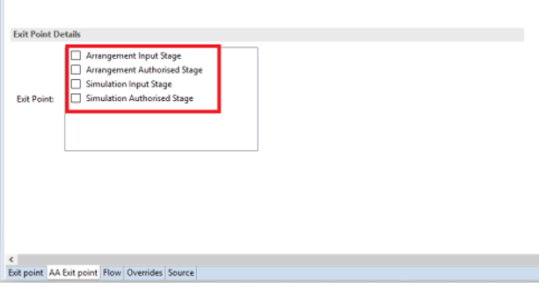
- Select an appropriate exit point from the Exit Point list.
 NOTE:
NOTE:You can select multiple exit points. For more information, see Selecting multiple end points for an AA-exit point type event.
This step marks the completion of defining the exit point.
- Navigate to the flow tab to define the flow.
- Specify the name of the flow and click edit. You are taken to the flow designer page.NOTE:
Flows can be defined and then attached to the exit point. For AA Activity or AA Activity Class exit point, the only way is to define the exit point and then only the flow can be defined.

- Click the AAFlow tab to design the flow.

This tab holds the Product Line, Product Group, Product and the selected Activity or Activity Class selected in the exit point designer. These values cannot be edited.
An Activity / Activity Class is composed of a collection of AA Applications or AA properties. This list is populated in the Property / Application drop down and is based on the selected Activity or Activity Class.
- Select a property or an application to get the fields list added to the flow.
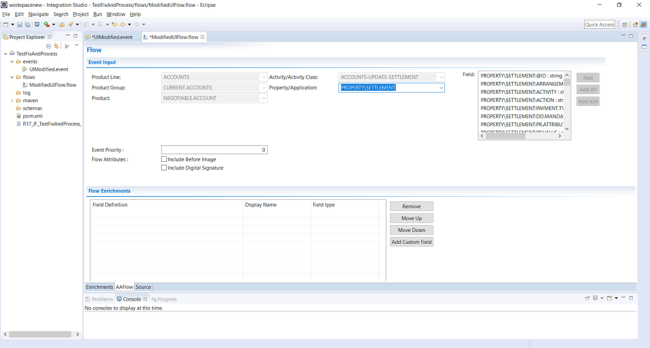
- Select a property or an application to get the fields list added to the flow.
- Add the required fields from a different application and property.
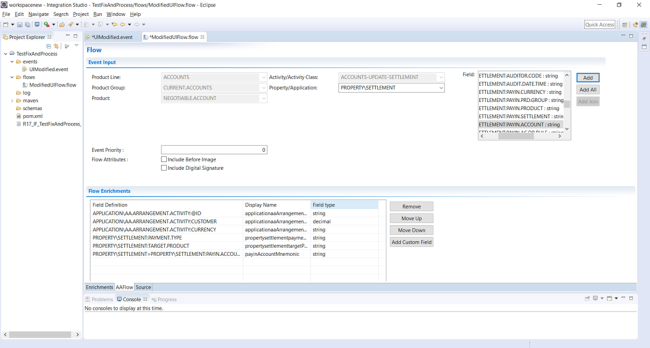
- Save and publish the event to Transact.
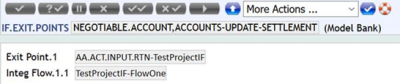
The following are the Transact records.

Add Bookmark
save your best linksView Bookmarks
Visit your best links BACK
BACK


Are you sure you want to log-off?