| Bookmark Name | Actions |
|---|
Alerts
Alerts is a notification service that detects the modifications and sends alerts to the customers when an activity is performed. This application provides the capability to define alert groups under a selected category and add corresponding alerts for the associated alert group, activate or deactivate alerts categories or corresponding alert groups, and select the channels to deliver the alerts to the customers.
There are different types of alerts that you can configure in this module:
- Account Alerts - If you have multiple accounts, you can configure alerts to any specific account.
- Global Alerts - These are mandatory alerts which apply to all the users. Users cannot deactivate these alerts.
- User Alerts - These are the alert types which the users can choose to opt in or opt out depending on their need.
Menu path: Alerts
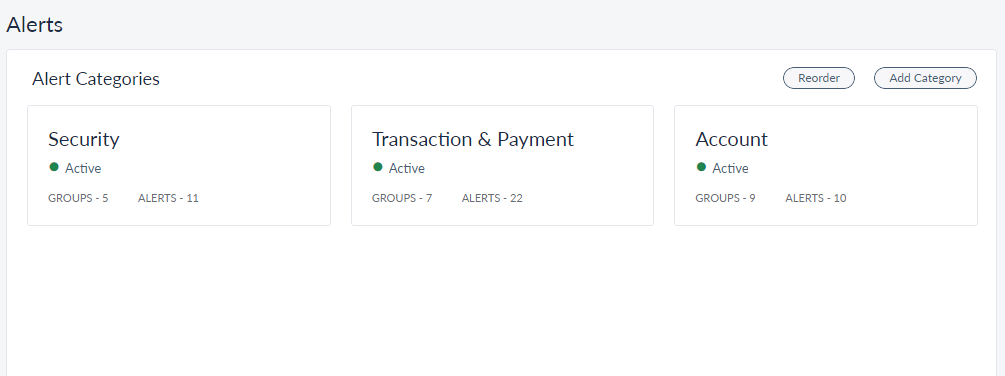
By default, three categories of alerts are available out of the box, which are as follows:
- Security Alerts: These alerts are sent when there is a change in Profile Status and Credentials.
- Accounts: These alerts are specific to each account of the customers.
- Transaction and Payment alerts: These alerts are sent when an activity is performed such as Bill Payments, adding or updating a Bill Payee, and payment related alerts.
You can do the following from this page:
- Add Alert Category
- Reorder Alert Categories
- Click on any Alert Category to view or edit the related details.
Add Alert Category
The bank staff with enough permissions can use this feature to add more categories and configure appropriate alert groups and alerts in them. This new alert category will be added to the list of alert categories that appear in online banking application.
From the Alerts section, click Add Category.

Provide the following details to add a new alert category:
- Category Name: Provide a name for the new category.
- Account Level Alert: Select Yes or No.
- If Yes, the Alert groups and the alerts created in this category become account specific. You must select an account to which the new alert category belongs.
- If No, the Alert groups and the alerts created in this category are not account specific.
- Default Frequency: Select a default frequency from the Frequency list.
- Default Channels: Select the channel(s) applicable for the category. The channels you select here are default channels and the same would be visible to the bank application user in RB application.
- Supported Languages: You can add the languages that the alerts in this category support.
- Active: You can enable or disable the category from here. If disabled, all the alerts and alert groups in the category are disabled irrespective of their individual status.
- Click Add Category, a confirmation message is displayed. Click Add Category and the new Category is added to the Alerts module.
View Alert Category
Use the feature to view the alert category parameters and the list of associated alert groups with their status.
Click on the required alert category to view the category parameters and the list of associated alert groups along with their status.
Menu path: Alerts > Alert Category tab
You can do the following from alert category details page:
- View the alert category parameters and the list of alert groups along with their status
- Click the Context
 menu to do the following
- Edit the alert category parameters
- Deactivate the alert category. If you deactivate the alert category, all groups and alerts in the category are deactivated and none of the alerts will be triggered in deactivated category.
- Add a new alert group
- Click the Context menu beside each alert group record to do the following:
- Edit the alert group
- Deactivate the alert group
- Reassign the alert group to a different alert category.
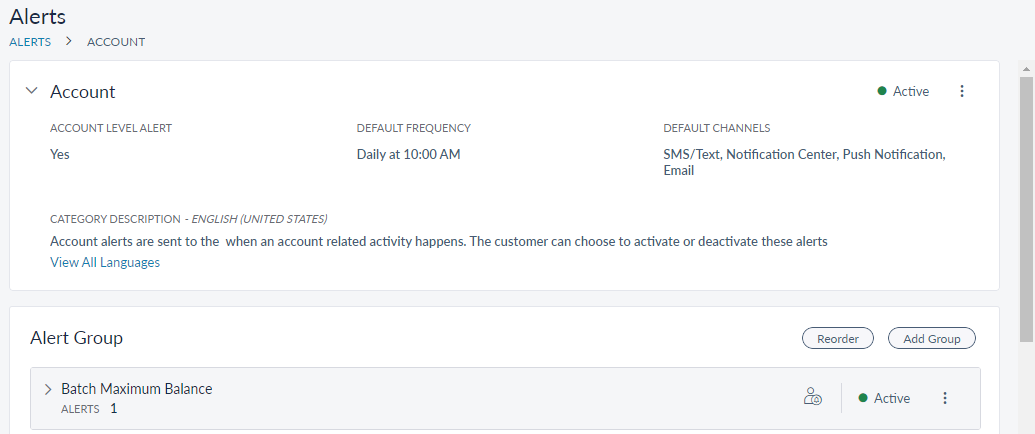
The alerts category section displays the following details like whether it contains Account Level Alerts, Default Channels, Default Frequency, and Category Description.
The alert category status (active/inactive) can be viewed from the top right corner of the alerts screen.
The list of alerts groups under the alert group section is represented as rows with the following details: Display Name, Number of alerts in the group, Alert Group Type (Global or User), and their Status.
NOTE: In the alert category, similar types of alerts are defined and grouped under a common category. Maintaining categories enhance the experience and ease of access for the customers and the bank staff.
Edit Alert Category
Use the feature to edit the existing parameters in an alert category. Click the Context menu on the top right corner of the screen where you view the alert category details and click Edit. The edit screen for the selected alert category is displayed.
Menu path: Alert > Alert Category > Context menu > Edit
The Edit screen is similar to the Add Alert Category screen, and you can edit the required fields and click Update Category.
View Alert Group Details
Use the feature to view the alert group parameters and the list of alerts associated with the group.
Menu path: Alerts > Alert Category > click an alert group record
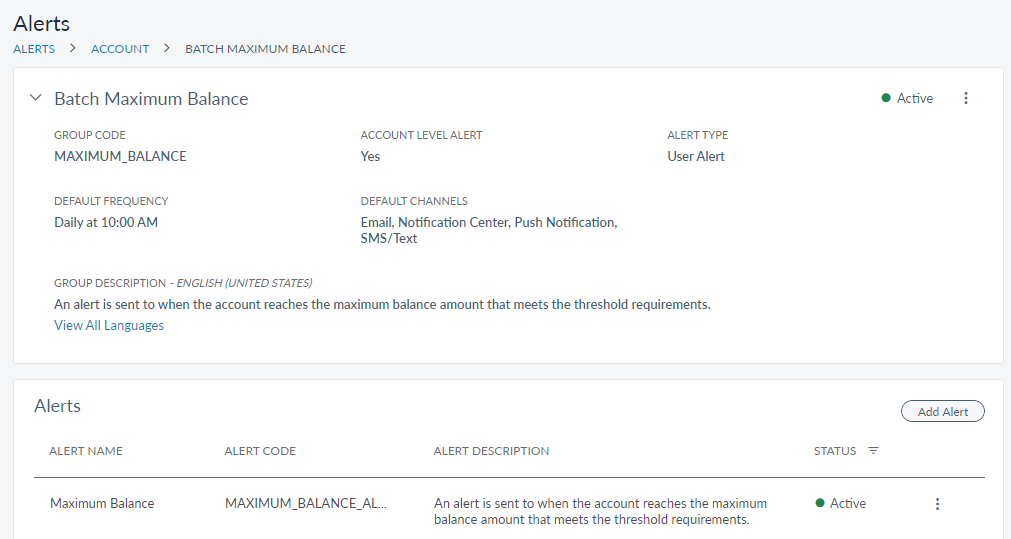
Click an alert group record from the list of alert groups on the Alerts Definition screen to view the details of that alert group.
The alert group displays the following details: Alert Group Name, Alert Group Code, , whether it is an Account Level Alert, Alert Type (Global alert or User alert), Default Frequency, Default Channels, Group Description.
The screen also displays the alerts associated with the selected alert group. The list of alerts under the selected alert group is represented as rows with the following details: Alert Name, Alert Code, Alert Description, and Status.
You can do the following:
- Click the Context menu from the top right corner to do the following:
- Edit the alert group details
- Activate or deactivate an alert group depending on the current status
- Click Add Alert to add an alert under the selected alert group
- Click on the alert record to view the alert details
- Click the Context menu beside an alert row to edit the alert
Add an Alert Group
Use the feature to add an alert group to the corresponding alert category.
Menu path: Alerts > Alert Category > Add Alert Group
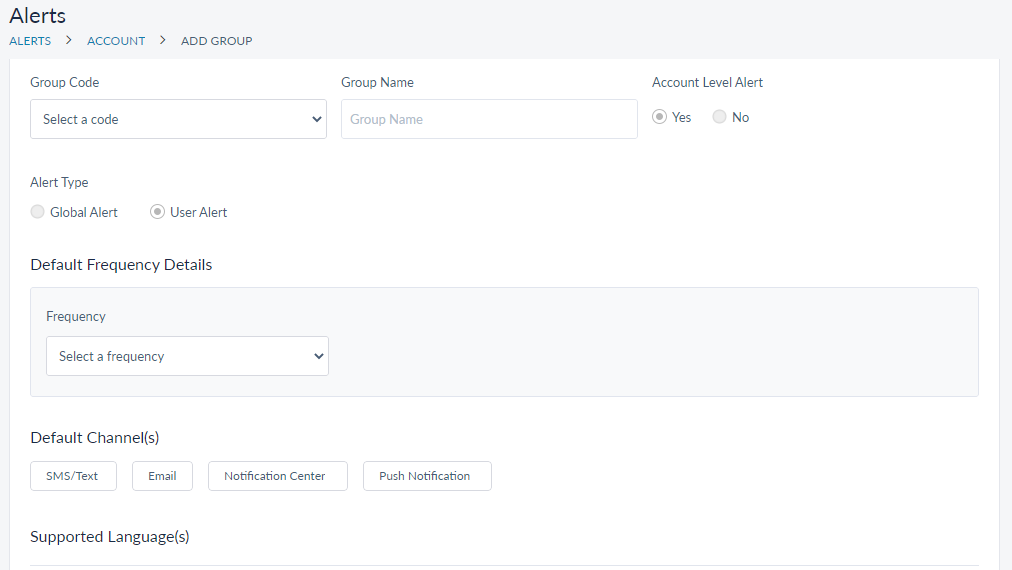
Click Add Alert Group on alert category details screen to add an alert group. The Add Alert Group screen is displayed.
Enter the following details:
- Group Code: Select the alert group code from the list. Following is the list of Alert groups that you can select and there related alerts.
- Group Name: Enter the name of the alert group. This is the name of the alert group that is displayed on the customer apps. A maximum of 50 characters is allowed by default.
- Alert Type: Select Global Alert or User Alert.
- Global alert: All the global alerts are sent to the customers as the mandatory alerts. Customers cannot turn off these alerts.
- Users alert: Customers can choose to turn on or turn off these alerts.
- Default Frequency: Select a default frequency from the Frequency list.
- Default Channels: Select the channel(s) applicable for the category. The channels you select here are default channels and the same would be visible to the bank application user in RB application.
- Supported Languages: You can add the languages that the alert group supports.
- Active: You can enable or disable the alert group from here. If the alert group is disabled, the alerts in the group are also disabled.
- Click Add Group, and confirm the same. The new alert group is created.
 View Alert Groups
| Alert Category | Name of the Alert Group | Related Alerts |
|---|---|---|
| Account Alerts | BALANCE | MINIMUM_BALANCE |
| CHECK | CHECK_STATUS | |
| DAILY_BALANCE | DAILY_BALANCE | |
| DEPOSIT_REMINDER | DEPOSIT_MATURITY_REMINDER | |
| DEPOSIT_WITHDRAWAL | DEPOSITS, WITHDRAWAL | |
| OVERDRAFT | OVERDRAFT_ALERT | |
| PAYMENT_DUE_DATE | PAYMENT_DUE_DATE | |
| PAYMENT_OVERDUE | PAYMENT_OVERDUE | |
| Security Alerts | CREDENTIAL_CHANGE | PASSWORD_CHANGE, PASSWORD_UPDATE, USERNAME_CHANGE |
| LOGIN | ACCOUNT_LOCKED, LOGIN_ATTEMPT (Success, Failure) | |
| PROFILE_UPDATE | PRIMARY_ADDRESS_CHANGE, PRIMARY_EMAIL_CHANGE, PRIMARY_PHONE_CHANGE | |
| Transaction Alerts | MAKE_TRANSFER | BULK_BILL_PAYMENT, ONETIME_OTHER_BANK_TRANSFER, SCHEDULED_OTHER_BANK_TRANSFER, RECURRING_OTHER_BANK_TRANSFER, ONETIME_OWN_ACCOUNT_TRANSFER, SCHEDULED_OWN_ACCOUNT_TRANSFER, RECURRING_OWN_ACCOUNT_TRANSFER |
| TRANSFER_RECIPIENT | DOM_WIRE_RECIPIENT_ADDED, INT_TRANSFER_RECIPIENT_ADDED, INT_WIRE_RECIPIENT_ADDED, OTHER_BANK_RECIPIENT_ADDED, SAME_BANK_RECIPIENT_ADDED | |
| P2P_RECIPIENT | P2P_RECIPIENT_ADDED | |
| BILL_PAYEE | REGISTERED_BILL_PAYEE_ADDED, NON_REG_BILL_PAYEE_ADDED |
NOTE: These alerts are available only for configuration and to set preferences. The trigger for these alerts has to come from external systems. You can find the complete list of Audits and Alerts that are implemented in Infinity from here.
Edit Alert Group
Use the feature to edit the existing parameters in an alert group. Click the Context menu on the required alert group row in the screen where you view the alert category details and click Edit. The edit screen for the selected alert group is displayed.
Menu path: Alerts > Alert Category > click the Context menu of the alert group record > Edit
Alternatively, you can select an alert group and click contextual menu on the top right corner > Edit. The Edit screen is similar to the Add Alert Group screen, and you can edit the required fields and click Update Group.
View Alert Details
Use the feature to view the alert details. Click an alert group record on the view alert category screen. The Alert Group details are displayed along with the list of associated alerts. Click an alert record to view the details of the alert.
Menu path: Alerts > Alert Category > Click an alert group record > Alerts > Click an alert record
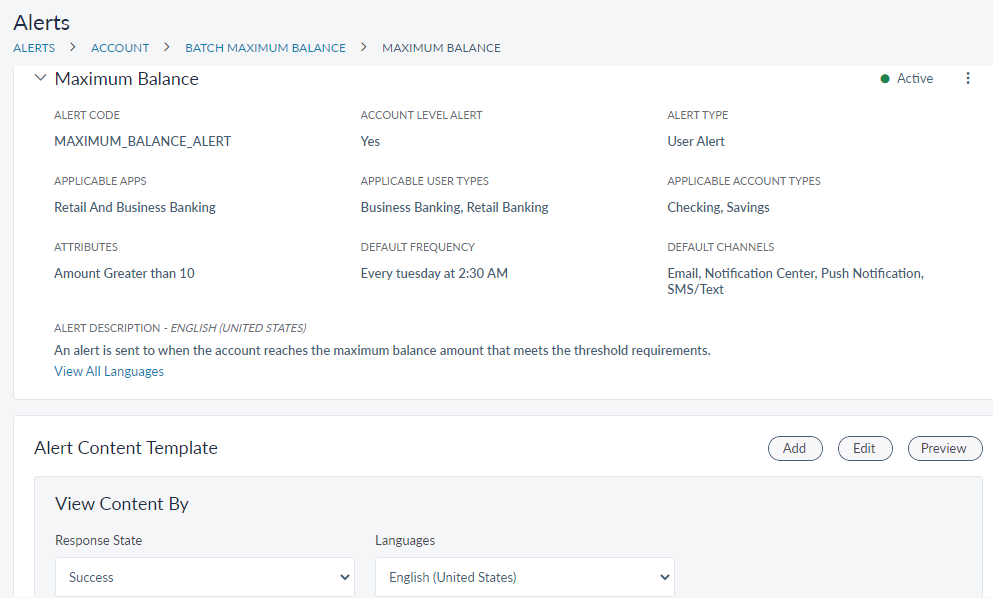
The alert displays the following details: Alert Code, whether it is an Account Level Alert, Alert Type (Global alert or User alert), Applicable Apps, Applicable User Types, Attributes, Default Frequency, Default Channels, Alert Description, and alert content templates associated with the alert.
You can do the following:
- Click the Context menu to edit the alert details.
- Add a template to the alert.
- Edit the existing alert template.
- Preview a template.
Add an Alert
Use the feature to add an alert to the selected alert group. Click an alert group record on the Alerts Definition screen. The Alert Group details are displayed. Click Add Alert on Alert Group details. The Add Alert screen is displayed.
Menu path: Alerts > Alert Category > click an alert group record > Add Alert
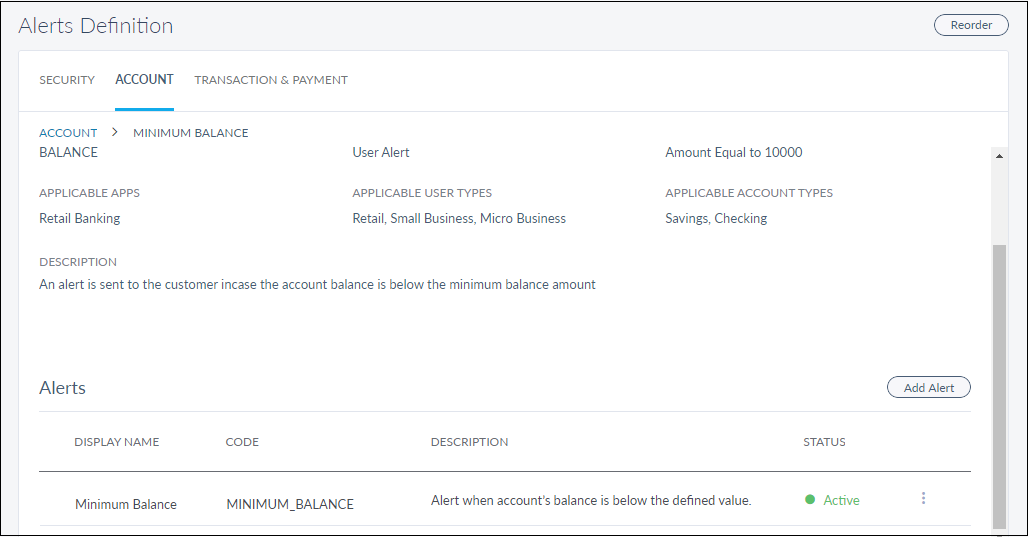
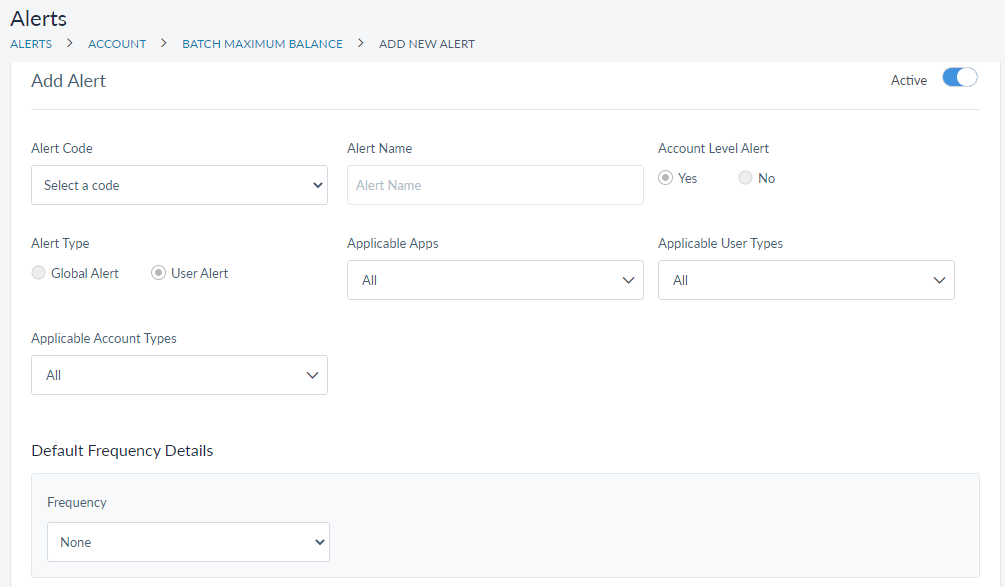
Enter the following details:
- Alert Code - Select an alert code from the list.
- Alert Name - Provide a name for the alert.
- Account Level Alert - Whether the alert is account level or not.
- Alert Type - Preselected based on Alert Group.
- Applicable Apps - Select the applications to which this alert is related.
- Applicable User Types - Select the users to whom this alert is related
- Default Frequency: Set a default frequency for the alert from the list.
- Attribute Details: You can relate the alert with a attribute and set a condition to receive the alert. If the condition is met, then the alert is triggered and sent to the customer. Select the name of the attribute from the list and provide the following details:
- Attribute Condition (Greater than, Less than, Greater or equal to, Less or equal to, Equal to, Between, Contains, Not equal to)
- Value - This field accepts only numbers. Based on the selected Criteria, the value must be defined.
- Default Channels: Select the channel(s) applicable for the category. The channels you select here are default channels and the same would be visible to the bank application user in RB application.
- Supported Languages: You can add the languages that the alert supports.
- Active: You can enable or disable the alert from here.
Add a Template
Use the feature to add a template to the created alert. Customers will receive the alerts in the defined template format. Templates can be created for all the supported channels.
Menu path: Alerts > Alert Category > Alert Group Details > Alert Details > Add (Shown against Alert Content Template)
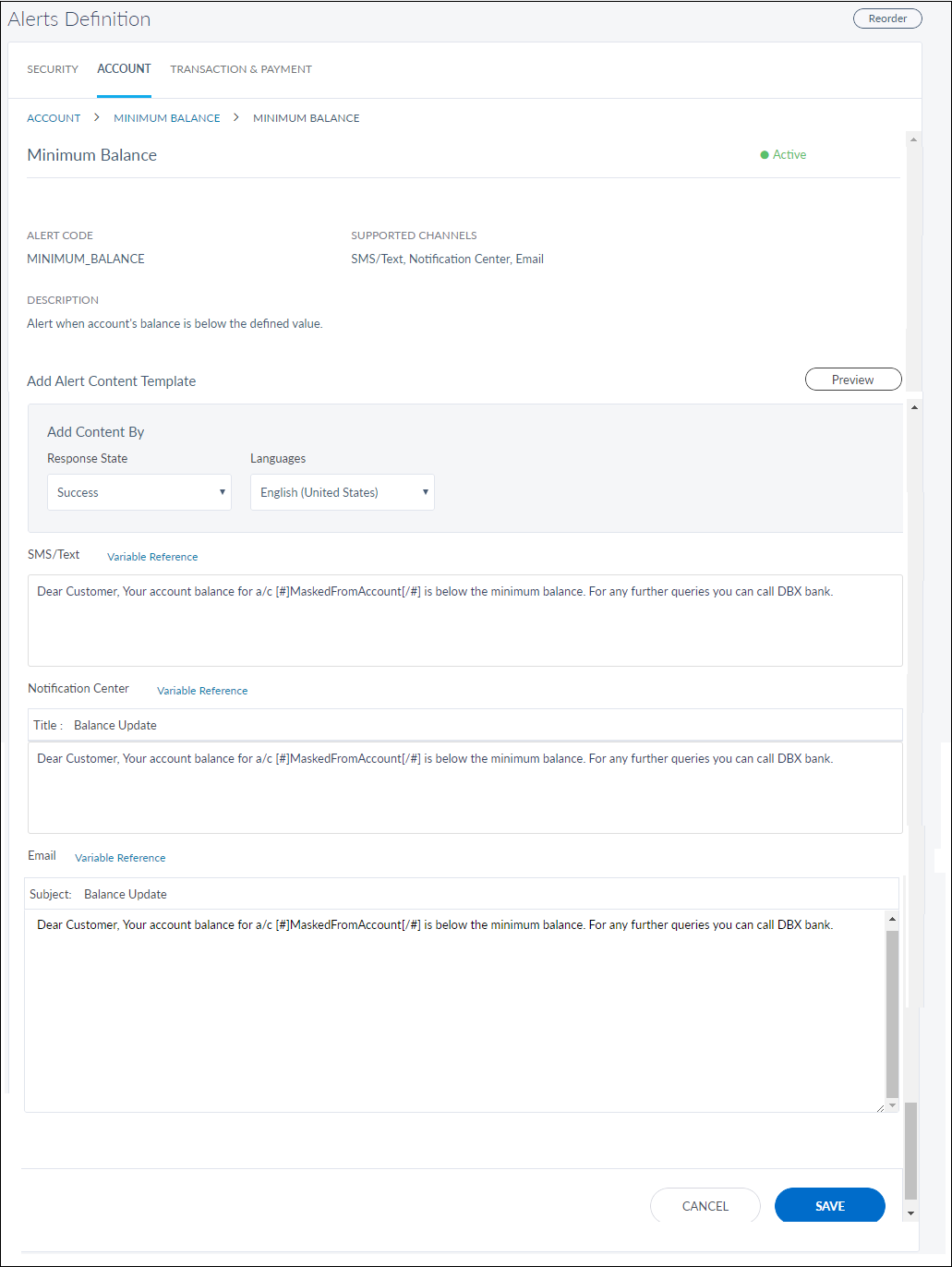
Once the alert is created, click the alert. The alert details are displayed.
Click Add shown against the Alert Content Template section.
Add the following details:
- Response Status: Select the response status from the list. The available options are success and failure.
- Language(s): Select the language for the alert to be displayed. The supported languages are:
- English (UK)
- English (US)
- Spanish
- French
- German
- Italian
- Swedish
- Copy and paste are allowed in all the text fields.
- Once you select the language, channels with Title and description fields are displayed. The available channels are:
- SMS/Text
- Notification Center
- Enter the title and description for SMS/Text, Notification Center, and Email.
-
For email, enter the subject and the description in the body field.
NOTE:
- Push Notification option is available for Security and Transaction & Payment alert categories.
- Email content supports rich text with formatted text, URLs, and images. Use HTML editor to enter the HTML content in the body field
- Use a variable reference for writing the descriptions for the channel(s).
Edit a Template
Similar to adding a template, you can edit a template too. Select an alert, the alert details page is shown. Choose the Edit option shown against the Alert Content Template section. The following section can be edited on the template:
- SMS/Text
- Notification Center
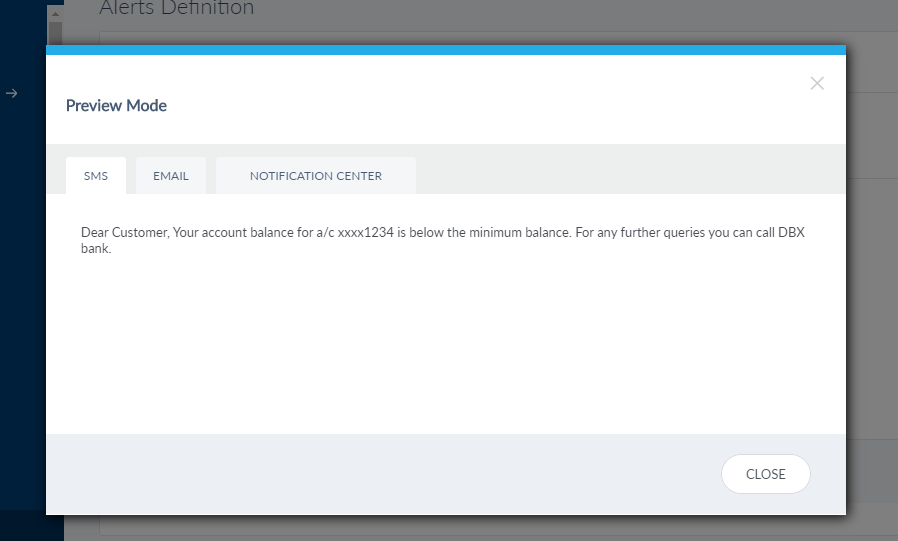
Preview
Select the Preview option to view an alert content template once it is added or edited.
Edit Alert
Use the feature to edit the existing parameters in an alert . Click the Context menu on the required alert row in the screen where you view the alert group details and click Edit. The edit screen for the selected alert is displayed.
Menu path: Alerts > Alert Category > Click on the required alert group > Alerts > click the Context menu of the alert record > Edit
Alternatively, you can select an alert and click contextual menu on the top right corner > Edit. The Edit screen is similar to the Add Alert screen, and you can edit the required fields and click Update Alert.
Reorder (Alert Category and Group)
Use the feature to reorder the alert category and alert group.
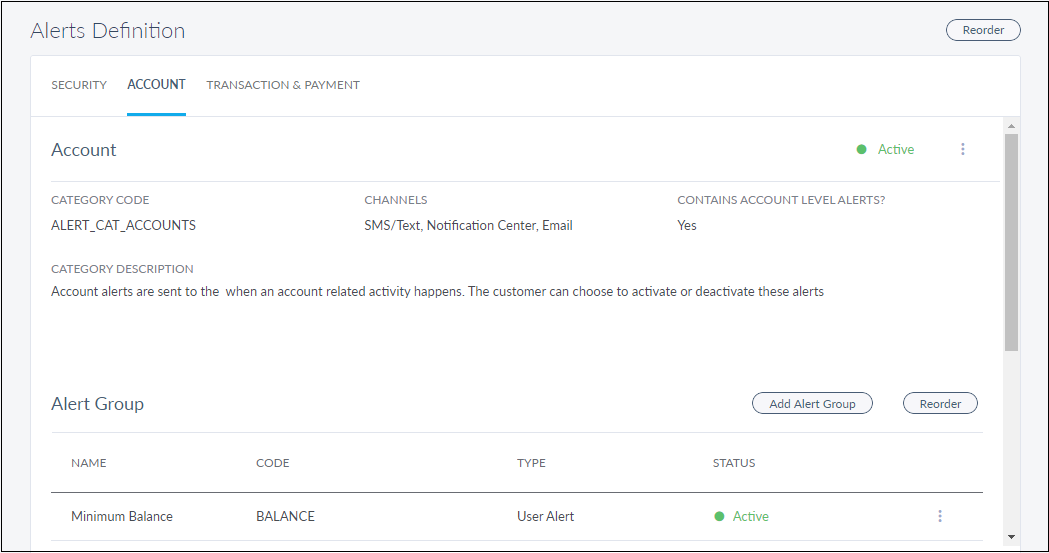
To reorder the alert category, click Reorder from the top right corner on the Alerts Definition screen. The Reorder window pops-up.

- Select an alert category and use the arrows on the right to move up and down.
- Click Update to save the changes.
To reorder the alert group, click Reorder button shown on the top right of the Alert Group section on the Alerts Definition screen. The Reorder Alert Group window pops-up.
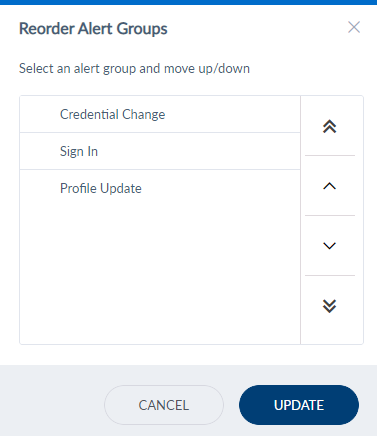
- Select an alert group and use the arrows on the right to move up and down.
- Click Update to save the changes.
Pre-defined Alerts List
The following list of alerts is configured in Retail Banking.
| Type | Category | Alert group | Alerts | Comments |
|---|---|---|---|---|
| Global | Security | Credential Change | Password Change | |
| Global | Security | Credential Change | User Login Name Change | |
| Global | Security | Login | Login Attempt | |
| Global | Security | Login | Login Attempt | |
| Global | Security | Login | Account Locked | |
| User | Security | Profile Update | Primary Phone Number Change | |
| User | Security | Profile Update | Primary Email Change | |
| User | Security | Profile Update | Primary Address Change | |
| User | Transaction and Payment | Bill Payee | Bill Payee Added | |
| User | Transaction and Payment | P2P Recipient | P2P Recipient Added | |
| User | Transaction and Payment | Transfer Recipient | International Wire Recipient Added | |
| User | Transaction and Payment | Transfer Recipient | Domestic Wire Recipient Added | |
| User | Transaction and Payment | Transfer Recipient | International Recipient Added | |
| User | Transaction and Payment | Transfer Recipient | Other Bank Recipient Added | |
| User | Transaction and Payment | Transfer Recipient | Same Bank Recipient Added | |
| User | Transaction and Payment | Make Transfer | Onetime - Other Bank Transfer | |
| User | Transaction and Payment | Make Transfer | Scheduled - Other Bank Transfer | |
| User | Transaction and Payment | Make Transfer | Recurring - Other Bank Transfer | |
| User | Transaction and Payment | Make Transfer | One time - Own account Transfer | |
| Scheduled - Own account Transfer | ||||
| Recurring - Own account Transfer | ||||
| User | Account | Minimum Balance | Minimum balance | Configured for Batch Alerts |
| User | Account | Daily Balance | Daily balance alert | Configured for Batch Alerts |
| User | Account | Deposit and Withdrawal | Deposits | |
| Withdrawals | ||||
| User | Account | Overdraft | Overdraft Alerts | Configured for Batch Alerts |
| User | Account | Check | Check status | Configured for Batch Alerts |
| User | Account | Payment Due Date | Payment due date alert | Configured for Batch Alerts |
| User | Account | Payment Overdue | Payment overdue | Configured for Batch Alerts |
| User | Account | Deposit Maturity | Deposit maturity alert | |
| User | Transaction and Payment | Withdrawal Amount | Withdrawal Amount Alert | |
| User | Transaction and Payment | Deposit Amount | Deposit Amount Alert | |
| User | Account | Maximum Balance | Maximum Balance Alert | |
| Global | Transaction and Payment | Account | Account Load | For Accounts Aggregation scenarios |
| Remove Account | ||||
| Transactions Not Available | ||||
| Transaction Load | ||||
| Unsupported Account |
Add Bookmark
save your best linksView Bookmarks
Visit your best links BACK
BACK


Are you sure you want to log-off?