
| Bookmark Name | Actions |
|---|
Manage Customers
The Customers module deals with the three types of users of the banking applications - Retail Customer, Business User, and Applicant. All users who have an account or relation with the bank or credit union is a customer. Those who have started the process of becoming a customer with the Onboarding capability are applicants. Details of these types of users are maintained in the same identity systems or Database. At any time, Spotlight does not list all the customers or applicants by default. Suitable search query or criteria must be applied to view the list of relevant users. Once a user is selected, it is possible to view the various settings and details associated with a user. For an existing user, appropriate systems and database may have to be integrated to retrieve the correct information. Data for an applicant is sourced from the Onboarding process. Use the feature to search and manage customers and applicants. The customers can be retail users or business users.
Menu path: Customer Management > Customers
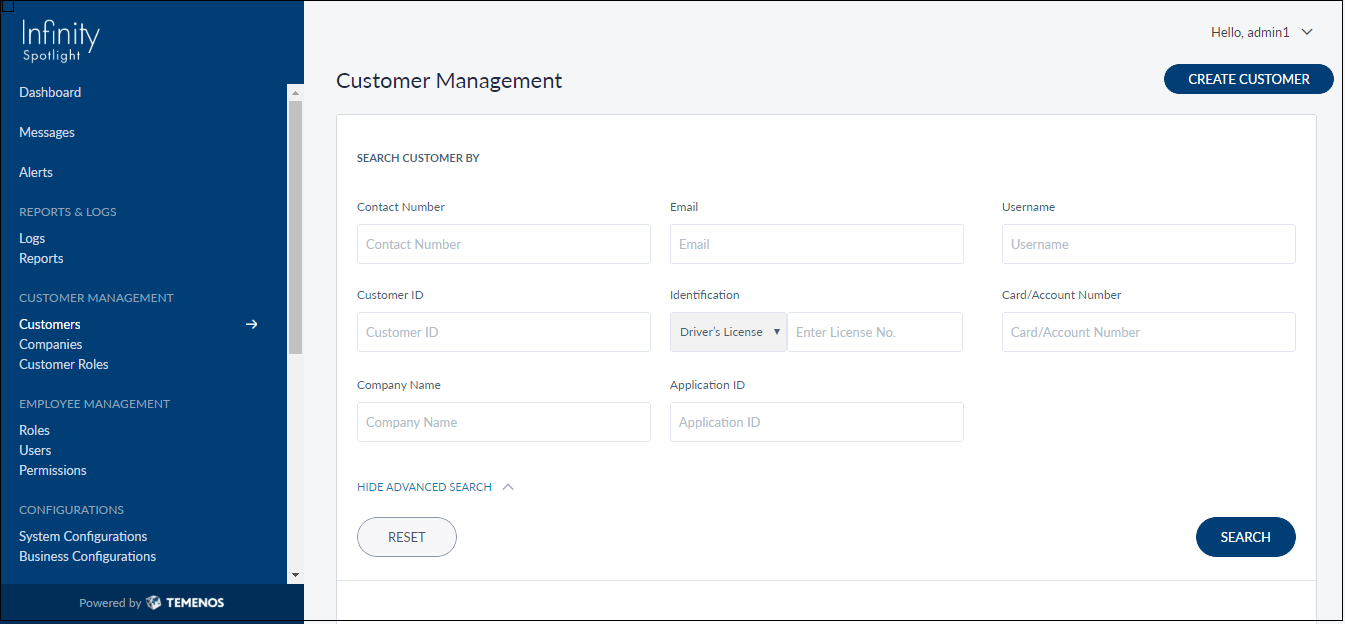
The app displays the search fields to search existing customer types. This is also the main screen of the Customers module. You can do the following:
- Search for a Customer
- View Profile Details
- Create Customer (Onboarding)
- Edit Customer Profile Details
- Link or De-Link Customer Profiles
Search for a Customer
Use the search option to search for an existing customer or applicant.
Menu path: Customer Management > Customers
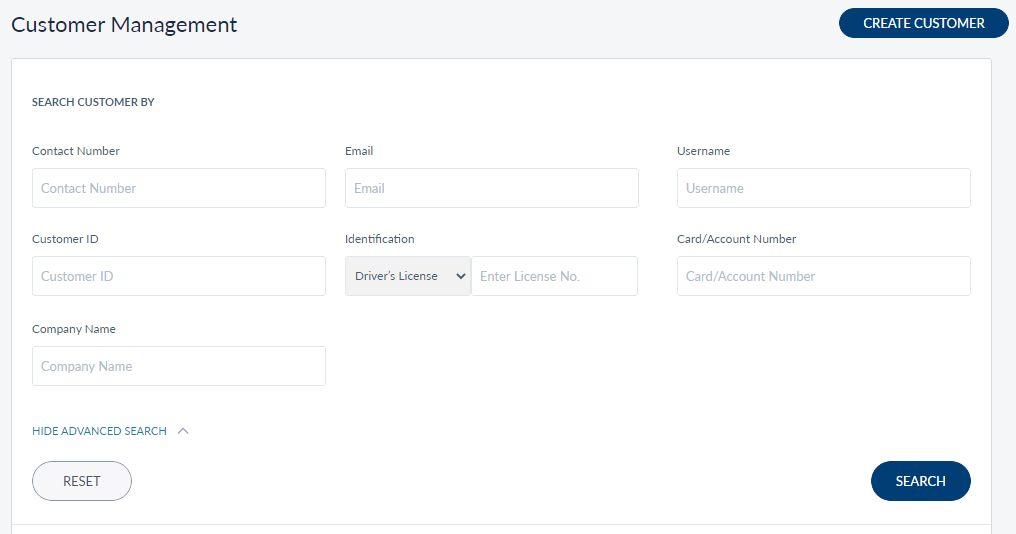
There are two search options: Normal Search and Advanced Search. Use the search options to search for an existing customer or an applicant. You can search by Contact Number, Email ID, or Username. In the Advanced Search, search by Customer ID, Company Name (for business customer only), Card/Account Number, Identification (Driver's license number, SSN, or Passport number). At least one of the fields is mandatory for search. Click Search. The app displays the matching records.
NOTE:
- The number of search criteria has been reduced and only the most commonly used and most logical search parameters are available for the agent to search. This is to make sure that the results are narrowed down further.
- In case there is a single match for the search criteria, the app displays the profile page of the match directly.
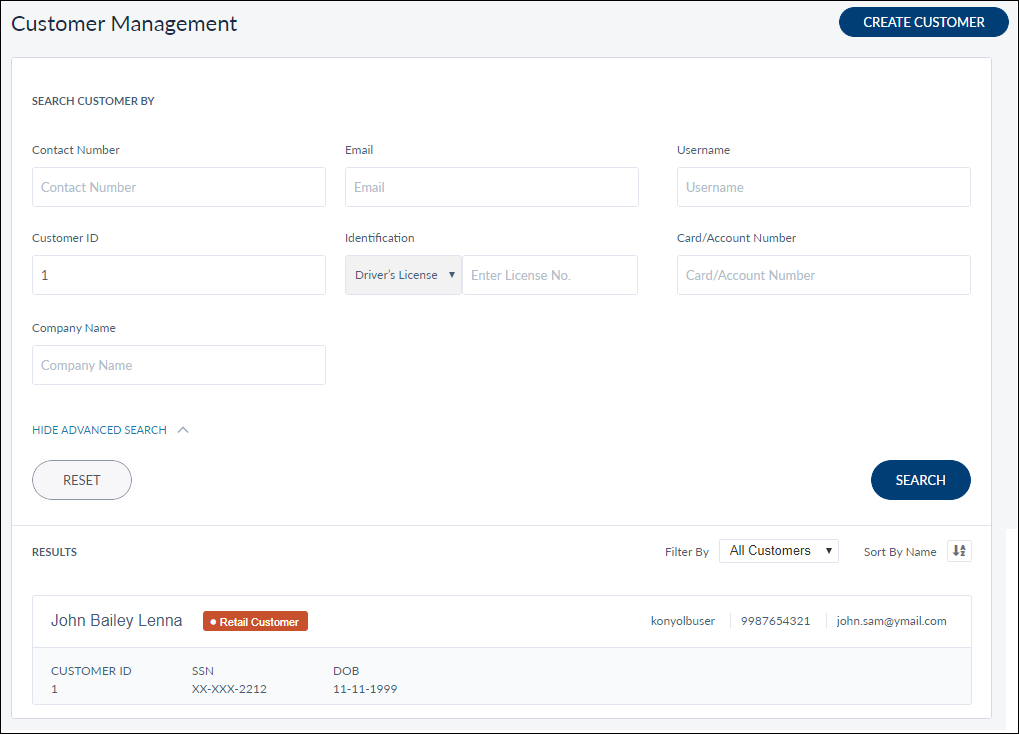
You can do the following:
- Sort the result list by customer name in ascending or descending order.
- Filter the list by customer type.
- Click any record to view the customer profile details.
NOTE: Any of the search criteria can be modified or changed during customer implementation to more suitable or relevant fields based on the requirement.
View Profile Details
Use the feature to view the details of the selected customer record and edit the details if required.
Menu path: Customer Management > Customers > Search for customers > Click a customer record row.
Retails User
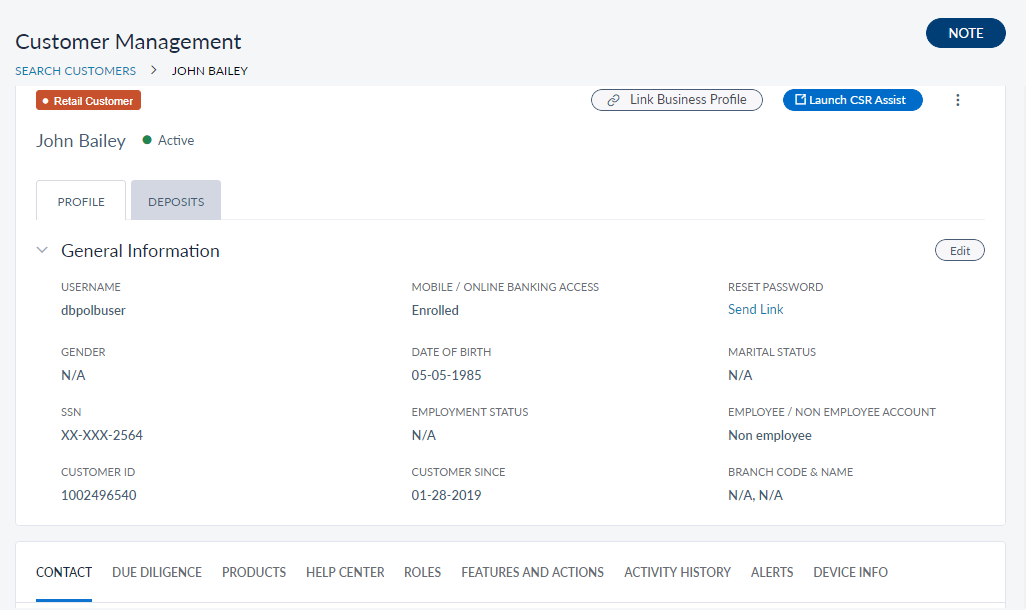
Retail and Business Customers
For existing retail and business customers, the application displays the following tabs:
- Profile tab. Displays general information and other details.
- Deposits tab. It displays information on the applications on deposits started and submitted.
Profile - General Information
This section displays the following information:
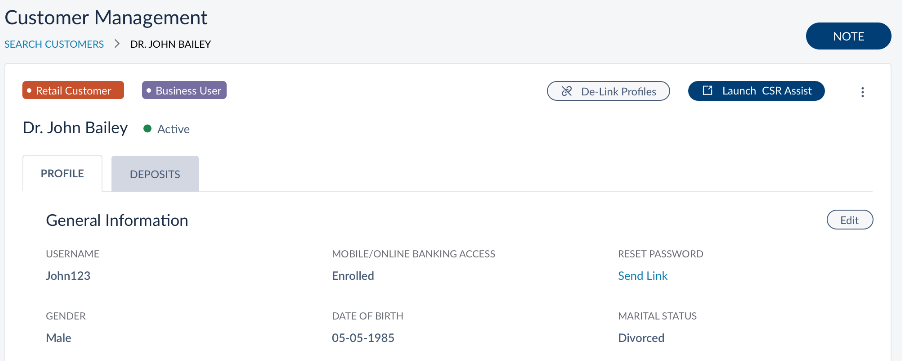
- Customer type - Retail Customer or Business User.
- Current status of the customer.
- New. A customer remains in this status when created from the Spotlight application or created by a business owner by providing only the username. The application sends a link to the customer to set the password. After the password is set, the customer becomes active.
- Active or Suspended. If Active, the customer can use the banking application.
- Locked. The account is locked automatically after a defined number of failed login attempts. No unlock customer button is visible. The following conditions apply:
- The account is unlocked after the predetermined time period or when the customer resets the password.
- Reset password link is active.
- CSR assist is disabled. Hovering over the CSR assist button displays the message, "Disabled as the customer is locked/suspended/has not consented".
- Hovering over Mobile/Online Banking Status displays the message, "Disabled as the customer is locked/suspended/has not consented".
- Username. Used for logging on to the banking applications.
- Gender. Applicable only for retail customers.
- Mobile/Online Banking Status (Enrolled or Not Enrolled) - If not enrolled, CSR has the option to send an email to the user with the enrollment link.
- Customer ID. Relationship number or member ID of the customer with the Bank. Customer ID is different from the username.
- Date of Birth
- E-agreement Status. Required or not required, and if required, whether signed or not. Applicable only for business users.
- Employment Status. Applicable only for retail customers.
- Identification Number. The Social Security Number (SSN).
- Marital Status
- Role of the customer. Applicable only for business users.
- Customer Since date
- Employee/Non-Employee Account. Whether the customer is also an employee of the bank/CU.
- Branch Code and Name
- Reset Password link
You can also view the company details like Company ID and Company Name if the Retail and Business profiles are linked.
Click Edit to modify the customer profile details. If the customer has raised any requests or travel notifications, the app displays an alert message showing the number of requests and notifications raised. You can do the following:
- Launch CSR Assist. Launch CSR Assist.
- Note. Click Note if you want to make a note about any changes made in the customer's profile for any future reference.
- Reset Password. If the customer has requested for resetting the password, click Send Link to Reset Password of the customer. The app sends an automated mail to the customer with a link to set new password. Through this link, the customer can set new password without any further authentication. This option is available only if the customer record is Locked or in Active status. The reset password option is not applicable if the customer is suspended and the app displays an appropriate message.
- Link or De-link Profiles. Link or De-Link retail and business profiles.
- Context menu

- Suspend. Suspend or activate a customer.
Profile - Detail Tabs
This section contains Contact, Products, Help Center, Roles, Features and Actions, Activity History, Alerts, and Device Info. You can click each tab to view the particular information. Click Add or Edit to perform the required activity.
Applicants
The application displays the following details:
- Application ID
- Applied For Product Type or Name
- Contact Number
- Application Date
- Status
- Email ID
- Application Channel
- Document Submitted
Enroll a Customer
Bank staff can enroll an existing customer to digital banking if any customer is not having access to online banking. Once enrolled from spotlight, a digital profile is created and the system generated username and activation code are shared with the customer via email and phone number respectively. The customer can then enter the username and activation code in online banking apps to activate their profile
NOTE: It is mandatory to have the contact details (email ID and contact number) to enroll a customer, otherwise the application will show appropriate error message.
You can search for an un-enrolled user with customer ID, email, or contact number. The following profile information is displayed about the customer who is not yet enrolled:
- SSN
- DoB
- Customer ID
- Status of Mobile/Online access
- Contact Information
Click Enroll Now from the screen where you view the general information of the customer. Based on the information available about the customer in core, a digital profile is created in Spotlight for the user and the username and activation code is sent to the primary contact details (email ID and mobile number). You would see a confirmation message stating the same. The status of the customer changes to New till the customer activates the profile using the activation code.
Once the user activates the profile, the status of the customer changes to Active.
If the user has lost the activation code or if it is expired, he/she can send a request to resend the code to the bank staff. You can regenerate the code and send it again with the help of Resend Activation Code link. Click Yes on the confirmation message, the new activation code is sent to the user.
NOTE: When you regenerate the code, the old code becomes invalid.
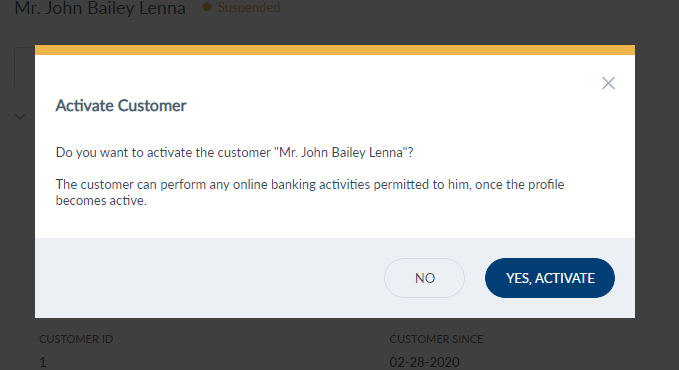
Suspend or Activate Customer's Account
Use the feature to suspend a customer if required.
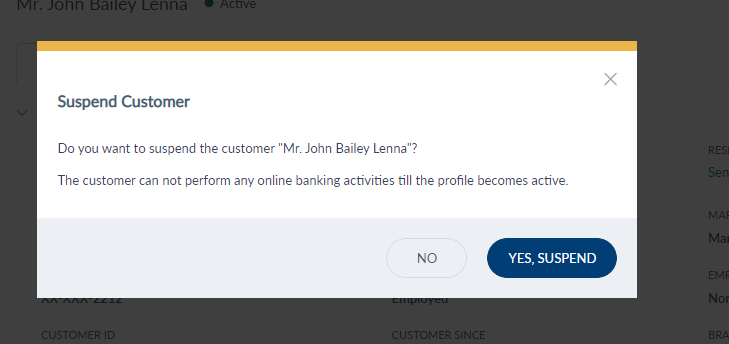
On the context menu , click Suspend. Once suspended, the customer cannot log on to the banking apps. The CSR can either suspend or activate a customer as required. On the confirmation screen, confirm the action.
View and Edit Customer Profile Details
The app displays the customer record in edit mode. By default, the app displays the General Information panel. This feature is applicable only for existing customers.
Menu path: Customer Management > Customers > Search for customers > Customer profile details > Edit
You can do the following:
- Update the general information.
- Update the details tabs.
General Information
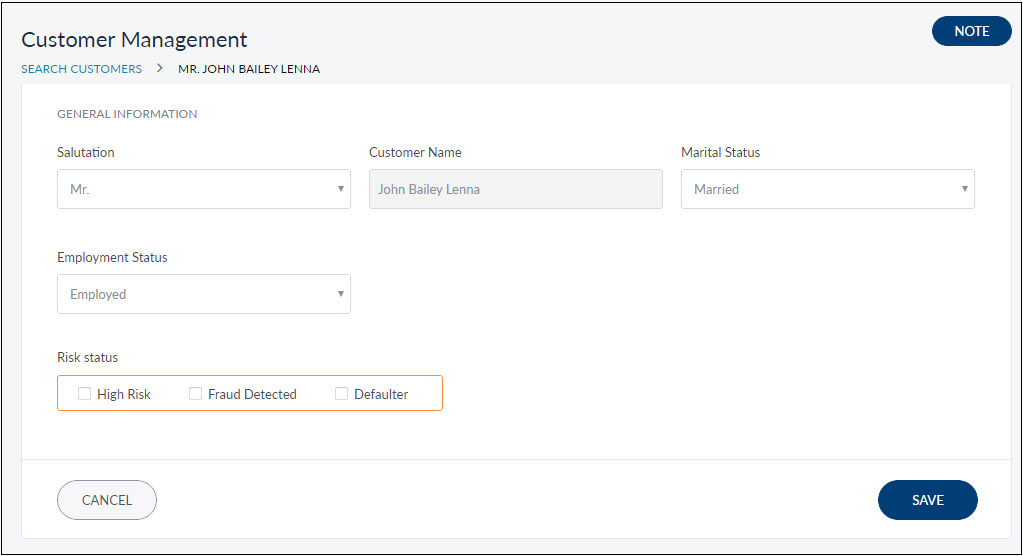
Displays the basic information about the customer in edit mode.
Retail Customer
Business User
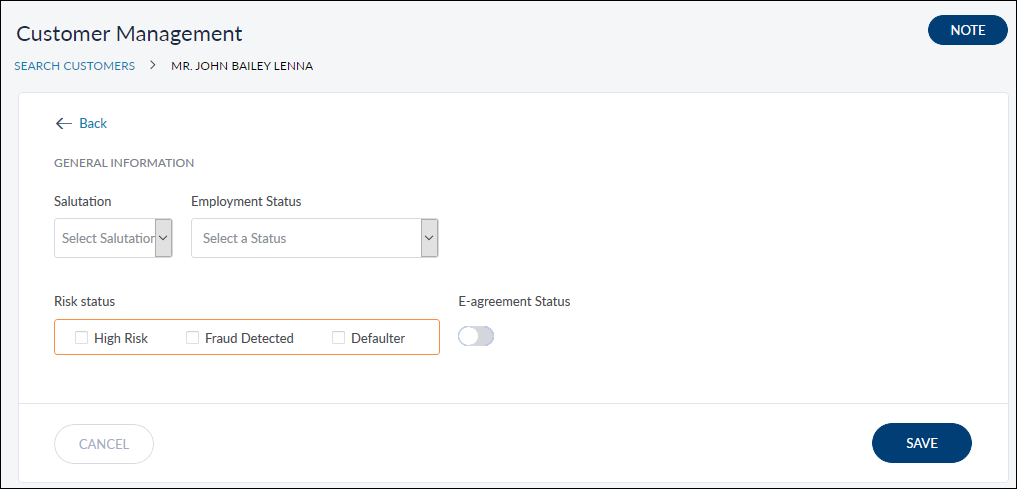
You can update the following details:
- Salutation. Select the salutation as Mr., Mrs., Dr, or Ms. from the list.
- Marital Status. Select the marital status as divorced, married, single, or widowed from the list. This field is applicable only for retail customers.
- Employment Status. Select the required status from the list.
- E-agreement Status. This field is displayed only when the e-agreement was selected as required while adding the customer. This field is applicable only for business users.
- Risk Status: Select the risk status as defaulter, fraud detected, or high risk. You can select multiple options. These are just flags on the user's profile with no back-end implication associated.
- Click Save to update the details.
Click Note on the top right corner of the screen to add notes for reference. You can also view the previously added notes, the user name who added the note, date and timestamp. You cannot edit or delete previously added notes.
Detail Tabs
Select the required tab and click edit to update the existing information or click Add to add new information. If the customer's profiles (Retail and Business) are linked, you can edit the details about both the profiles from their respective tabs. Do as follows in the required tab:
Contact
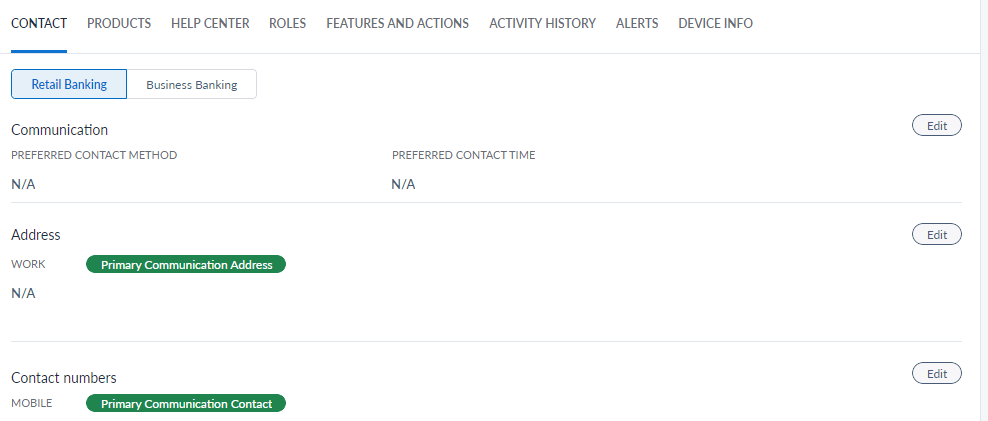
In Contact tab, you can update Communication, Address, Contact Numbers, and Email IDs related information.
NOTE: Any updates made by the customer to his contact details from the retail banking application, the same will be reflected here. In case a CSR updates the details from Spotlight, the same will be reflected in the customer's profile in the retail banking application.
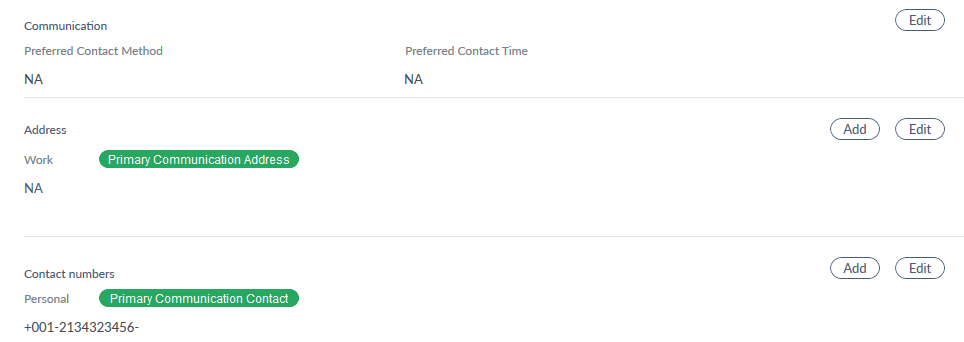
CommunicationYou can update the preferred contact method and preferred time for the customer. Click Edit to open the Communication page.
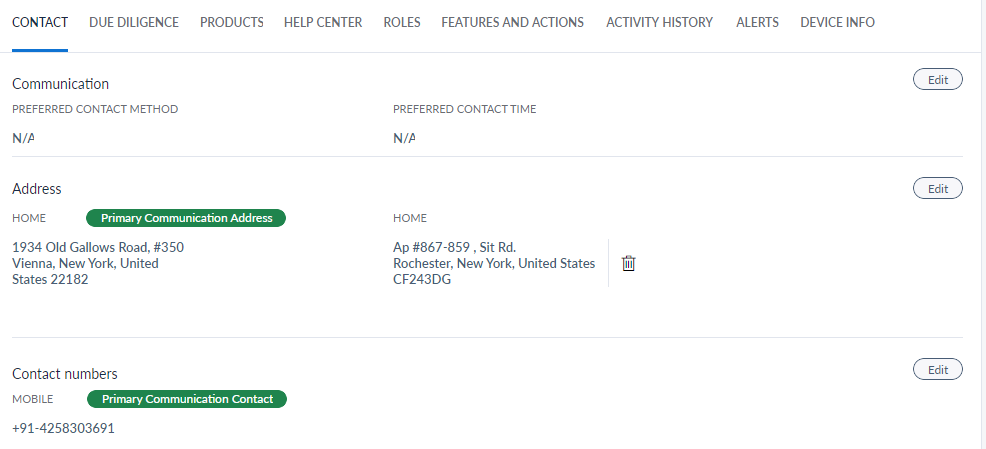
Do as follows:
- Preferred Method: Select the call or email or both methods.
- Save the details.
AddressYou can add or update your communication address here. Click Add or Edit to open the Address page.
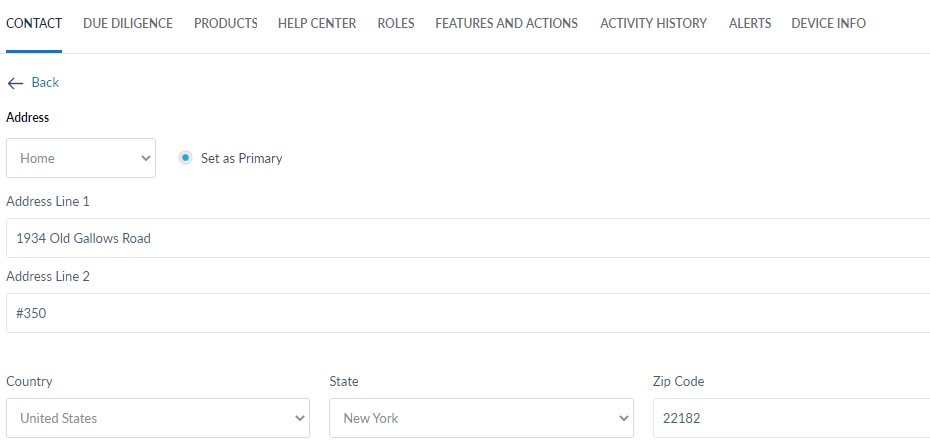
Do as follows:
- Select the required type of address from the list (Home or Work or Other).
-
Set as Primary: Select the option to set the address as the primary address.
-
Address Line 1: Enter the address.
-
Address Line 2: Enter the address.
-
Country: Select the country from the list.
-
State: Based on the selected country, the state list is populated. Select the state from the list.
-
City: Based on the selected state, the city list is populated. Select the state from the list.
-
Zip code: Enter the zip code.
-
Click Save to update the address.
-
Click Cancel if you want to discard the address update.
Contact NumbersYou can add or update contact number. Click Add or Edit to open the Contact Numbers page.
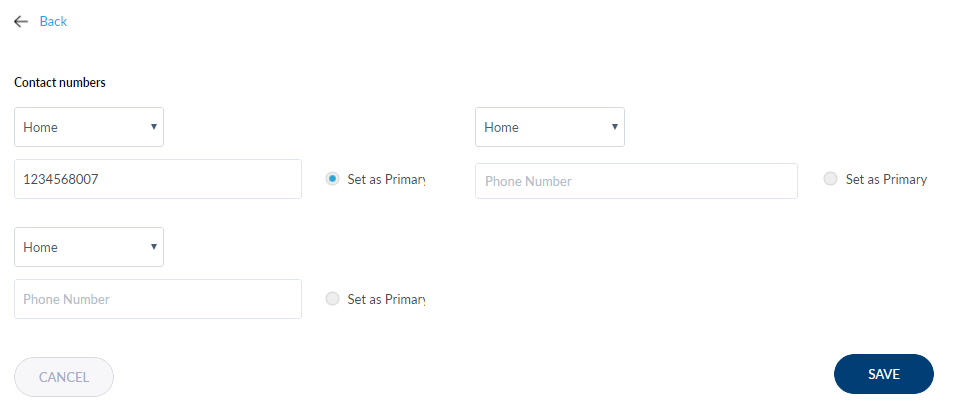
Do as follows:
-
Select the required contact type from the list (Home or Work or Other).
-
Add relevant contact number below the contact type.
-
Set as Primary: Select the option to set the contact number as primary contact number.
- Save the details.
Email IDsYou can add or update email IDs. Click Add or Edit to open the Email IDs page.
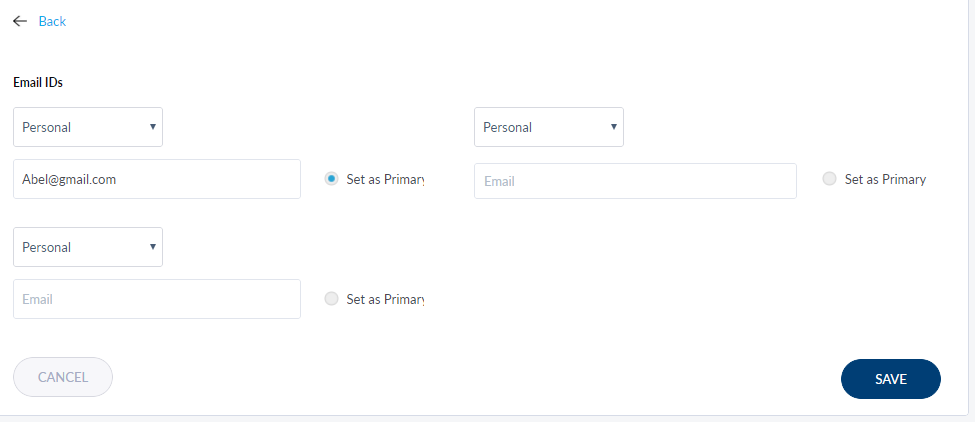
Do as follows:
-
Select the required email ID type from the list (Home or Work or Other).
-
Add relevant contact number below the contact type.
-
Set as Primary: Select the option to set the email ID as primary email ID.
- Save the details.
Customer Due Diligence
It contains the information concerning the intentions of the customer regarding the usage of services provided by the bank. The banks can assess the risk based on this information provided. These risks include identity fraud, money laundering and terror financing. This tab contains three sections:
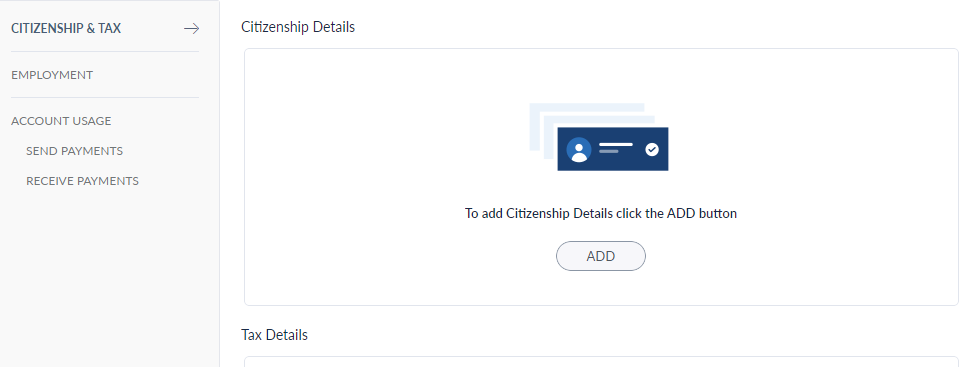
This tab contains three sections:
- Citizenship/Tax
- Employment
- Account Usage / BSA
Citizenship/Tax
It displays the customer’s Citizenship and Tax related details.
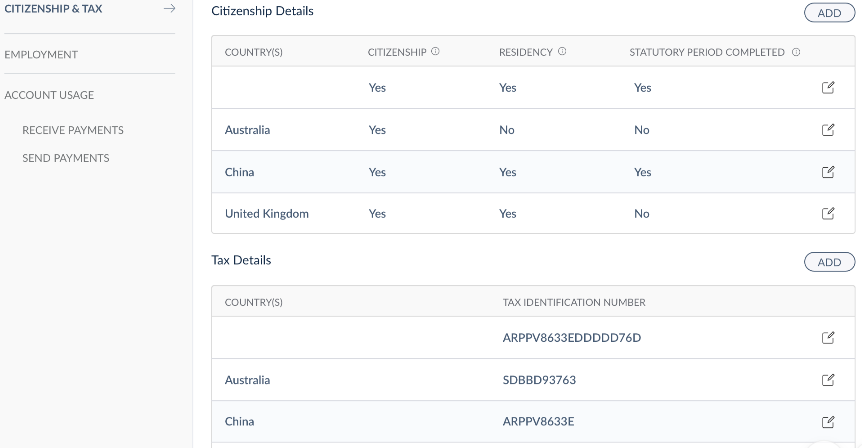
You can view the following information from the Citizenship and Tax lists respectively:
Citizenship:
- Country – Displays the name of the country from where the customer belongs.
- Citizenship – Displays whether the customer has the citizenship of the country.
- Residency - Displays whether the customer is the resident of the country.
- Statutory Period Completed - Displays whether the customer has stayed in the country for the minimum tax statutory period.
Tax:
- Country – Displays the name of the country from where the customer belongs.
- Tax Identification Number – Displays the customer’s Tax number.
Perform the following steps if you want to add more of these details:
Citizenship:
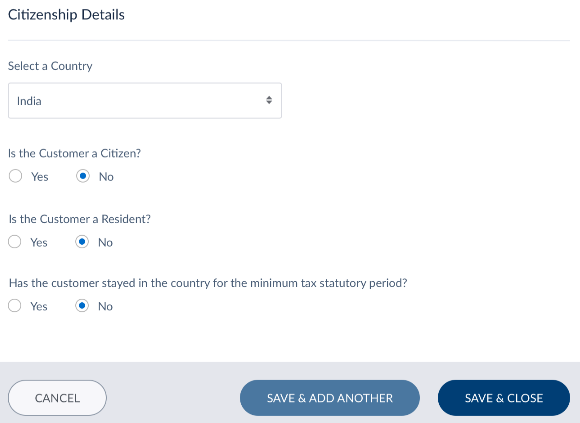
- Click Add in the Citizenship section. The Citizenship Details screen appears.
- From the Select a Country list, select the country from where the customer belongs.
- Select an appropriate option for the questionnaire (Yes or No) and click Save and Close. If the answer is No for any option, you might have to provide additional information as requested. The details are added to the Citizenship list. You can click Save and Add Another if you want to add more citizenship details.
Tax:
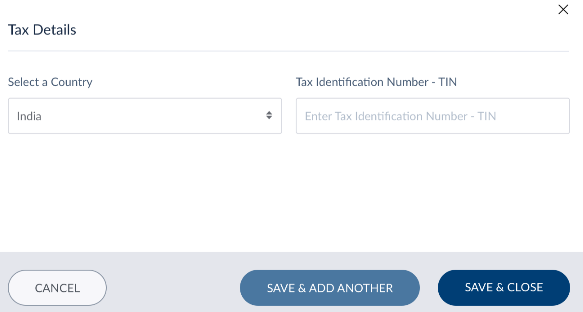
- Click Add in the Tax section. The Tax Details screen appears.
- From the Select a Country list, select the country from where the customer belongs.
- In Tax Identification Number – Tin field, provide the tax number with respect to the selected country in Tax Identification Number – Tin field.
- Click Save and Close. The details are added to the Tax list. You can click Save and Add Another if you want to add more citizenship details.
If you want to edit any information, click the edit icon of the list item you want to edit. Make the relevant updates and click Update and Close.
Employment
This section displays customer’s employment status and the details related to it. Based on the employment type, you can find the Employment Details, Business Type details and Business Address details here.
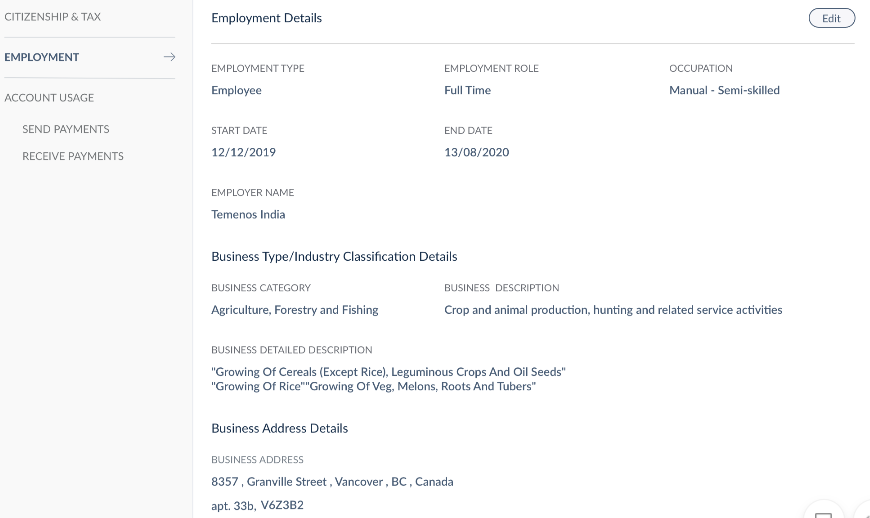
Following is the field level information shown for each employment type:
Employee:
- Employment Details:
- Employment Role: Part time or Full Time
- Occupation
- Employment Start date
- Employment End date
- Employer Name
- Business Type or Industry classification details
- Business Category
- Business Description
- Business Detailed Description
- Business Address Details
Self Employed:
- Employment Details:
- Employment Role: Part time or Full Time
- Occupation
- Employment Start date
- Employment End date
- Employer Name
- Business Address Details
Student:
- Start date
- End date
Unemployed:
- Start date
- End date
- Whether the customer is receiving any social security benefits
You can click on the Edit button to modify any details. All the fields are editable and once you are done with your updates click Update.
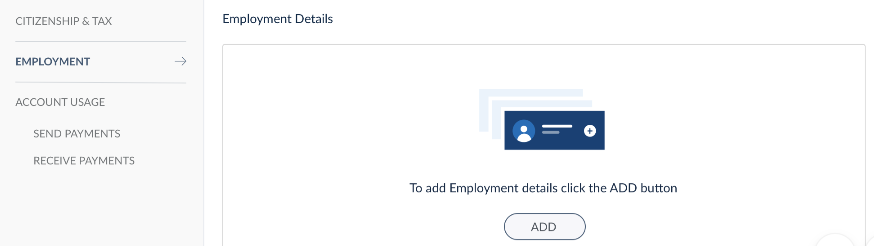
If there are no employment details, appropriate message is shown in this section with an option to add the details. Click Add and select the employment status from the list.
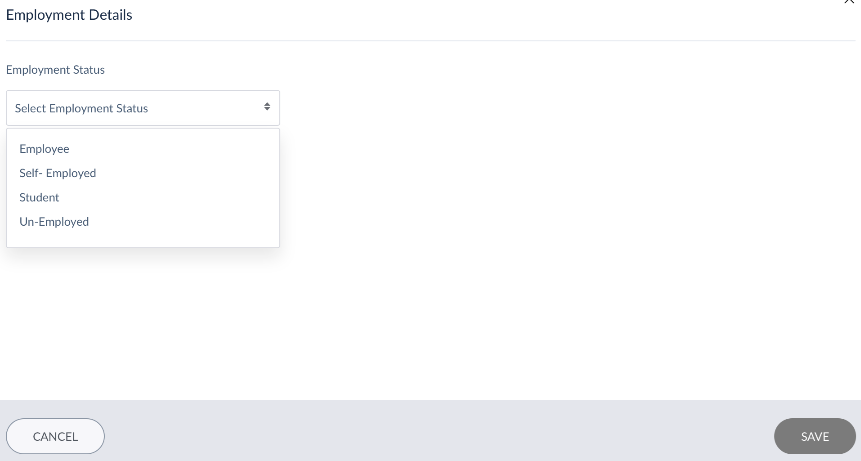
As mentioned earlier, the related fields appear based on the selected employment status. Provide the appropriate information and click Save.
Account Usage
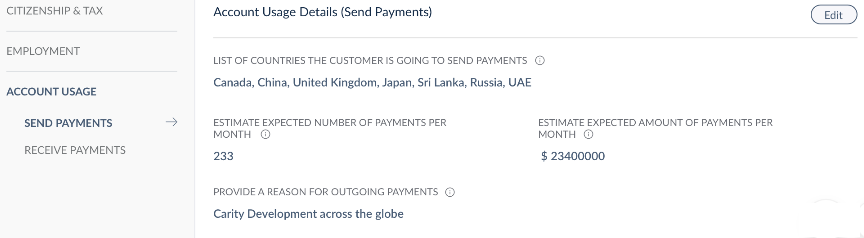
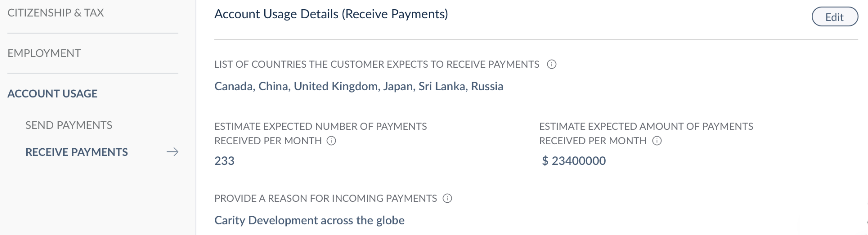
You can add the details of the accounts to which you send or receive money frequently in the respective tabs Send Payments and Receive Payments.
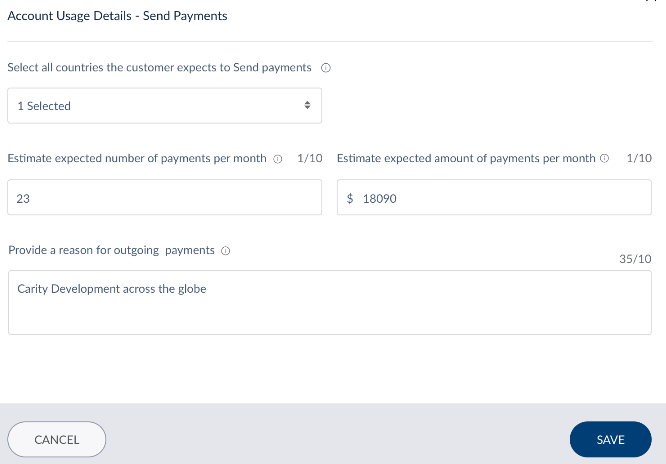
Send Payment:
Click Add in to provide the details of the accounts to which you send the money frequently. The Account Usage screen appears. Do the following to provide details:
- From the Select Countries list, select all the countries to which the customer is expected to send the money.
- In the Estimate expected number of payments per month field, provide the number of times the customer is expected to send the money in a month.
- In the Estimate expected amount of payments per month field, provide the amount that the customer is expected to send in a month.
- In the Provide a reason for outgoing payments field, provide the reason for transaction.
- Click Save. The details are added to Send Payment tab.
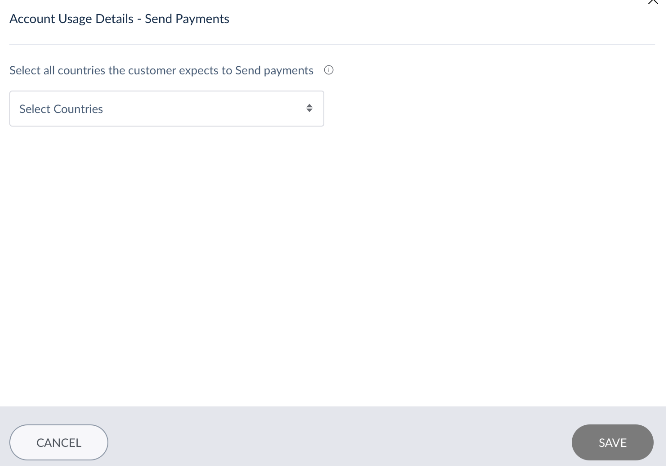
Receive Payment:
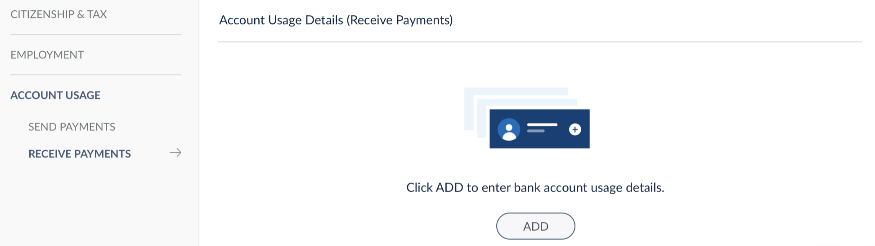
Click Add in to provide the details of the accounts from which you receive the money frequently. The Account Usage screen appears. Do the following to provide details:
- From the Select Countries list, select all the countries from which the customer is expected to receive the money.
- In the Estimate expected number of payments received per month field, provide the number of times the customer is expected to receive the money in a month.
- In the Estimate expected amount of payments received per month field, provide the amount that the customer is expected to receive in a month.
- In the Provide a reason for incoming payments field, provide the reason for transaction.
- Click Save. The details are added to Receive Payment tab.
Products
Displays the list of products for which the customer has enrolled. It contains the following tabs:
- Accounts
- Cards
Accounts
The Accounts tab displays the list of customer's accounts with the bank or credit union.
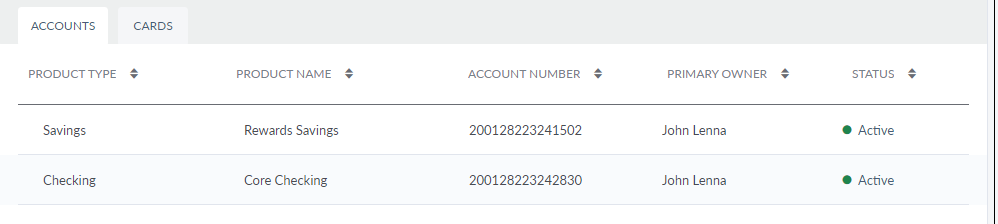
You can sort the list based on any of the columns by using the sort  icon (
 denotes sorted by that column). The accounts list is represented as rows with the following details:
- Product Type: Displays the type of account (savings, checking, deposits, loan, and credit card).
- Product Name: Internal product name given by the customer.
- Account Number: Displays the account number.
- Primary Owner: Displays the name of the owner of the account.
- Status: Displays the status of the customer (active, suspended, closed, dormant, and frozen). The statuses of the account vary for each account type. Different statuses for each account type are as follows:
- Savings and Checking Accounts: Active/Dormant/Closed
- Credit and Debit Card: Inactive/Active/Lost or Stolen/Blocked/Locked/Cancelled/Replaced
- Loan: Active/Closed
- Deposits: Active/Closed
Click the required record if you want to view the Transaction History and Product Details. These are represented as tabs, and the Transaction History tab is displayed by default
.Cards
Displays the list of cards that are linked to the customer's account.
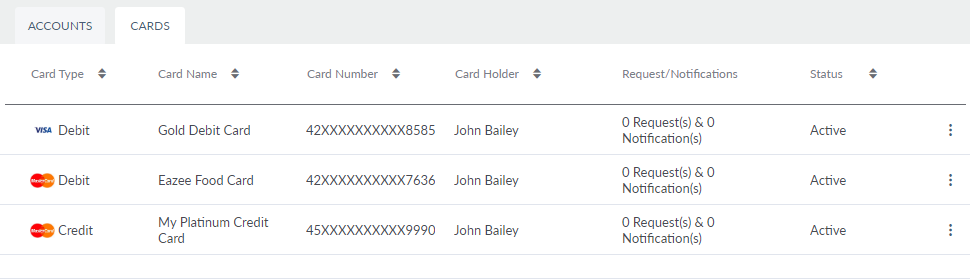
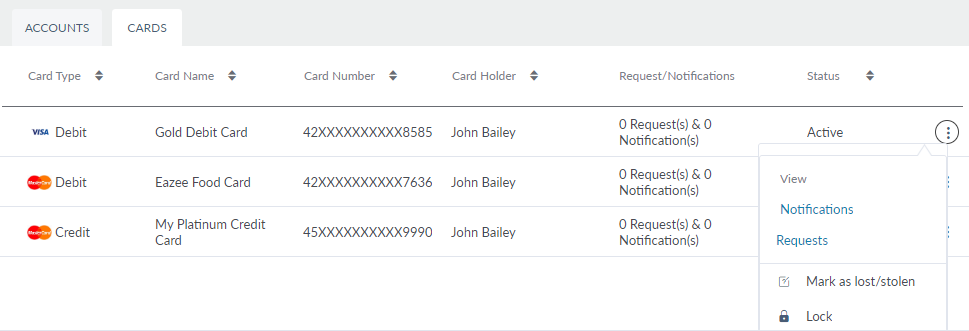
You can sort the list based on any of the columns by using the sort icon ( denotes sorted by that column). The cards list is represented as rows with the following details:
- Product Type
- Card Name
- Card Number
- Card Holder Name
- Requests/Notifications related to the card
- Status of the card (Inactive/Active/Lost or Stolen/Blocked/Locked/Cancelled/Replaced)
Click the contextual menu of the required card, and you can perform the following activities:
- Mark Lost or Stolen
- Lock/Unlock Card
Click Yes on the confirmation screen and the status of the selected card is changed accordingly. The changes made here are reflected in the MB and OLB applications. You can also view the Requests/Notifications of a card using the contextual menu. Select the required card to view additional details as follows:
- Card Type
- Card Network
- Option to view primary cardholder name
- Associated Account
- Date of Issue
- Date of Expiry
- Reward Points Balance
If the selected product type is credit card, the details screen will have some additional information, which is as follows:
- Current Balance
- Interest Rate
- Credit Limit
- Current Due Date
- Available limit
- Current Due Amount
- Minimum Due Amount
- Last Payment Amount
- Last Payment Date
- Last Statement Balance
- Billing Address
Click Back to Cards to navigate to the cards list.
Transaction History
The Transaction History tab includes three tabs:
- Recent: Displays all the recent transactions.
- Pending: Displays all the pending transactions.
- Scheduled: Displays all the scheduled transactions.
You can sort the list based on any of the columns by using the sort icon ( denotes sorted by that column). The list in these tabs is represented as rows with the following details:
- Ref No
- Date and Time
- Transaction Description
- Type
- Original Amount
- Converted Amount
You can download the list as an Excel file if required.
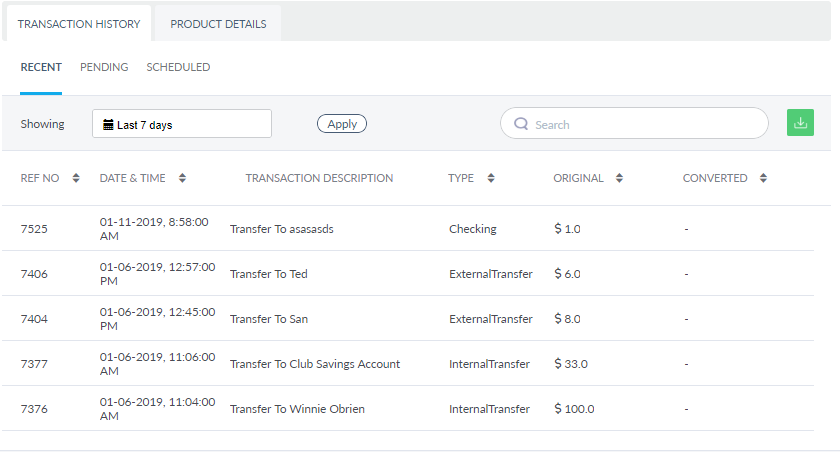
Do as follows:
- Select the required date range from the date picker (Today, Yesterday, Last 7 Days, Last 30 Days).
- You can also select the required custom range from the dates shown in the calendar.
- Click Select.
- Click Apply.
The app displays all the related transactions. Search for the required transaction using the Search feature if required and view the details. Click Back to Accounts to navigate to the accounts list.
Product Details
The Product Details tab displays the details of the selected account type.
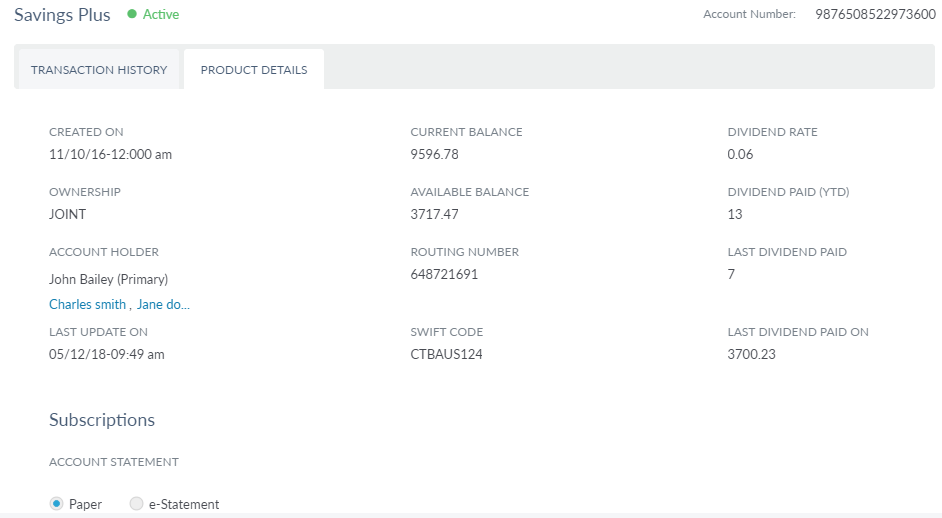
Details of the selected account type:
-
Current Status of the Customer: Next to the customer's name, the app displays the customer status as active or defaulter.
-
Account Number or IBAN: The account number or IBAN of the customer.
-
Current Balance: The current balance in the customer's account.
-
Dividend Rate: The current dividend rate set by the bank.
-
Ownership: The ownership of the account as an individual, joint or minor.
-
Available Balance: The available balance in the customer's account.
-
Dividend Paid (YTD): The last dividend (amount) paid to the customer year to date.
-
Account Holder: Displays account holder's name. If the selected account type is a joint account, the app also displays the primary and secondary account holder details. If the customer is the primary owner of the account, his/her name is listed in this field, and the ownership will be Primary, and the app provides a link to navigate to the profile of the secondary owner of the account. If some other customer is the primary owner of this account, his name will be listed here and the ownership will secondary, and the app provides a link to navigate to the profile of the primary owner of the account.
-
Routing Number: Bank's routing number.
-
Last Dividend Paid: Last dividend (amount) paid to the customer.
-
Created on: The date on which the customer account is created.
-
Swift Code: Bank's swift code.
-
Last Dividend Paid On: The date on which the dividend is paid to the customer.
-
Last Update On: The date on which the customer's account was last updated.
You can also subscribe the selected account for e-statements from here.Click Back to Accounts to navigate to the accounts list.
Help Center
The Help Center tab displays all the message communications between the customer and the CSR, requests, and travel notifications raised by the customer in their respective tabs.
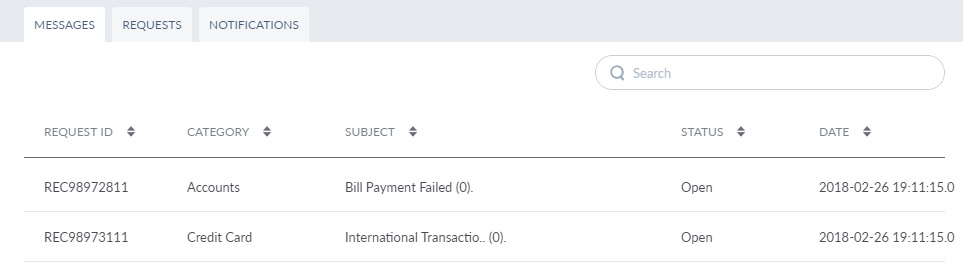
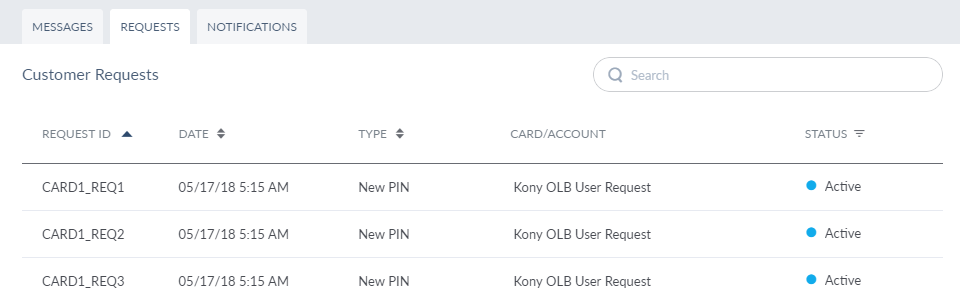
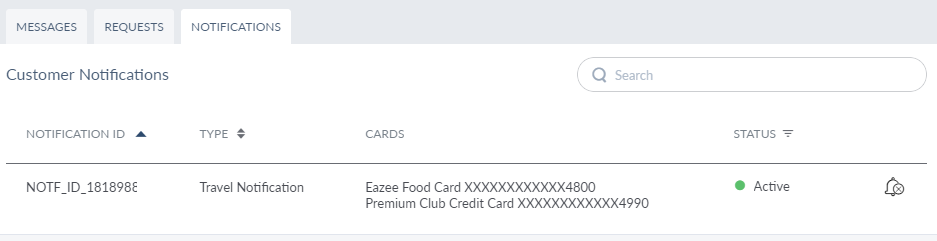
You can do the following on each tab:
Messages: Clicking on any of the threads will redirect the user to the Messages module.
You can sort the list based on any of the columns by using the sort icon ( denotes sorted by that column). You can search for the required message using the search feature. Enter the keyword in Search to get the required message. The message list is represented as rows with the following details:
- Request ID
- Category
- Subject
- Status
- Date Requested
Click on the required message and the app will navigate you to the messages module and will show the details of the selected message.
Requests: Displays the list of requests raised by the customer. The request can be account-related or card related.
You can sort the list based on any of the columns by using the sort icon ( denotes sorted by that column) and filter the list based on the status of the customer. Enter the keyword in Search to get the required request. The request list is represented as rows with the following details:
- Request ID
- Date Requested
- Type (New Pin, Card Cancellation or Card Replacement)
- Card/Account
- Status (New/Completed/Cancelled/In Progress) - The status of the request is updated from the back-end.
Click on the required request to view more details like Card Number, Reason for Request, Delivery Mode, and Delivery Details. Click Back to Requests to navigate to the requests list.
Notifications: Displays the list of travel notifications raised by the customer.
You can sort the list based on any of the columns by using the sort icon ( denotes sorted by that column) and filter the list based on the status of the customer. Enter the keyword in Search to get the required notification. The notification list is represented as rows with the following details:
- Notification ID
- Type
- Cards
- Status (Active/Expired/Cancelled)
If any customer requests to cancel the notification (when the customer cannot access the OLB or MB application), you can click Cancel Notification icon on the required notification and cancel it on behalf of the customer. Click on the required notification to view more details like Planned Departure Date, Planned Return Date, Destination Contact Number and Additional Notes if any. Click Back to Notifications to navigate to the notifications list.
Roles
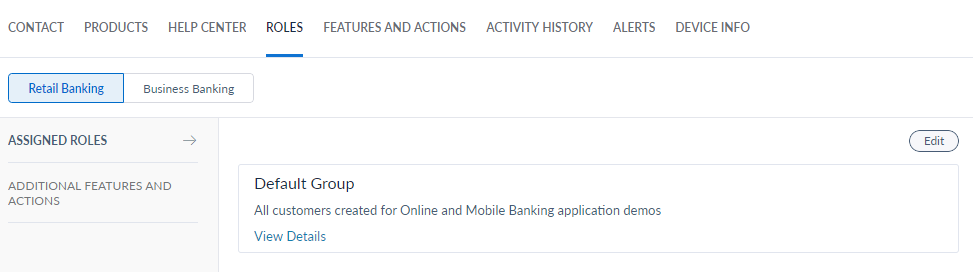
The Roles tab lists all the roles to which the customer is assigned.
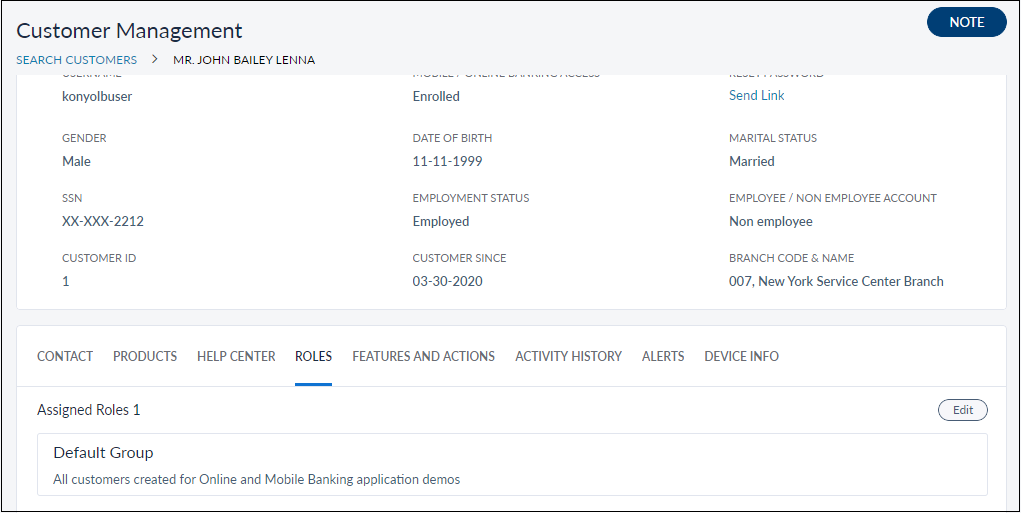
Click Edit button to add or remove a group from the list. Only those roles mapped to the customer will be shown in the list.
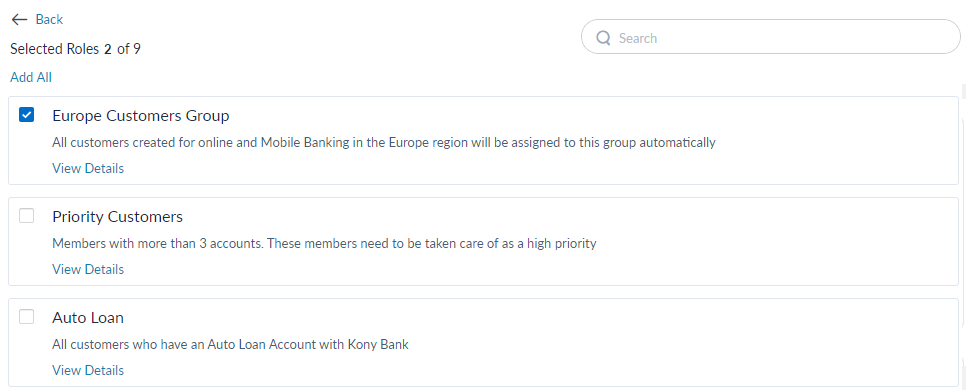
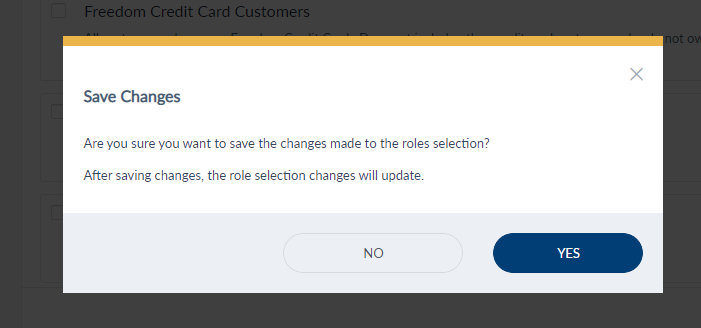
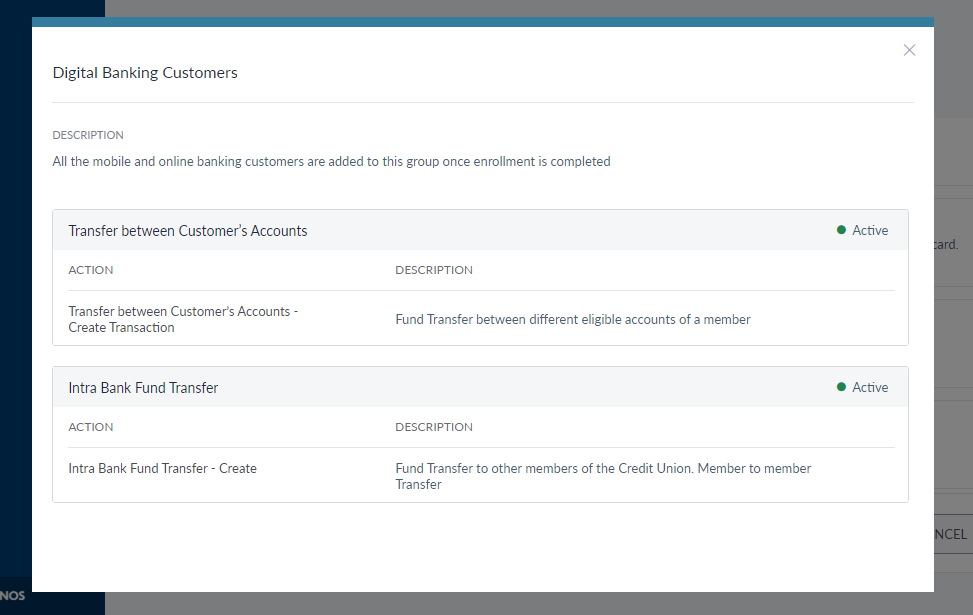
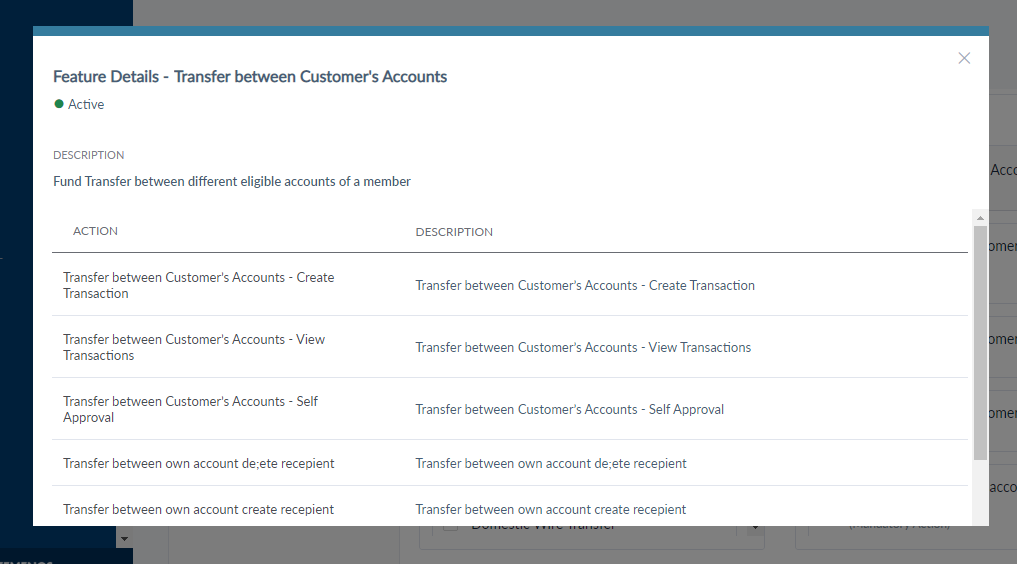
Click the View Details button to get additional information about the feature in the form of description along with a list of actions mapped to the feature and their current status.
Features and Actions
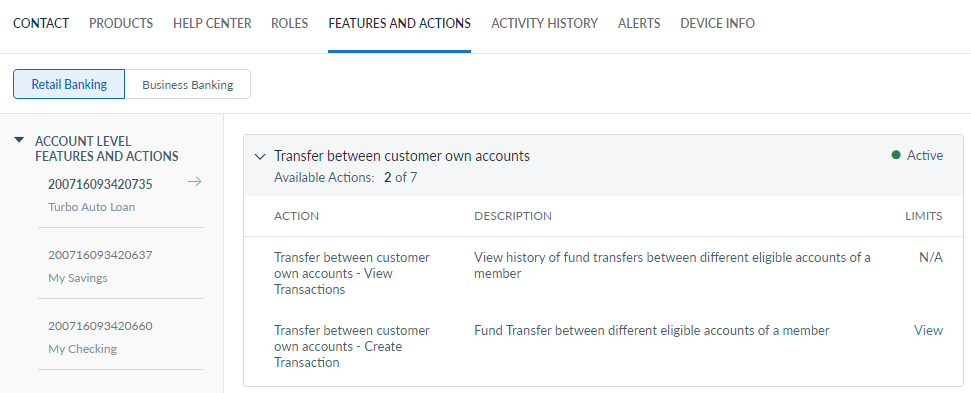
The Features and Actions tab displays the list of features mapped to each role the customer has been assigned to. Each role has a set of features and actions specific to it. Along with the roles related actions, it also shows a list of additional list of features and actions the customer can be assigned to.
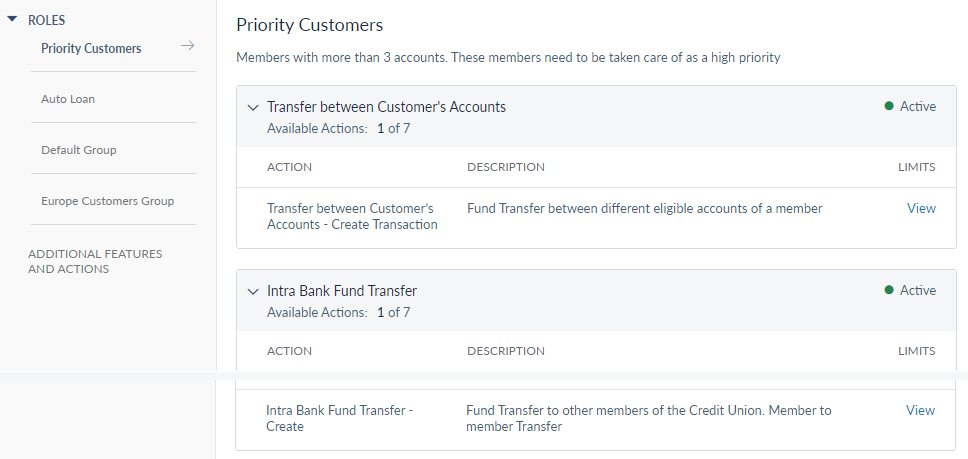
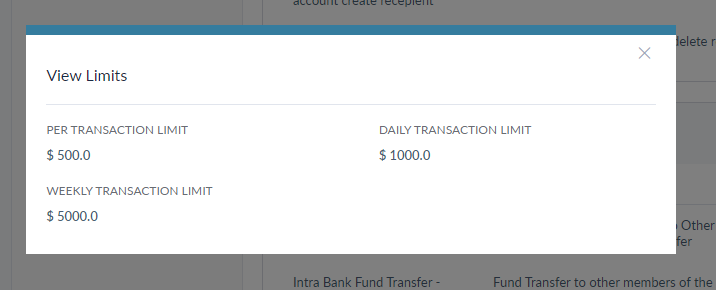
To view the limits set for transactional actions, click the View button shown against it.
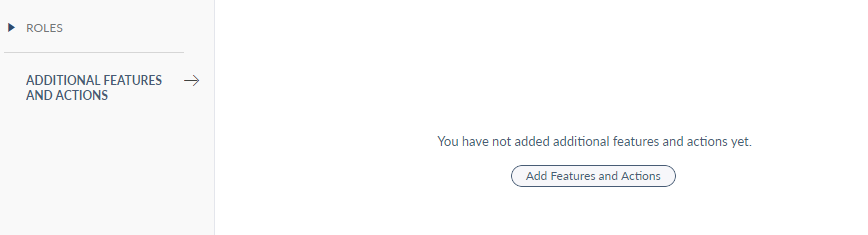
The Additional Features and Actions sub-tab lists the actions that are not found in the assigned roles related actions. If there are no features and actions displayed in the sub-tab, the user can add them using the Add Features and Actions button.
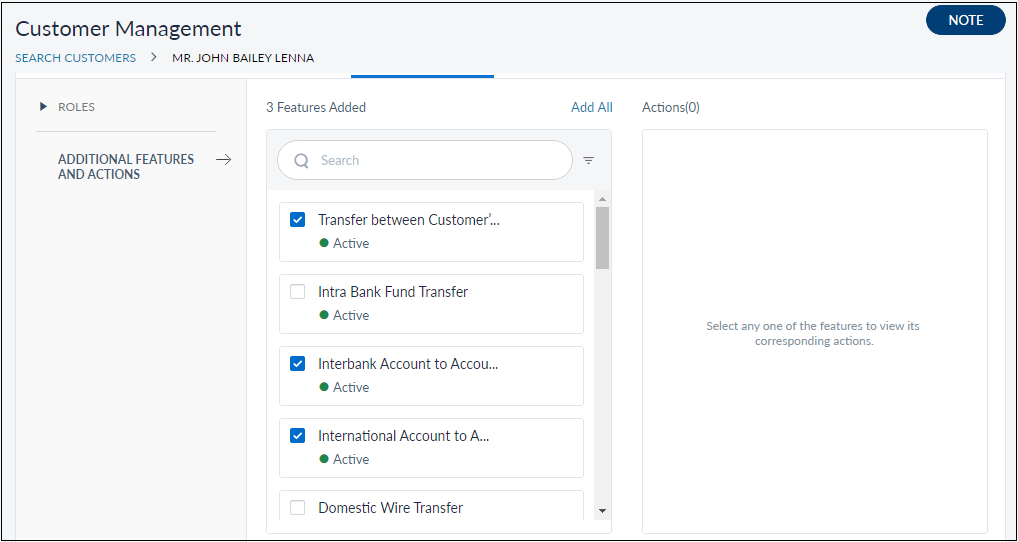
Mandatory actions are listed in the selected features section. Though the user can choose to select/unselect any action, it is recommended not to unselect a mandatory action.
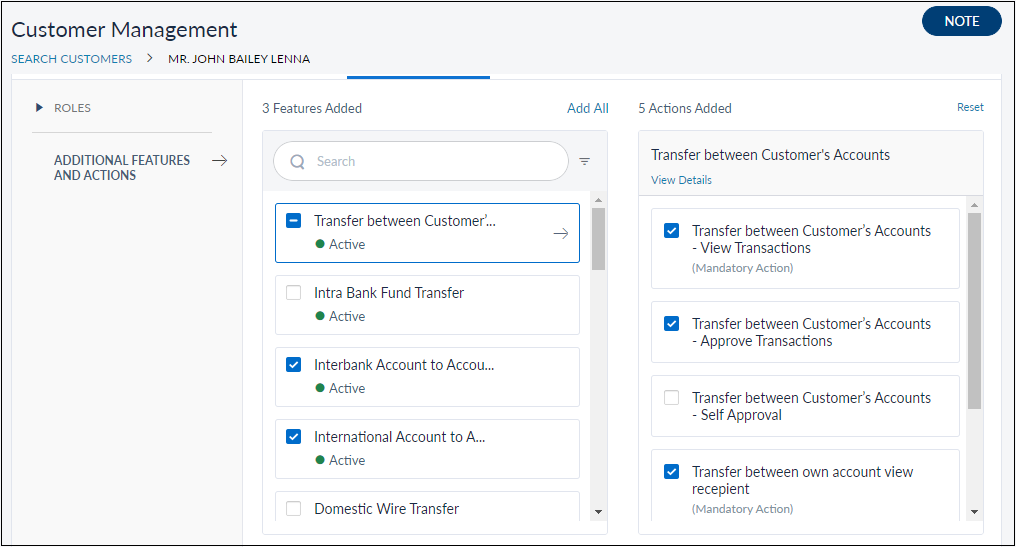
Click the View Details button shown below a selected feature to get details of a feature and its related actions.
Activity History
The Activity History tab displays the list of banking activities carried out by the customer. The activity history is recorded in sessions. The list displays the details of the last three sessions. To view more sessions, click View All. The app navigates you to the transaction and logs section.
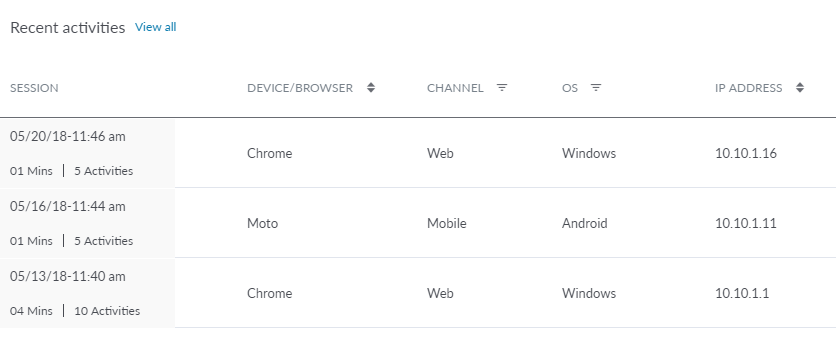
The activity history list is represented as rows with the following details:
- Session details: Includes Start Date, Time, Duration, and the number of activities carried out in the session.
- Device/Browser details
- Channel (web/mobile)
- OS
- IP Address
You can sort the list based on any of the columns by using the sort icon ( denotes sorted by that column) and filter the list based on Channel and OS. Select the required session if you want to view more details about the session and activities carried out in that session.
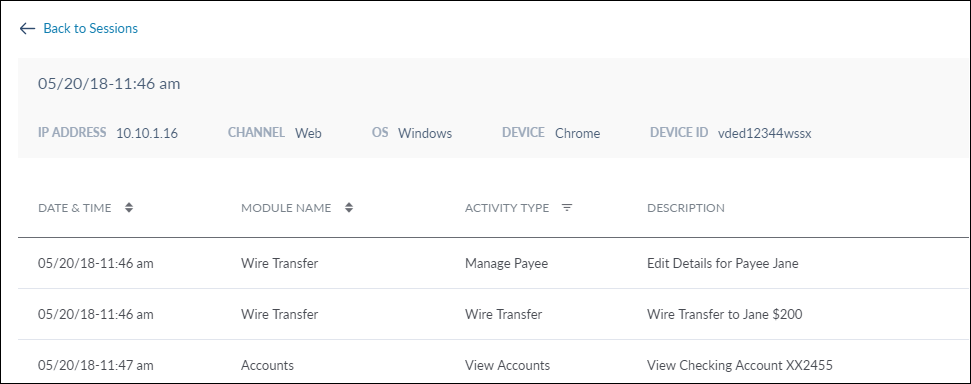
The Session Details screen displays an additional detail, which is, the Device ID of the device on which the session started. The activities carried out in the session are represented as rows with the following details:
- Date and Time
- Name of the module in which the activity was carried out.
- Activity Type
- Description of the activity
You can sort the list based on any of the columns by using the sort icon ( denotes sorted by that column) and filter the list based on Activity Type. Click Back to Sessions to navigate to the session list.
Alerts
The Alerts tab includes 'Notifications' and 'Preferences' sections. By default, Spotlight displays the details in the Notifications tab when you click the Alert tab.
Notifications
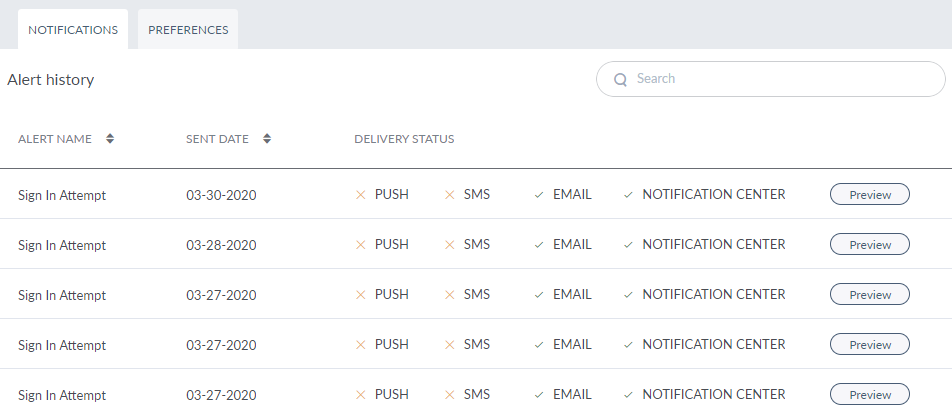
The notifications tab displays a customer's history. The list is represented as rows with the following details:
- Alert Name: Name of the alert.
- Sent Date: Date when the alert was sent
- Delivery Status: Displays through which channel the notification was sent (Push, SMS, Email, Notification Center).
-
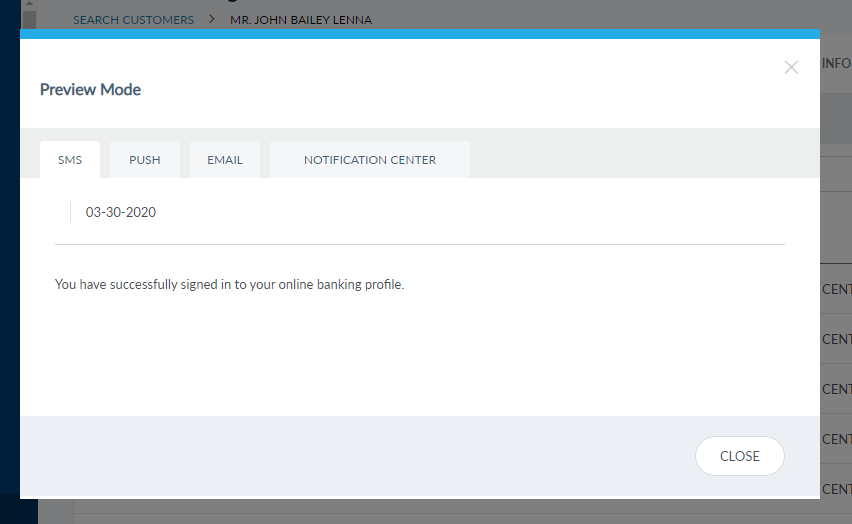
Preview: Click Preview to view the notification details sent for each channel. The following details are displayed for each channel:
- SMS/Notification Center: notification title, login success time, and notification content
- Email: The HTML content sent in the email.
- Push: Notification Title, login success time, and notification content.
- Click Close to close the preview window.
You can sort the list based on alert name and sent date by using the sort icon ( denotes sorted by that column). Enter the keyword in Search to get the required notification.
Preferences
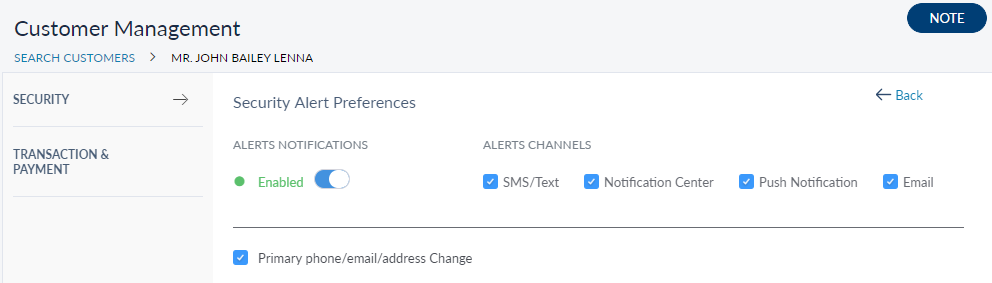
Click the Preferences tab to view and edit the customer alert preferences. The Preferences page has two sub-tabs - Security and Transaction & Payment. The Security tab is selected, by default. User can set a customer's alert preferences upon request.
The Security page displays whether the alert preferences for a customer are enabled or disabled. If the alert preferences are enabled, it shows the chosen channels for receiving the alerts by the customer.
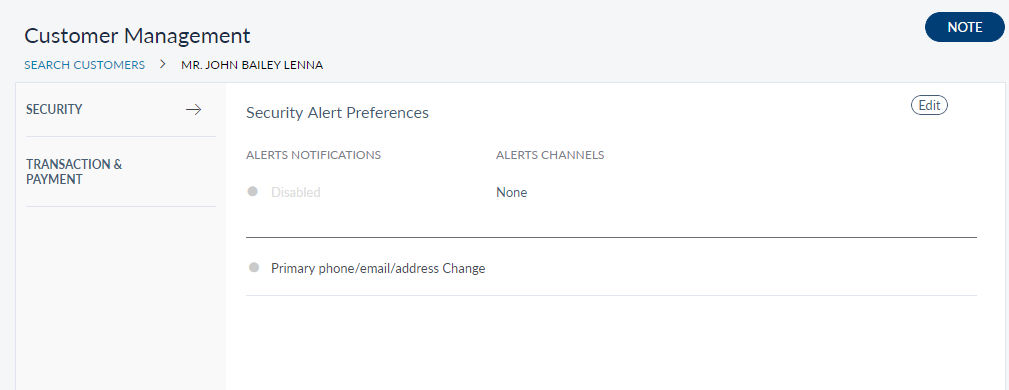
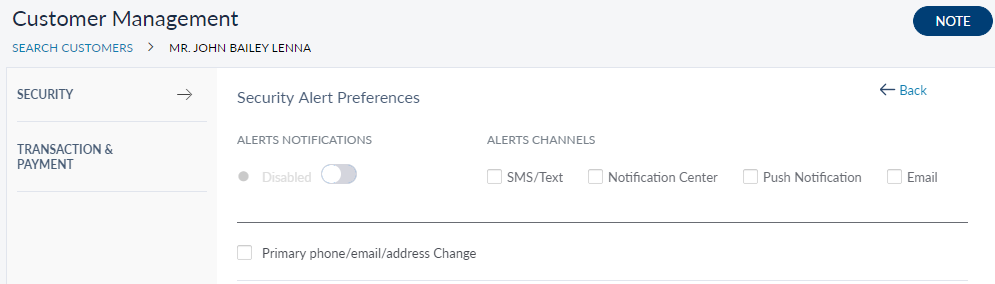
Click Edit to set alert preferences for a customer from the Security tab. The following actions can be performed:
- Notification toggle: Toggle between enabling or disabling alert notification option.
- Alert Channels: Choose the alert channels to which the notifications will be sent. The options are SMS/Text, Notification Center, Push Notification and Email.
- Primary phone/email/address change: Check the box for sending alerts.
- Note: User can leave notes for future references by clicking the Note tab.
Edit Security Alert Preferences option.
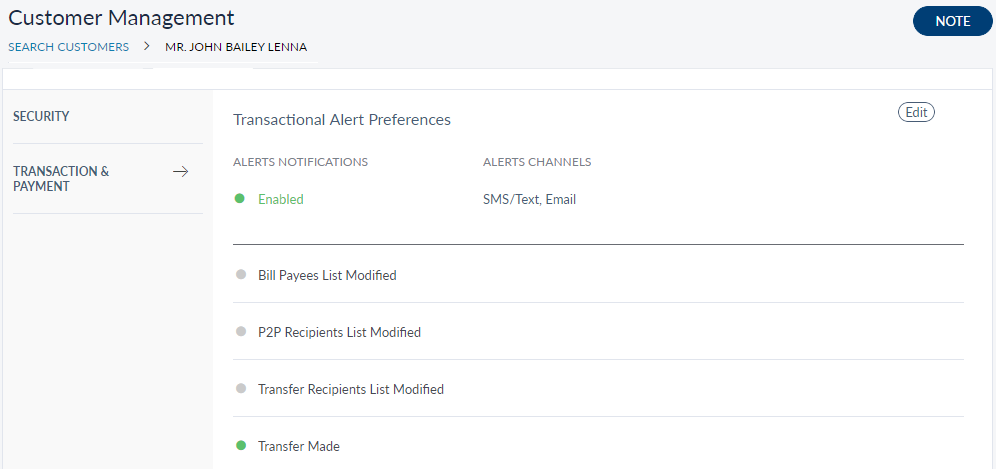
The Transaction & Payment tab shows the following information:
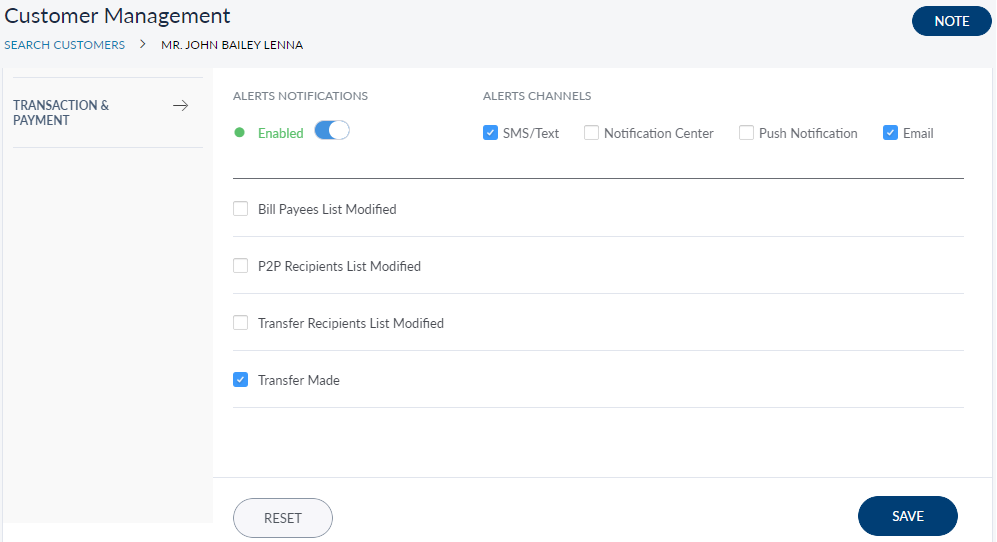
- Alert Notification: If the alert notification is enabled.
- Alert Channels: The chosen channels for receiving an alert.
- Alert types: A types of alerts to choose from for receiving alerts.
Transaction & Payment tab - View
Transaction & Payment tab - Edit
Device Info
The device info tab lists the details of all the devices registered/used for accessing the retail banking applications. You can also de-register the device on the customer's request if required.
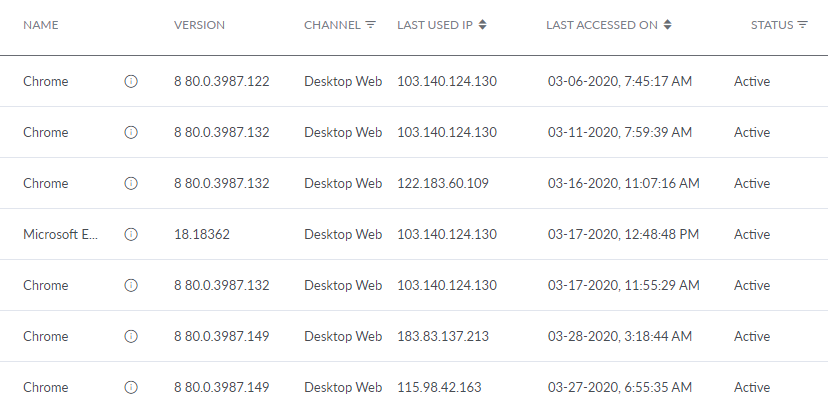
The device list is represented as rows with the following details:
- Device Name (Model Name). Use the details icon to view the device ID, OS, and version for mobile native; browser name, and version for OLB (iPhone X, Safari 11, etc).
- Version
- Channel (Mobile/Web/Mobile Web/Tablet)
- Last Used IP address
- Last Accessed on Date and Timestamp
- Status of the registered device. The different statuses available are as follows:
- Active: The status of the mobile device is active when the user accesses the application from the mobile app but has not registered the device. The status of the browser always remains active as the user cannot register a browser.
- Registered: This is applicable only for mobile devices. The status of the mobile device is Registered when the user registers the mobile device with the application.
- In-active: The status of the device or browser is in-active when the user has ended the session in an unregistered device or in the desktop browser.
- De-Register: This is applicable only for mobile devices. The status of the mobile device is De-Register when the user de-registers the mobile device with the application.
- Option to De-register a registered device
- Option to Deactivate an active device
You can sort the list based on any of the columns by using the sort icon ( denotes sorted by that column) and filter the list based on the channel and status. Click the additional information icon on the required row, if you want to view the additional information about the device like registered or first accessed on date, Device ID, and OS on the device.
CSR can de-activate  or de-register
 any device on customer's request and the status of the device will be updated automatically.
- The app lists the last one months record of the devices with De-registered/Active/Inactive state. Older device details are maintained in the customer activity log details.
- There is no limit on how many times a device can be activated/registered.
Link or De-link Customer Profiles
If the customer has both Retail banking and Business banking profiles and you have enabled the Link Retail and Business Profiles option in Business Configurations, the following options are displayed :
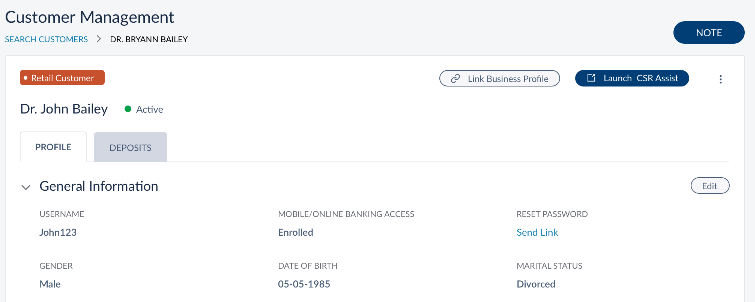
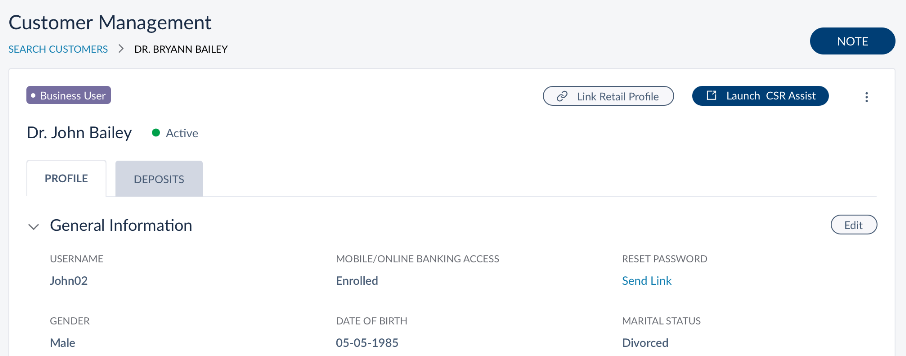
- Link Retail Profile or Link Business Profile - This depend on the profile which you are currently viewing. If you are viewing a Retail profile, the Link Business Profile option is displayed and vice-versa.
- De-Link Profiles - If the Retail and Business Profiles are already linked, the De-Link Profiles option is displayed.
NOTE: The option to link another profile is available to only those business users who are authorized signatories / business owners.
Link Profiles
Do the following to link the profiles:
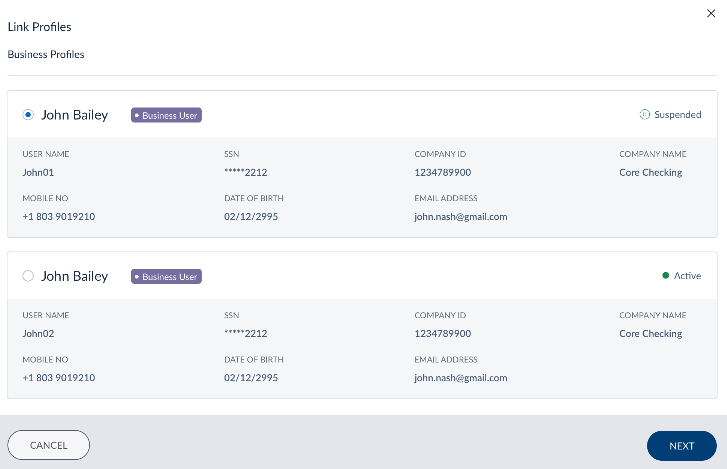
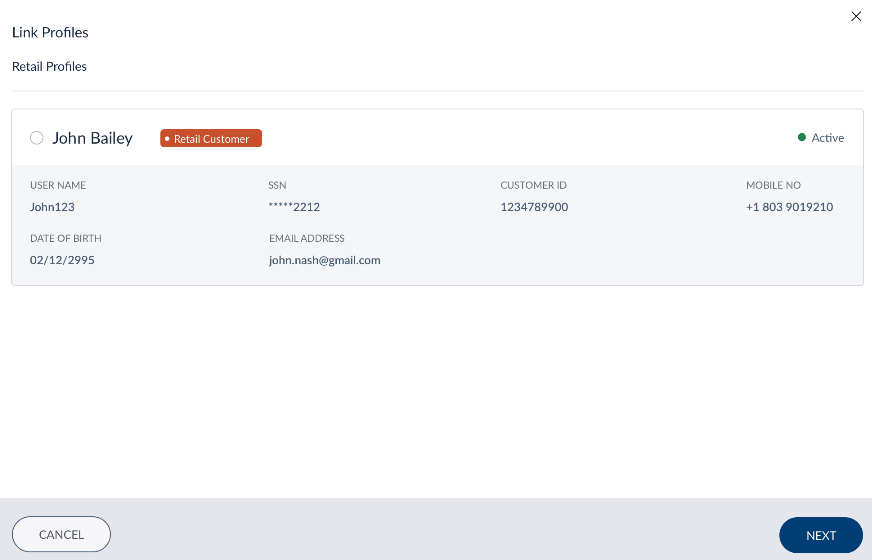
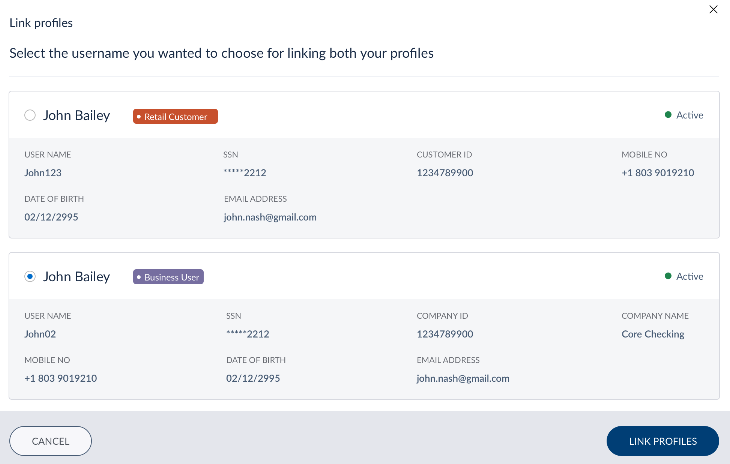
- Click Link Retail Profile or Link Business Profile. The respective Link Profile window appears which list the matching business or retail profiles and their related information. The matching is done based on the Last Name, Date of Birth and SSN / Identification number on the profiles. Additionally, when business profiles are enlisted, the application ensures that the business profiles are those of authorized signors / business owners only.
- Select the profile which you want to link and click Next. You cannot link a profile which is Suspended state.
- Select a username from the profiles. The customers will use the selected username to access the application, and can access both the profiles in one application. The other username will be deactivated in the database.
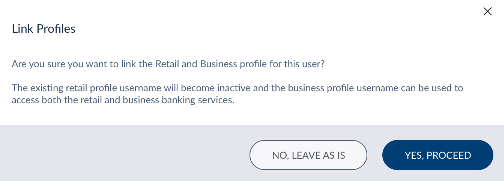
- Click Link Profile, a confirmation message is displayed.
- Click Yes Proceed, and the profiles are linked.
Once the profiles are linked, an alert is sent to the contact details of the deactivated profile, to confirm that the said profile is deactivated. An alert is sent to the contact details of the new combined profile to confirm that the profiles have been linked.
Link Retail profile to Business Profile
Link Business Profile to Retail Profile
Combined / Linked User Profile
Once the profiles are linked, the General Information section will have the details about both Retail and Business profiles of the customer. This user will be tagged as both a retail and a business user.
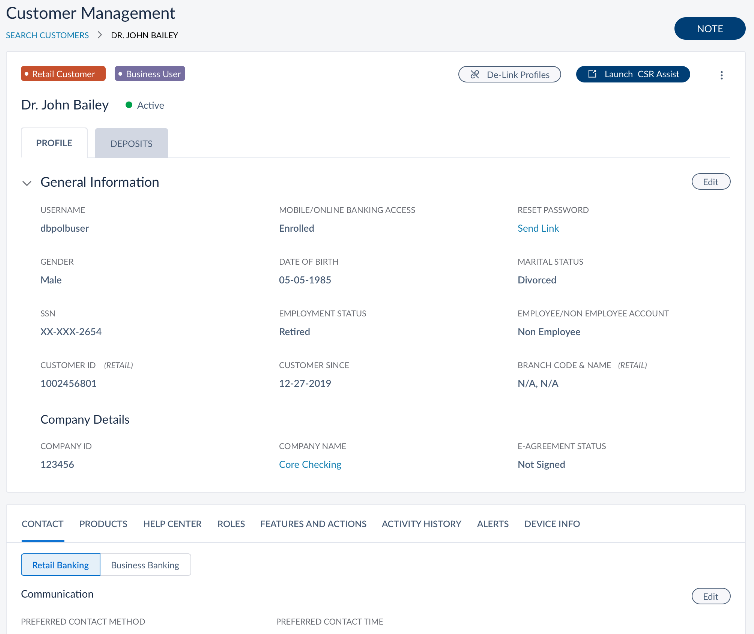
The following changes happen in the respective tabs where other details are displayed:
- Contact: The Retail contact and Business contact information of the customer is displayed in the respective tabs under the Contact tab. You can edit the details if you want from here. A single primary contact detail for communication exists for a combined user which is used to send alerts to the user. By default, the primary contact details are maintained set to be same as on the profile whose login credentials have been maintained for the combined user.
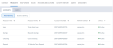
- Products: The information in Accounts and Cards sub-tabs is divided into Retail and Business banking tabs. These tabs show their respective products. You can carry out all the activities that you can do on the unlinked profiles.
- Help Center: This tab has no changes after linking the profile. Message and notifications are maintained at a user level and are not distinguished as personal or business related.
- Roles: The Roles tab contains Retail and Business Banking sub-tabs that display the role that the customer is assigned in their respective profiles. A combined user could have multiple Retail roles and additional features and actions that have been given to the user for personal use, outside of the Retail roles. A combined user would also have a business role.
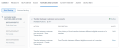
- Features and Actions: This tab contains Retail and Business Banking sub-tabs that list all the features and actions that the customer is entitled to at an account level and at a user level. A distinction is maintained between Retail and Business permissions.
- Activity History: This tab has no changes after linking the profile.
- Alerts: This tab has no changes after linking the profile.
- Device Info: This tab has no changes after linking the profile.
De-Link Profiles
Do the following to de-link the profiles:
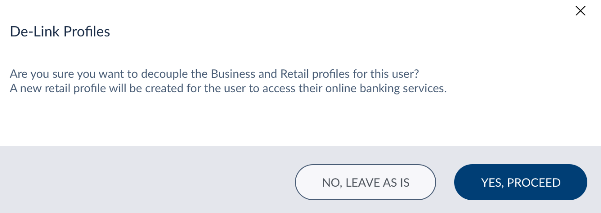
- Click De-Link Profiles, an appropriate confirmation message is displayed. If you choose to proceed, a new profile will be created for Retail use and the existing profile will be converted into a business profile.
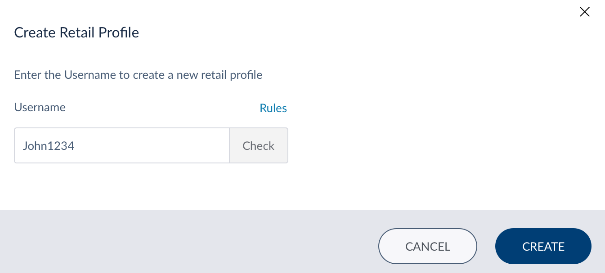
- Click Yes Proceed. The Create Retail Profile window appears. This is for you to create a new username to access the Online Banking application for Retail use.
- Enter the user name for the Retail profile. The user name provided is used to access the Retail Banking application. Click Check to validate the given user name against all other user names. If the status of the validation is Available, then you can assign the username for the new Retail profile, else you have to change the username and check the availability again.
- Click Create. The customer's Retail and Business profiles are de-linked.
Once you delink the profiles, an alert is sent to the user to confirm that his profile is delinked. The user must activate the new Retail Profile created before they can start to use the credentials for Online Banking / Mobile Banking. An activation email is sent to the email address associated with the new Retail Customer profile.
Add Bookmark
save your best linksView Bookmarks
Visit your best links BACK
BACK


Are you sure you want to log-off?