| Bookmark Name | Actions |
|---|
Custom Roles
The custom role feature provides the self-service option for business owners and other authorized manager of business users to create and manage custom role templates. The feature is available to only those users who are given explicit permission (Create / Edit Templates permission) to manage custom roles.
Why is a custom role required?
Users have permissions-based access to accounts and features in the application based on their user roles. The roles are configured at the financial institution (FI) level and are assigned to every user, which controls the features and actions that the user can perform. A role can even contain permissions to a partial set of actions for a feature and the permissions can be restricted at the user level as well. Therefore, an authorized person can take away some of the permissions that the user inherits from a role and it is possible to have a custom set of permissions for every user.
This is where a custom role is used. Instead of working on a user's permissions individually, which is time consuming, an authorized user can create custom role templates with predefined permissions over the base parent role of the user and store them in the DBX database. When it comes to redefining permissions for a user, a custom role template can be assigned to users depending on the business needs.
A custom role is a template that includes predefined access rights and permissions for the following:
- List of accounts
- Role
- Permissions - account level and user level
- Transaction limits
An authorized business user can create a custom role as a template and apply the template to a user while creating a business user or to the existing business users based on the business needs. When a user is assigned a custom role, all of the above are copied from the custom role into the user’s profile. These values can be modified for a user if required.
Custom role template can be created from any of the following scenarios:
- Assign permissions manually from scratch.
- Copy permissions from existing user or custom role.
Menu Path: Side Menu > User Management > User Roles
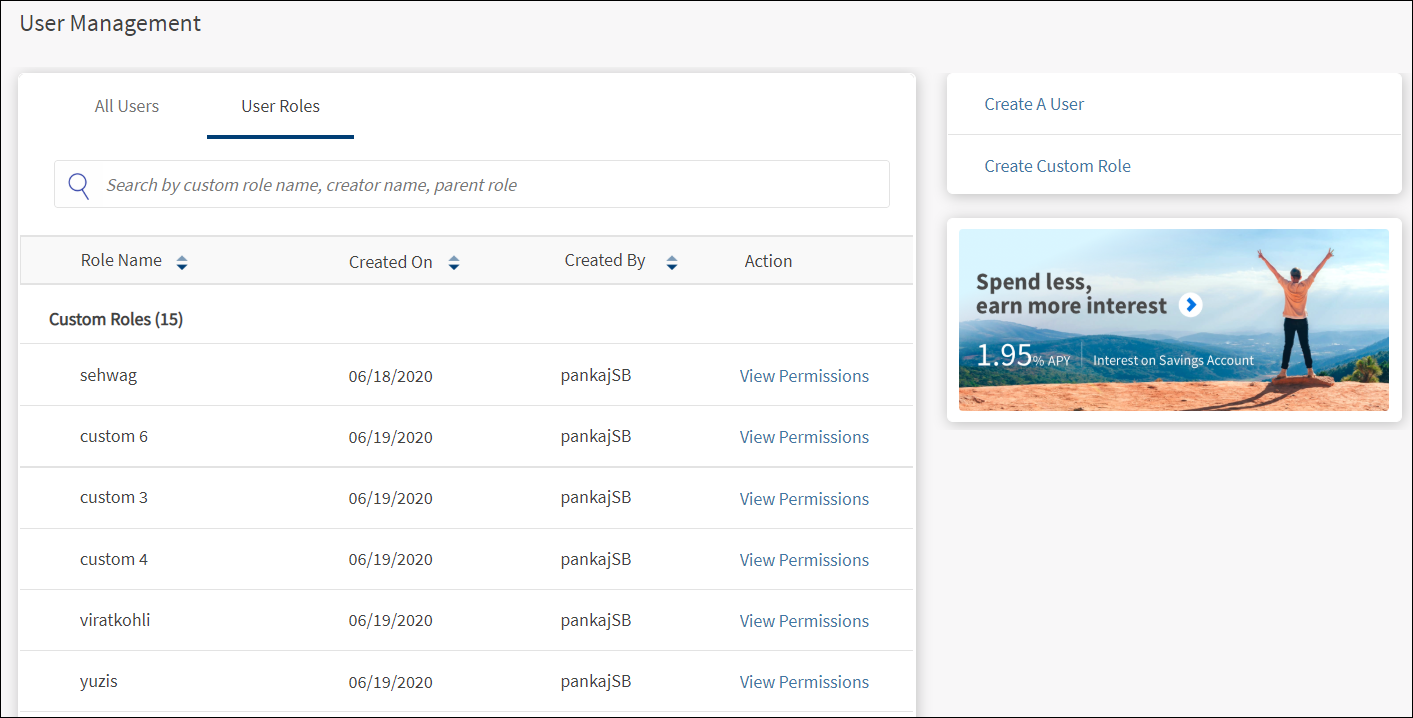
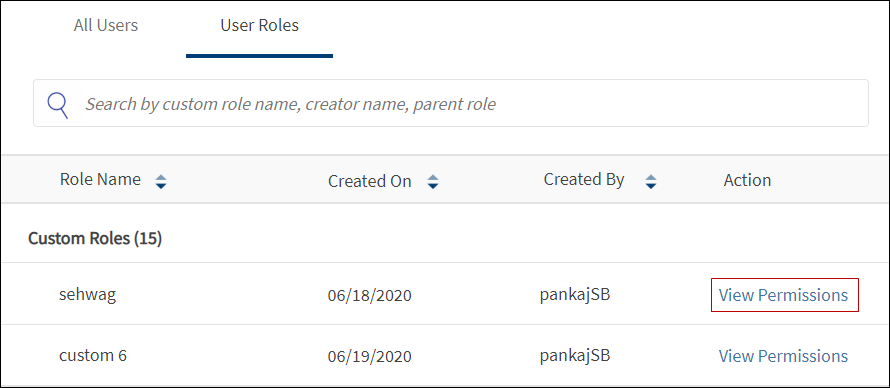
The User Management > User Roles screen displays the list of custom role templates that have been already created earlier. This is also the landing page of the custom role module. You can do the following:
- View the custom roles list
- View permissions and apply role to user
- Create a custom role
- Search for a custom role
Custom Roles List
The application displays the list of user roles that have been created earlier. The custom roles are fetched from the DBX database.
Menu Path: Side Menu > User Management > User Roles
The list is represented as rows with the following details. The count of roles available is shown within parenthesis:
- Custom role name.
- Role created on date.
- Name of the user who created the role.
- Action link to view the permission details.
The list is sorted by Role Name by default, but you can also sort the list based on Created On and Created By using the sort  icon.
icon.
Do any of the following:
- Click View Permissions to view the role permission details and modify details if required.
- Click Create Custom Role to create a custom role template.
- Search for a custom role.
View Permissions and Apply Role to Users
Use the feature to do the following activities of a selected custom role:
- View and edit the permission details.
- Delete a role that is no more needed.
- Apply role to selected users.
Menu Path: Side Menu > User Management > User Roles> Click View Permissions link
Edit Custom Role Details
The screen is similar to the one while you create a custom role.
To edit the details in any of the sections, follow these steps:
- Click Edit to modify the details.
- Modify the changes as required.
- Click Save & Update. The changes are updated.
Delete a Custom Role
Click Delete to remove the role that is no more needed and remove from the custom roles list.
Only an authorized user with "Custom Roles - Delete Custom Roles" permission can delete the custom roles entirely.
On deleting a role, the application displays a confirmation screen to delete the role. On confirmation, the custom role is deleted entirely, and the user is taken back to the dashboard with the User Roles tab open.
Deleting a role does not change the permissions of the users who were created using the role or the permissions of the users to whom the custom role has been applied.
Apply a Custom Role to Users
To apply role to users, follow these steps:
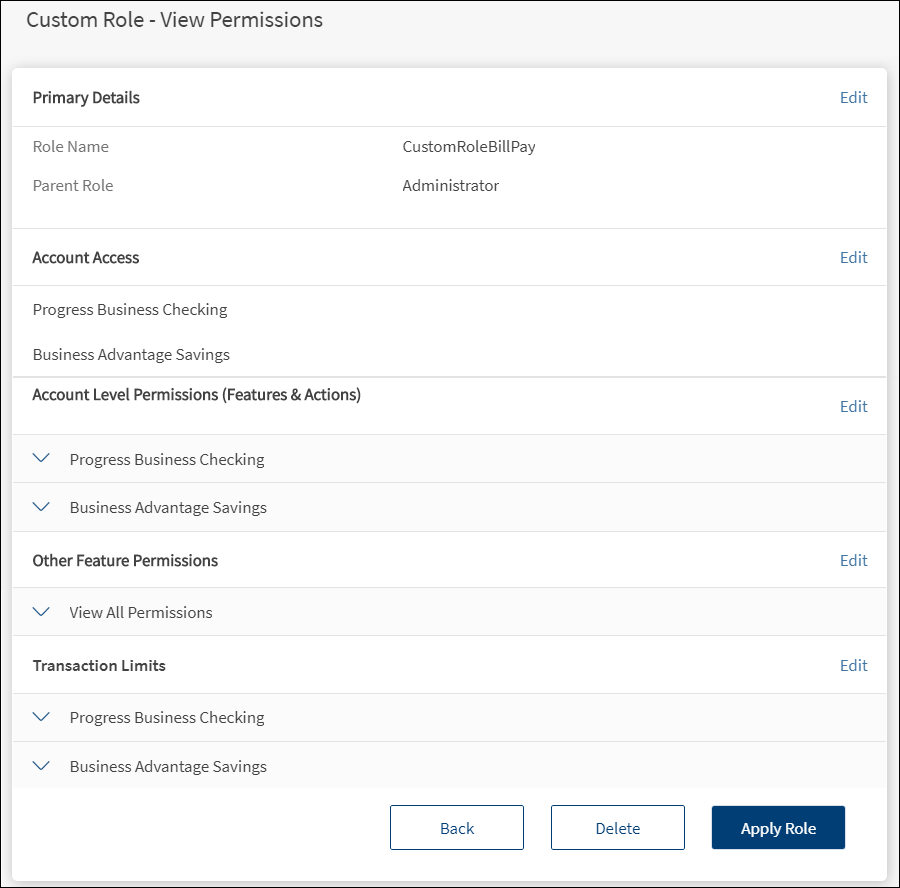
- On the roles list screen, click the View Permissions link of a selected role. The application displays the view permissions screen.
- The details on the screen are divided into the following sections. Click the Edit link in the respective sections and make the changes as required.
 Primary Details
Displays the primary details. Make the changes and click Save & Update. The changes are updated.
- Role Name
- Parent Role. Displays the assigned role. Assign a new role if required and click Save & Update. The change is updated. The user permissions and transaction limits changes based on the parent role.
Account AccessDisplays the list of accounts to which the role has been provided access. Make the changes by selecting or clearing the account check boxes. Click Save & Update. The changes are updated. The user with this role will be able to view or operate only the selected accounts when the user signs in to the application.
Account Level Permissions (Features & Actions)Displays the permissions to access the features and associated actions at the account level. Make the changes by selecting or clearing the feature check boxes of respective accounts. Click Save & Update. The changes are updated. The permissions and transaction limits changes based on the changes.
Other Feature PermissionsDisplays the permissions given to other non-transactional features. Make the changes by selecting or clearing the feature check boxes. Click Save & Update. The changes are updated.
Transaction LimitsDisplays the transaction limits defined for the various services of corresponding accounts. Make the changes to pre-approval and denial limits. Click Save & Update. The changes are updated. Note that the changes will affect all future transactions.
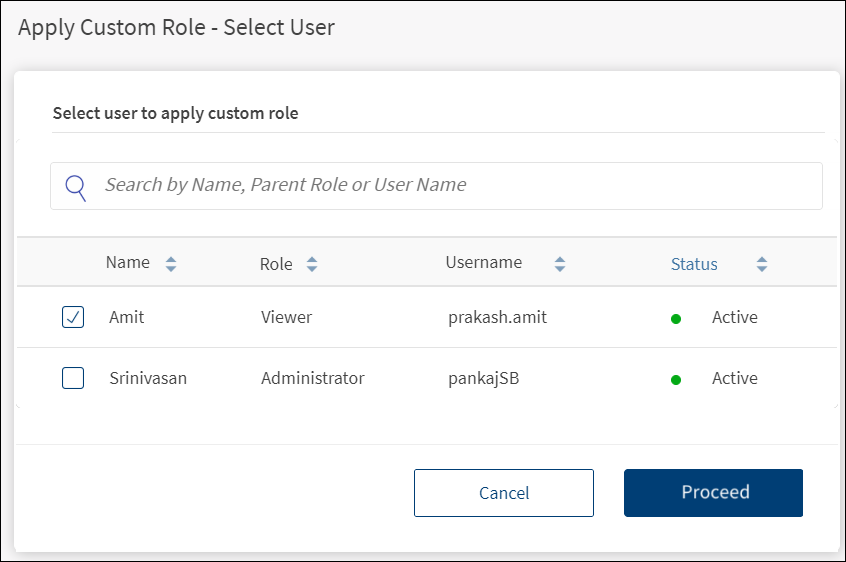
- After updating the details, click Apply Role. Only an authorized user with permissions to apply custom roles can use this feature. The application displays the select users screen.

- The application displays the name, parent role, user name, and the status (Active, New, and Suspended) of the user. Select the users from the list. It is mandatory to select at least one user. Use the search box to filter the users by name, parent role, or user name. Use the sort option to sort by name, role, user name, and status.
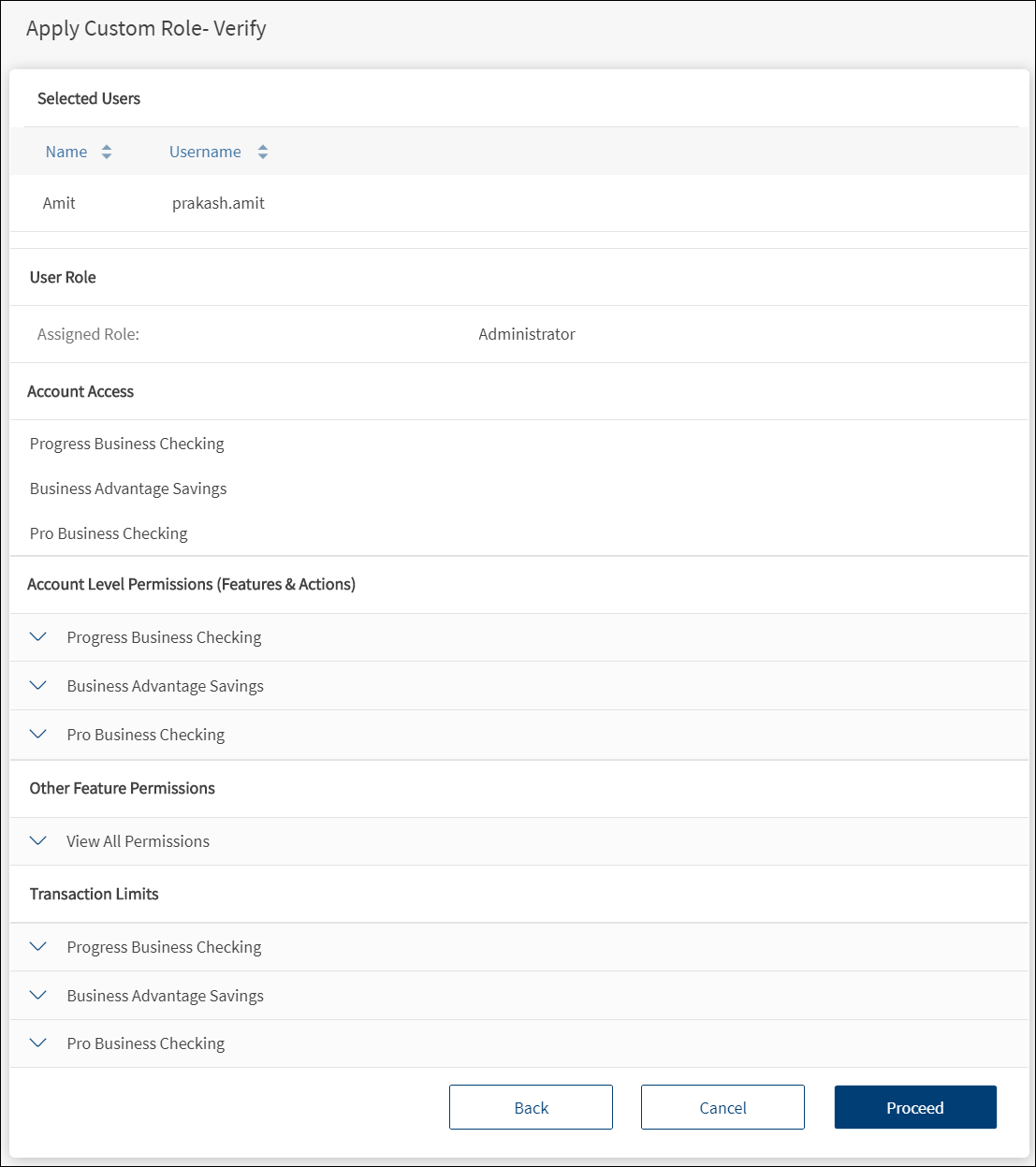
- Click Proceed. The application displays the screen to verify the details.

NOTE:
- Click Back to navigate to the previous screen and make any changes.
- Click Cancel to cancel the operation. The changes are not saved.
- After reviewing the user details, user role, account access, permissions to features, and transaction limits, click Proceed to confirm the details.
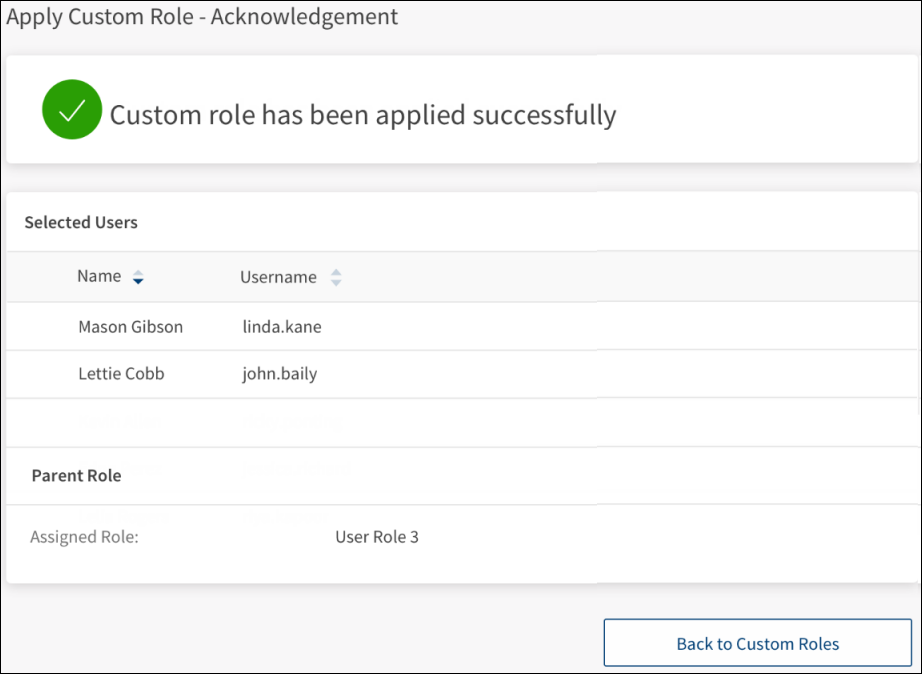
- After the form is submitted, the custom role is applied successfully, and the application displays an acknowledgment screen with a unique reference number and the list of users with their parent role name.

- You can do any one of the following on this screen:
- Sort the user list using the sort icons.
- Click Back to Custom Roles list.
NOTE: The user must sign in to the application to check the permission updates.
Create Custom Role
A custom role is a template that includes predefined access rights and permissions to features and can be assigned to any user. Use the feature to create custom role templates. The template can be created in any of the following methods:
- Method 1: Initiating the creation of a custom role from a newly created user.
- Method 2: Initiating the creation from the side menu.
- Assign permissions manually.
- Copy permissions from existing user or custom role.
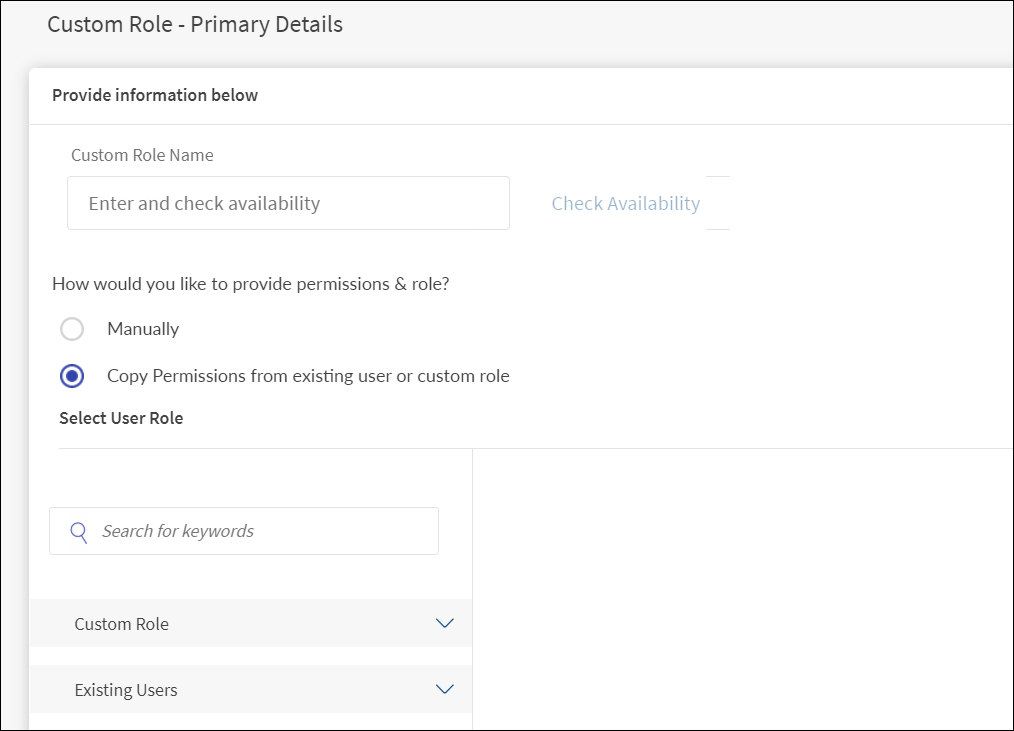
Menu Path: Side Menu > User Management > Create Custom Role. Alternatively, on the User Management screen, click Create Custom Role. The application displays the Custom Role - Primary Details screen.
The custom role creation process is divided into the following sections:
- Enter primary details
- Assign account access (applicable only when the role is created manually)
- Verify and submit details
- Acknowledgment
To create a custom role template, follow the steps explained in the following sections.
Primary Details
Capture the primary details in the Create Role - Primary Details screen.
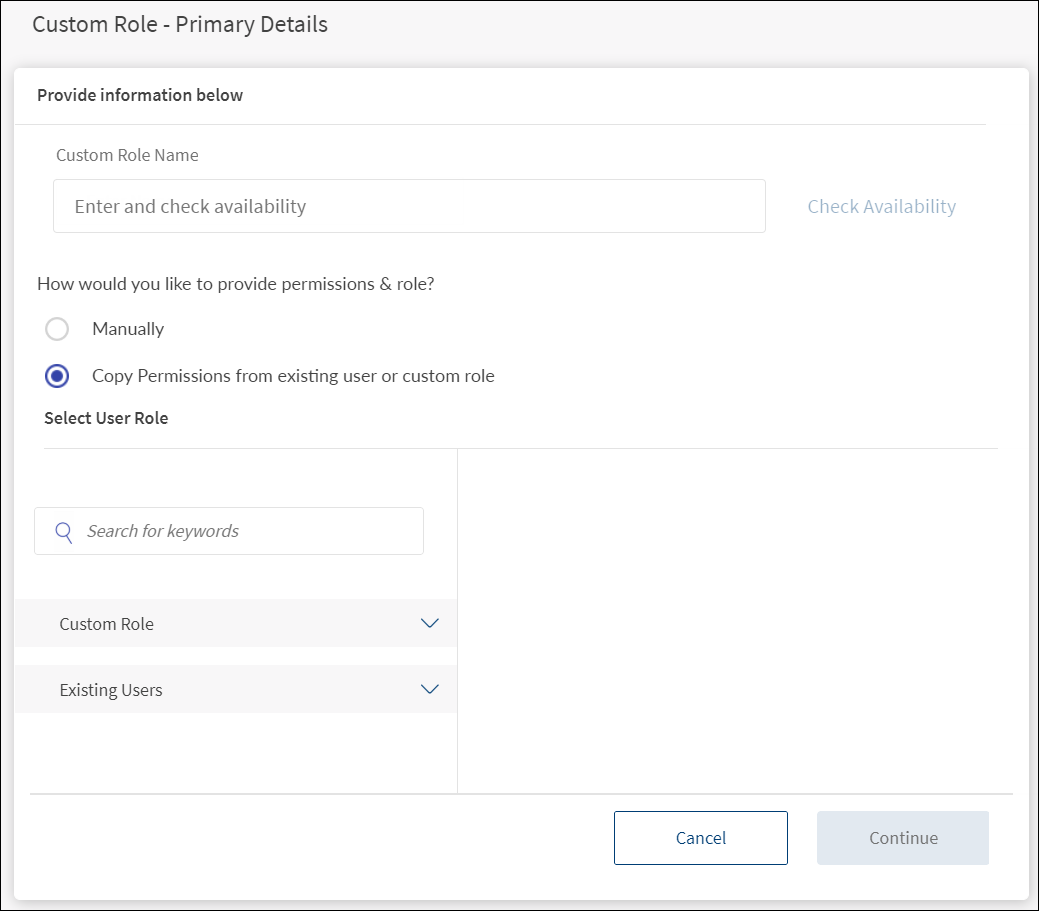
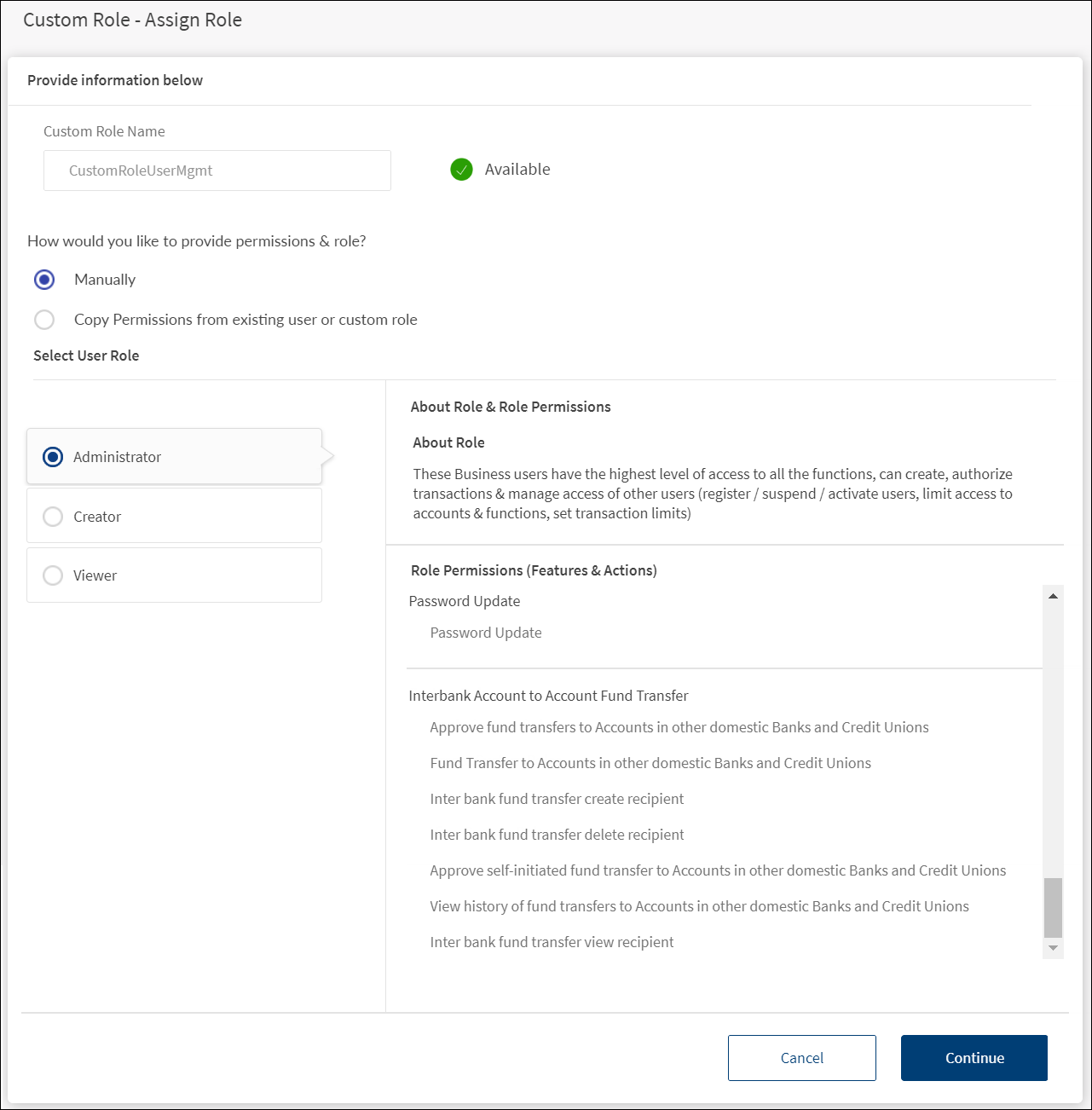
- Enter the Custom Role Name. Enter a custom role name and verify for availability. The name should be unique. The name can contain only alphanumeric characters and must be a single word without spaces in between the characters. Click Check Availability to validate the given name for its uniqueness. If the status of the validation is Available, then you can use the role name. Otherwise, change the role name and check the availability again. The Check Availability link is active only after you enter a name in the box.
- Do any one of the following:
- Assign permissions manually from scratch
- Click the manual option to assign permissions and role.
- The screen displays the list of available user roles with a description of each role and the role permissions to features and actions aligned to each role. The roles are fetched from the Spotlight application.
- Select a user role. This is the parent role.

- Copy permissions from existing user or custom role
- Click the copy permissions from existing user or custom role option.

- The screen displays the existing Custom Role and Existing Users list. Search for a role or user by entering the keyword in the search box.
- Do any one of the following:
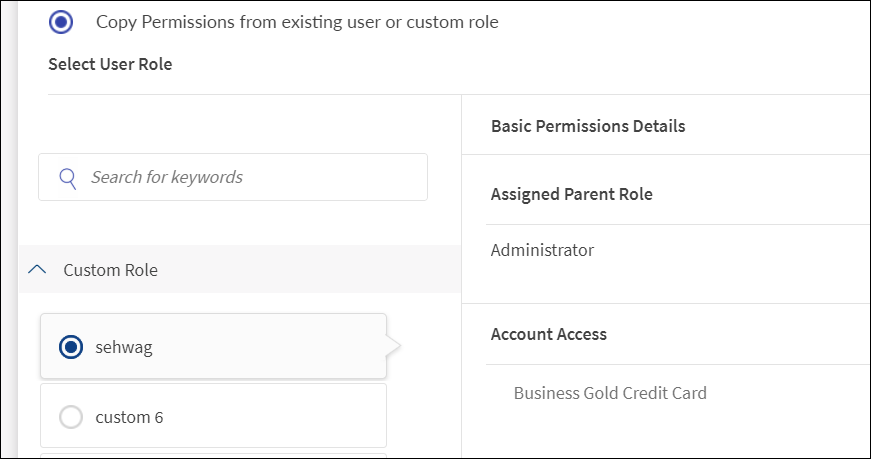
- Click the Custom Role list. The application displays all the custom roles that have been already created.
- Select the required custom role. The selected role is highlighted alongside the custom role list when the list is collapsed.

- The application displays the basic permission details, assigned parent role, and the list of accounts to which the selected custom role has access. The custom role that you are creating will inherit all the permissions of the selected role.
- Click the Custom Role list. The application displays all the custom roles that have been already created.
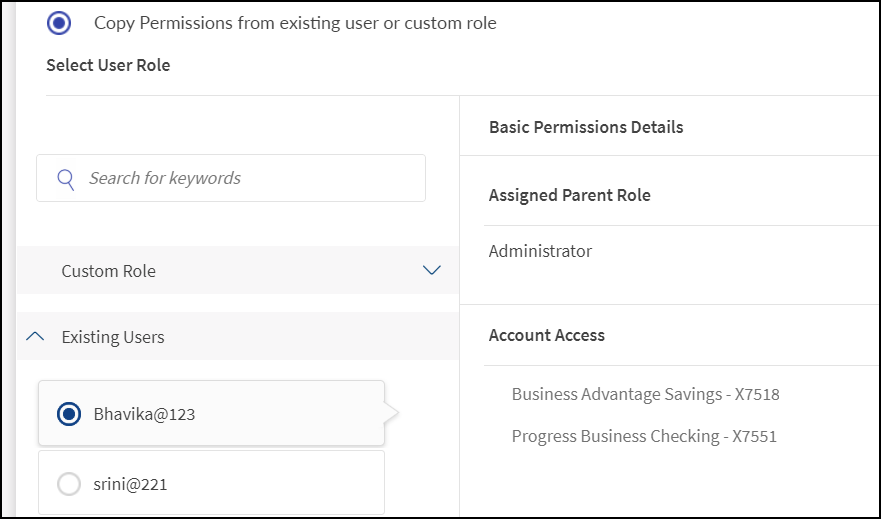
- Click the Existing Users list. The application displays all the existing users.
- Select the required user.

- The application displays the user's role and the list of permissions to features. The custom role that you are creating will inherit all the permissions of the selected user.
- Click Continue. The Continue button is enabled only if a valid custom role name is entered.
Account Access
Provide access to all or a subset of the accounts that are tied to the business or company in the Create User - Account Access screen. The screen displays the list of the company's business accounts and the provision to select the accounts.
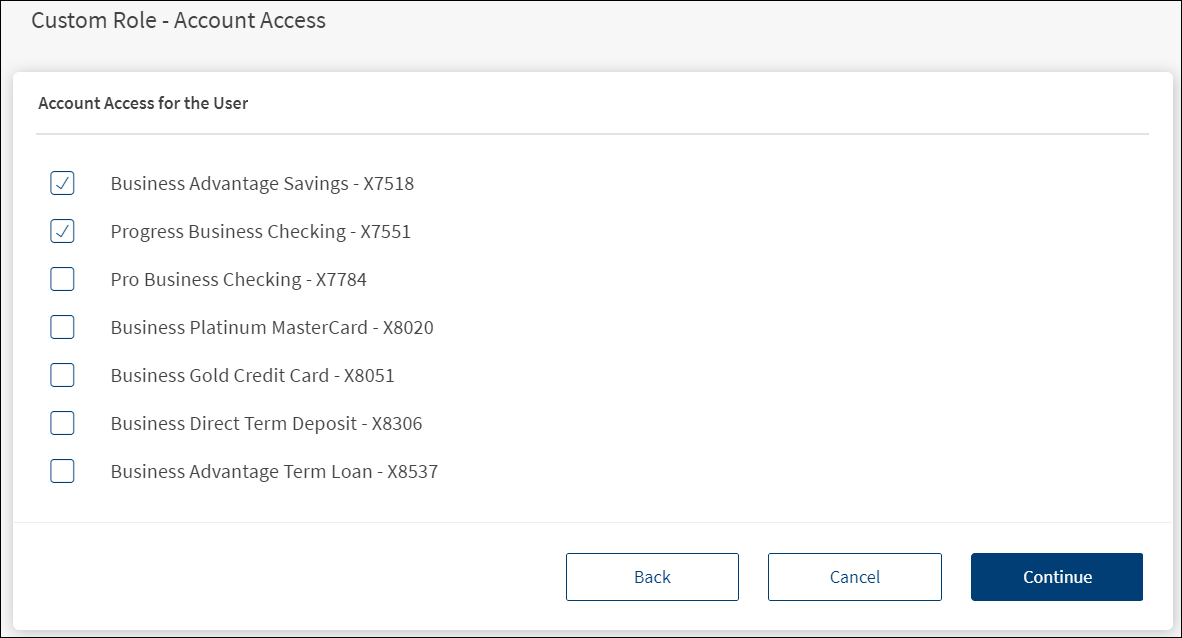
- Select the required accounts. The user who is assigned with this role will be able to view or operate only the selected accounts when the user signs in to the application. It is mandatory to select atleast one account.
- Click Continue.
NOTE: Click Back to go back to the previous screen or click Cancel to can the operation. The changes are not saved.
Review Permissions to Account Level Features and Transaction Limits
Review the details that you have already entered and modify the account level permissions to features and define transaction limits as required. The permissions and transaction limits are set up based on the mode you selected to create the custom role - assign permissions manually or copy permissions from existing user or custom role. You can modify the permissions to features now or review and change the details later.
The application displays the following sections. Use the edit option to modify the details:
- Primary Details
- Account Access
- Account Level Permissions
- Other Feature Permissions
- Transaction Limits
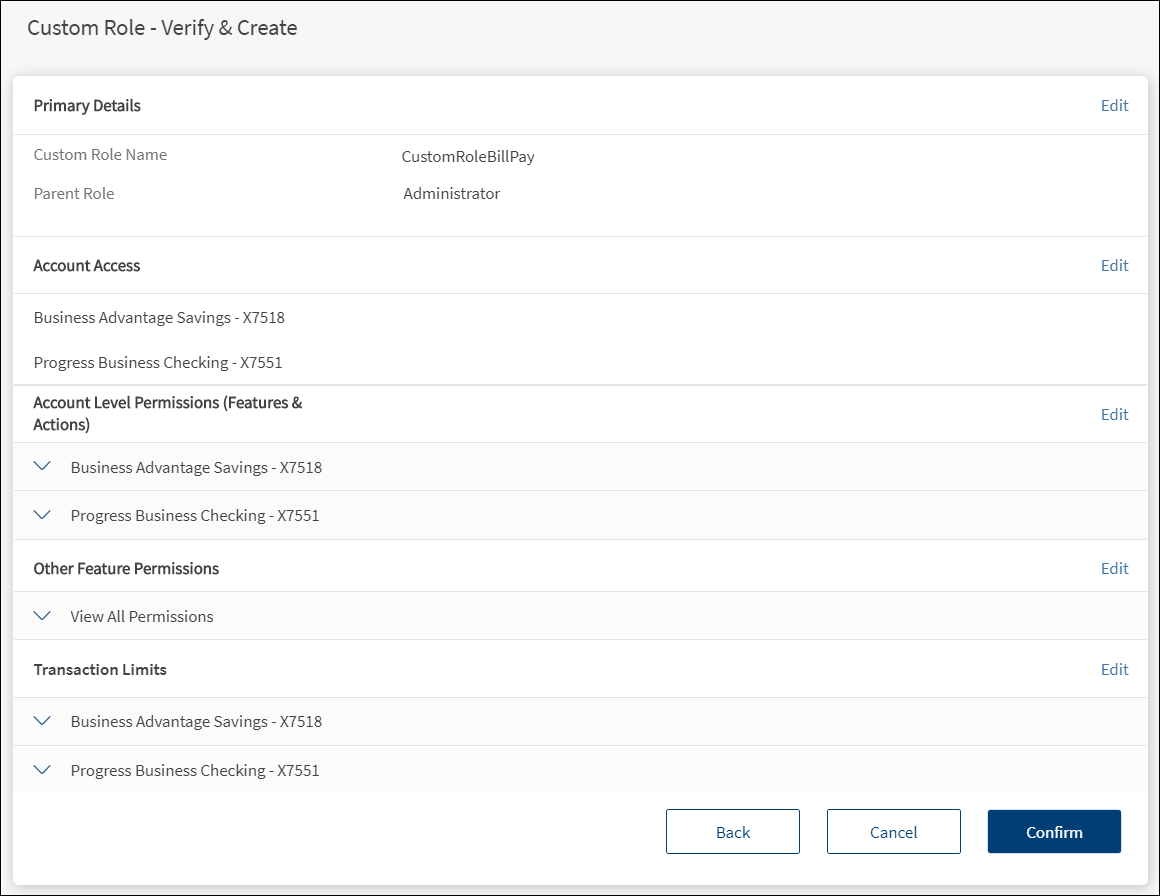
To edit the details in any of the sections, follow these steps:
- Click Edit to modify the details.
- Modify the changes as required.
- Click Save & Update. The changes are updated.
- After reviewing the custom role details, permissions to features, and defining the transaction limits, click Confirm to submit the form.
NOTE: For more information, see review permission section of the Create User feature.
Acknowledgment
After the form is submitted, the custom role is created successfully, and the application displays an acknowledgment screen with a unique reference number and few details of the custom role template such as the custom role name, parent role name, created by user, and template created date.
The record is added to the list of user roles. At the back-end, the record is saved to the DBX database.
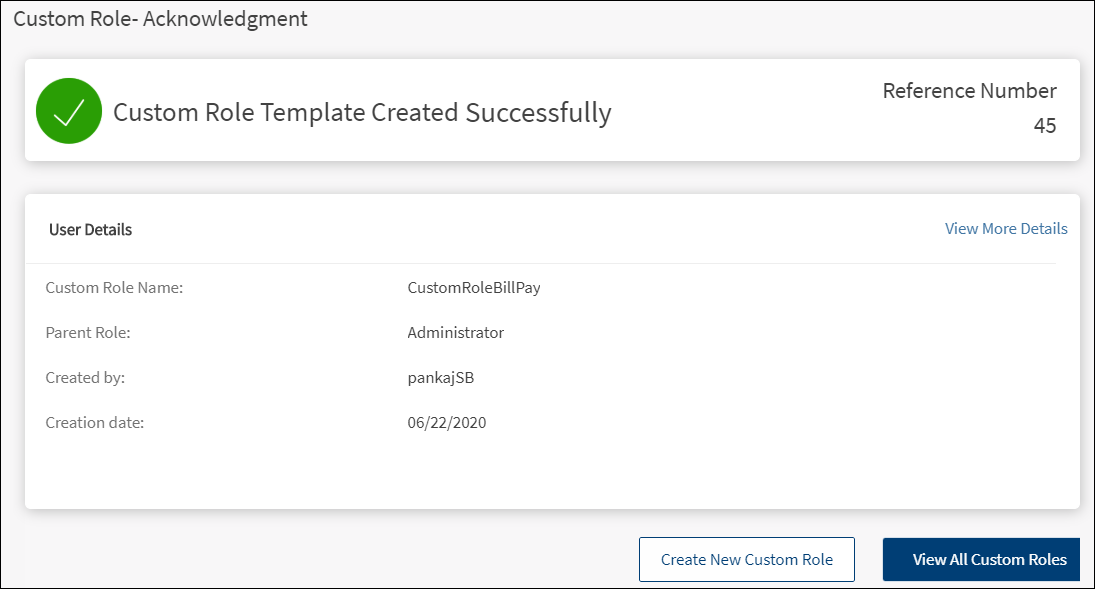
You can do any one of the following on this screen:
- Click View More Details. The application displays the view permissions screen which you can use to apply the role to selected users. See apply role to users for more information.
- Click View All Custom Roles to navigate to the list of custom roles.
- Create another custom role.
Search for a Custom Role
Use the search option to search for a custom role using search criteria. Enter the search keyword in full or in part.
Menu Path: Side Menu > User Management > User Roles > Search option
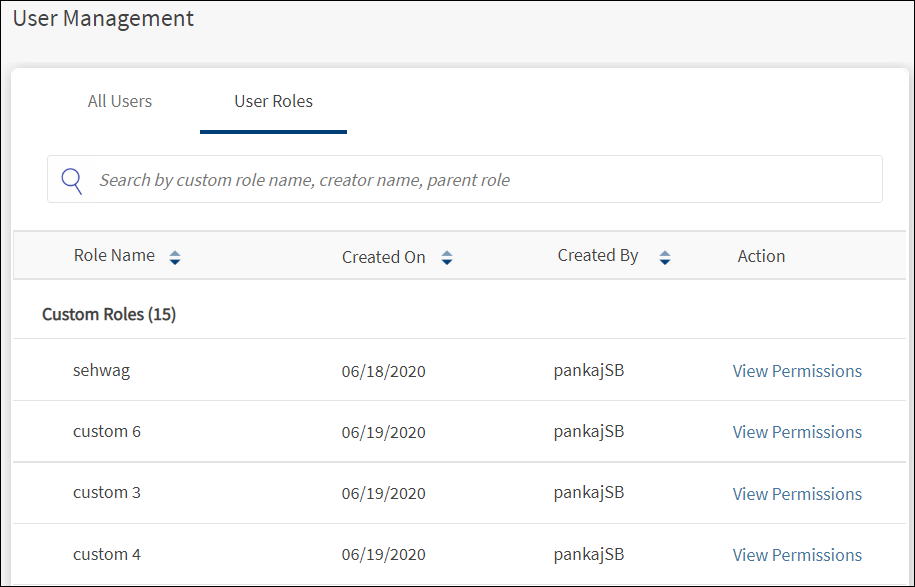
The keyword can be from any of the following fields:
- Role name
- Role creator name
- Parent role
Configuration
- The visibility of each feature is controlled through the permissions defined for the user. See permissions for more information. The permissions at user levels are defined during user creation and while editing the user details after the user is created. In case the user does not have access to any of the features, that option will not be visible on the form and on the menus. The permissions at the company level and role level are defined in the Spotlight application.
- The custom roles are saved to the DBX database.
- The parent roles are fetched from the Spotlight application.
- The Feature/Role/Company level transaction limits for recurring, nonrecurring, non-scheduled, and scheduled transactions are managed in the Spotlight application. User level limits can be managed in Spotlight and the customer-facing application.
APIs
The following APIs are shipped as part of this feature:
| API | Description |
|---|---|
| createCustomRole | Creates custom role for a specific organization. POST method is used for sending the data to back-end system. |
| fetchCustomRoleList | Gets the list of all custom roles that were created for a specific organization. POST method is used for fetching the custom role list. |
| getCustomRoleDetails | Fetches all the permissions template details from the server - primary details, account access, feature permissions, account transaction limit. POST method is used for fetching the data from server. |
| updateCustomRole | Edits and updates the existing custom roles through view permissions details page. POST method is used. |
| deleteCustomRole | Deletes the existing or newly created custom role. POST method is used. |
| assignCustomRoletoCustomer | Applies the created custom role to users. POST method is used. |
Add Bookmark
save your best linksView Bookmarks
Visit your best links BACK
BACK


Are you sure you want to log-off?