| Bookmark Name | Actions |
|---|
Recent Transfer
Use the feature to view the consolidated list of completed transfers. You can repeat transactions and download transaction reports.
NOTE:
- The Transfer Activities menu shows,
- All past and scheduled transfers for the following services done over the user’s personal accounts:
- Intra Bank Fund Transfer
- Transfer between customer's accounts
- Interbank Account to Account Fund Transfer
- International Account to Account Fund Transfer
- All past and scheduled transfers for the above services done over the user’s business accounts such that,
- The business user has access to the From account on which the transaction has been initiated.
- The transfer is created by any business user of the company on the account through the online channel.
- All actions on the past and scheduled transfers are driven by the account level permissions of the business user.
- All past and scheduled transfers for the following services done over the user’s personal accounts:
Menu path: Transfers > Transfer Activities
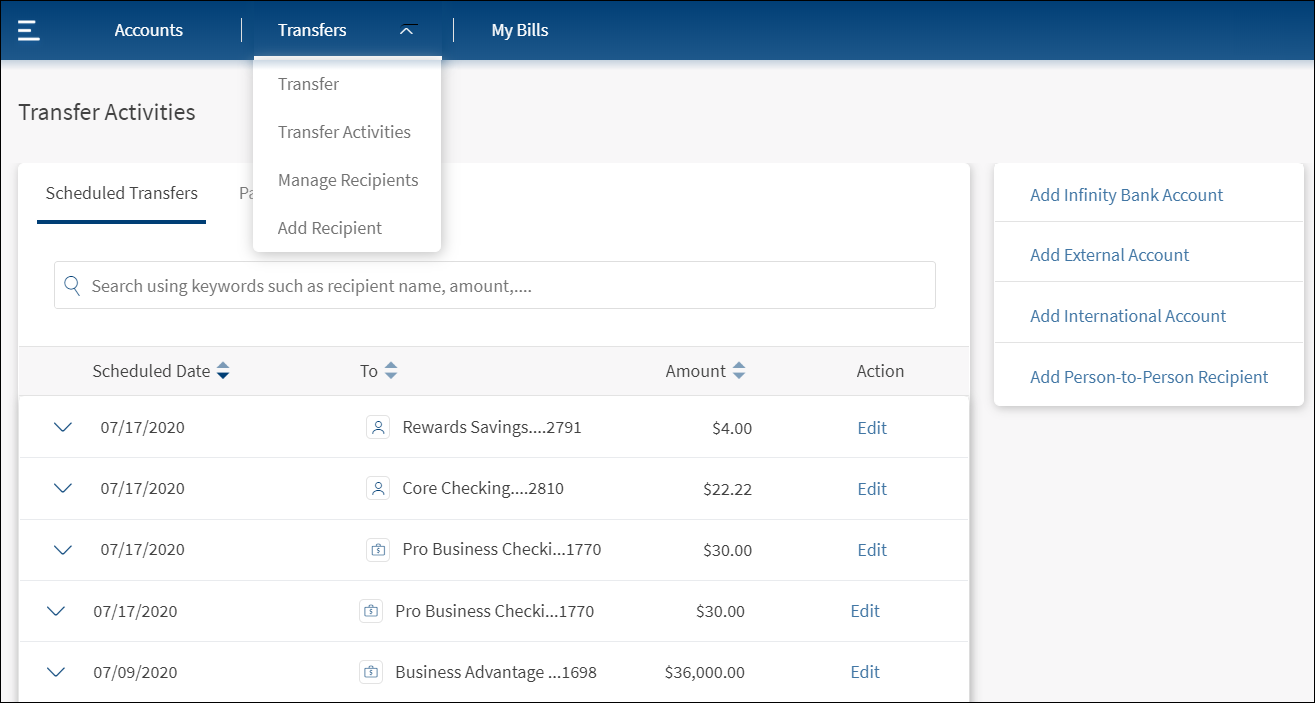
The application displays the list of scheduled and past transactions (10 transactions by default). The following details are displayed in the transaction list:
- Transaction Date
- Sent To (recipient nickname)
- Amount
- Actions that you can perform on a transaction - View Report (applicable for online banking application)
The list is sorted by Transaction Date by default, but you can sort the list based on any of the columns by using the sort  icon (
 denotes sorted by that column).
If no transactions are retrieved from the banking service, the app displays a relevant message.
You can do the following:
- View transaction details
- Repeat a specific transaction as a new transaction
- Download transaction report
View Transaction Details
Use the feature to view the detailed information for a completed transaction.
Click a transaction under Past Transfers to view the transaction details.
Scheduled Transfers

Past Transfers
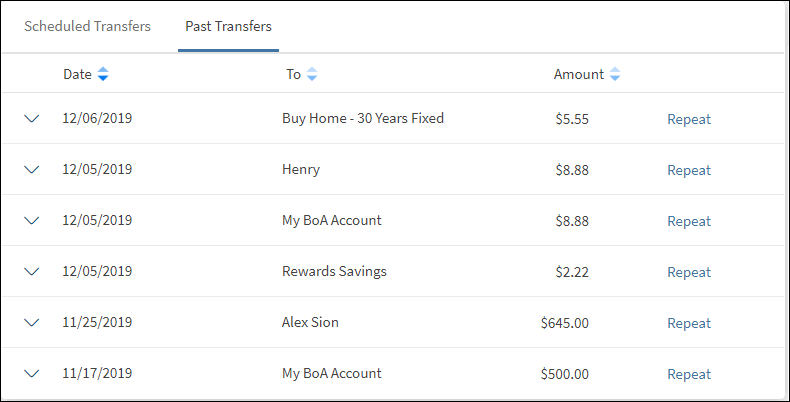
Transaction Details
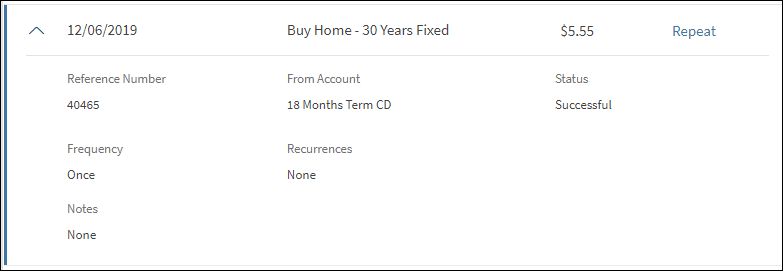
Click  icon beside a transaction to view the transaction details. The following details are displayed:
- Reference number
- From account (nickname)
- Status of the transaction
- Frequency
- Recurrences
- Notes if any
For a recurring transaction, the app displays the following details: frequency, number of runs pending, and next scheduled date if applicable.
Repeat a Recent Transaction
Use the feature to repeat a completed transaction.
Click Repeat to recreate the same transaction. The app navigates to the Transfers screen.
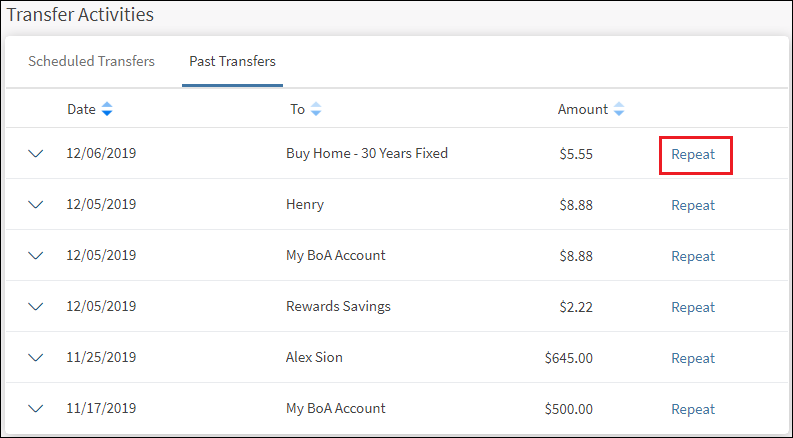
The app auto-fills the field descriptions for the new transaction as the original transaction. You can modify any of the fields for the new transaction, and confirm the transaction.
Download Report
Use the feature to download the report of a completed transaction. This feature is applicable only for an online banking application.
To download the report, follow these steps:
- Click icon beside a transaction to view the transaction details.
The transaction details appears for the selected transaction.
- Click Download Report to download the transaction report.
A PDF is generated with the transaction details.

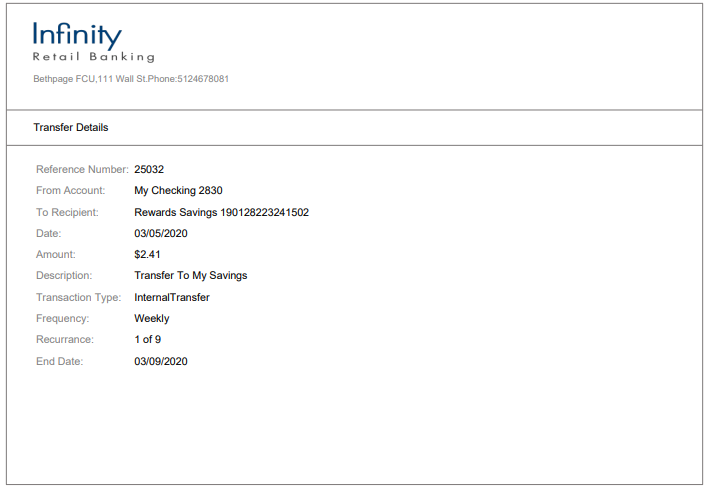
The following details are displayed:
- Reference Number
- Transferred From account
- Date of Transaction
- Transferred To Recipient account
- Transferred Amount
- Description
- Frequency
Configuration
The visibility of each feature is controlled through the permissions defined for the user. See permissions for more information. The permissions at user levels are defined during user creation and while editing the user details after the user is created. In case the user does not have access to any of the features, that option will not be visible on the form and on the menus. The permissions at the company level and role level are defined in the Spotlight application.
Add Bookmark
save your best linksView Bookmarks
Visit your best links BACK
BACK


Are you sure you want to log-off?