| Bookmark Name | Actions |
|---|
Authentication and Login
After you open the application, the application displays the Sign In screen. Use the feature to sign in to the application securely.
The Infinity Digital Banking application is a combination of retail banking and business banking modules available as a single code base. This is a common banking application (Responsive Web and Mobile channels) for Retail and Business Banking customers to perform their banking activities. The banking services are available within the application based on the type of customer signed in into the application. The combined application can also be deployed separately as standalone retail and business banking applications.
All valid users with active user credentials can sign in to the banking application. The eligibility to sign in to the application depends on the user role type. A user can be a Retail User or a Business User.
A user may have multiple roles assigned such as,
- If a user has single/multiple retail type of roles assigned, such a user is a retail user.
- If a user has a single business type of role assigned, such a user is a business user.
- If a user has a single single/multiple retail type of roles and a single business type of role assigned, such a user is a combined retail and business user. The user will have access to the combined experience on the online banking and mobile banking applications for personal and business functions.
Every module is fashioned as a feature and every feature is associated with a set of actions. The actions associated with each feature is visible to users based on the user role and permissions. The entitlements or permissions relate to the features and their corresponding actions. When a user signs in to the application, the elements on the screens (features and actions) vary from user- to-user depending on the user role and the permissions defined to access the features and corresponding actions. For example: A retail customer signing in to the application sees only the retail banking features and the actions based on the permissions defined for the signed-in user.
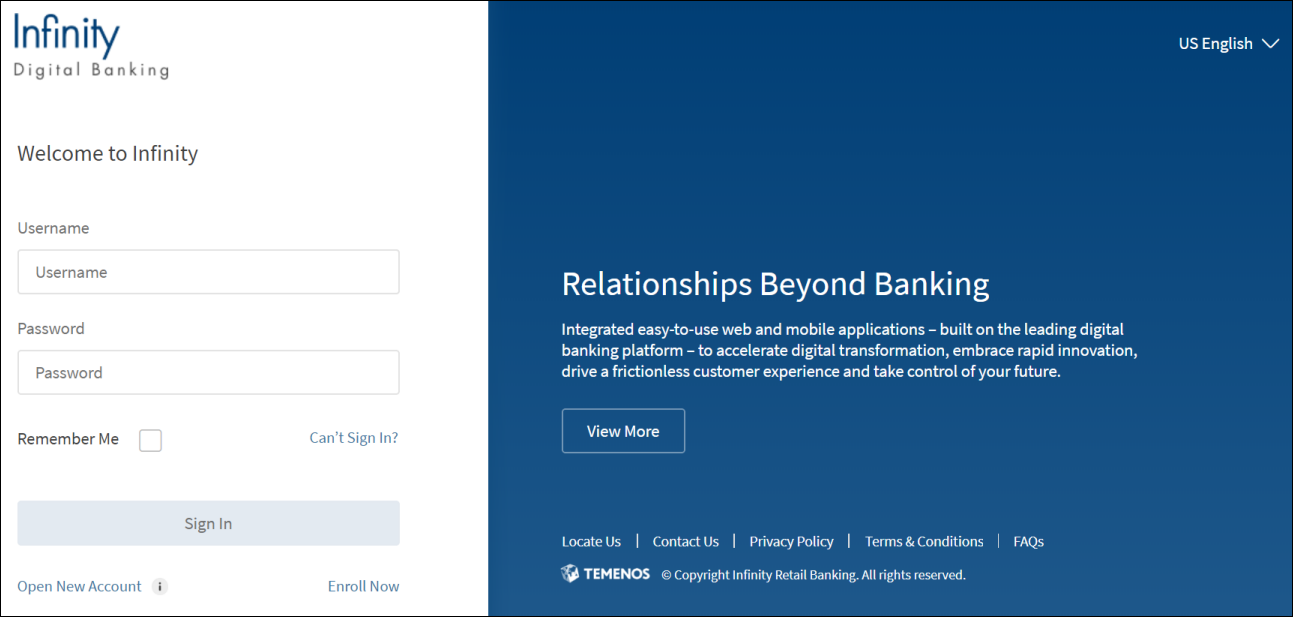
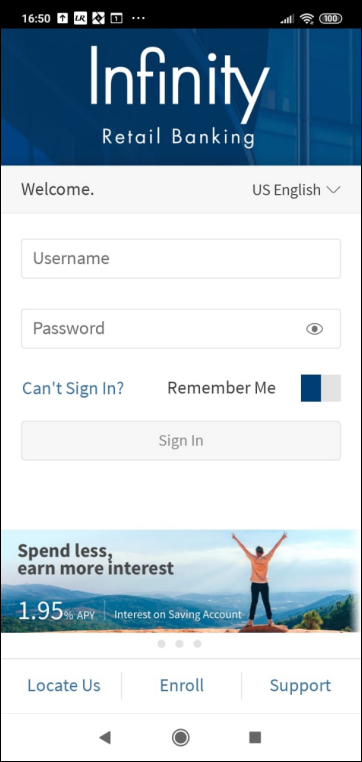
Enter the user name and password. The user credentials can be set up by the bank if you are a business user of the bank and want to opt for digital banking. If you are a user associated with business that has already signed up for digital banking, your user credentials and access to the application will be set up by the authorized person.
Username
The user name is a mandatory field. If the Username field is left blank, the Sign In button remains inactive. The field is case-insensitive; the application will convert the user name to uppercase before transmitting to the back-end for authentication. Note that the web browser's auto-suggest is disabled for this field.
Password
The password is a mandatory field. If the Password field is left blank, the Sign In button remains inactive. The field is case-sensitive and masked while entering, but you can view the password by selecting the eye icon. If the maximum allowed password length is 'n', the password entry field does not accept more than 'n' characters. The application displays an appropriate message in case a wrong password is entered. Note that the web browser's auto-save for passwords is disabled to prevent auto-fill of passwords.
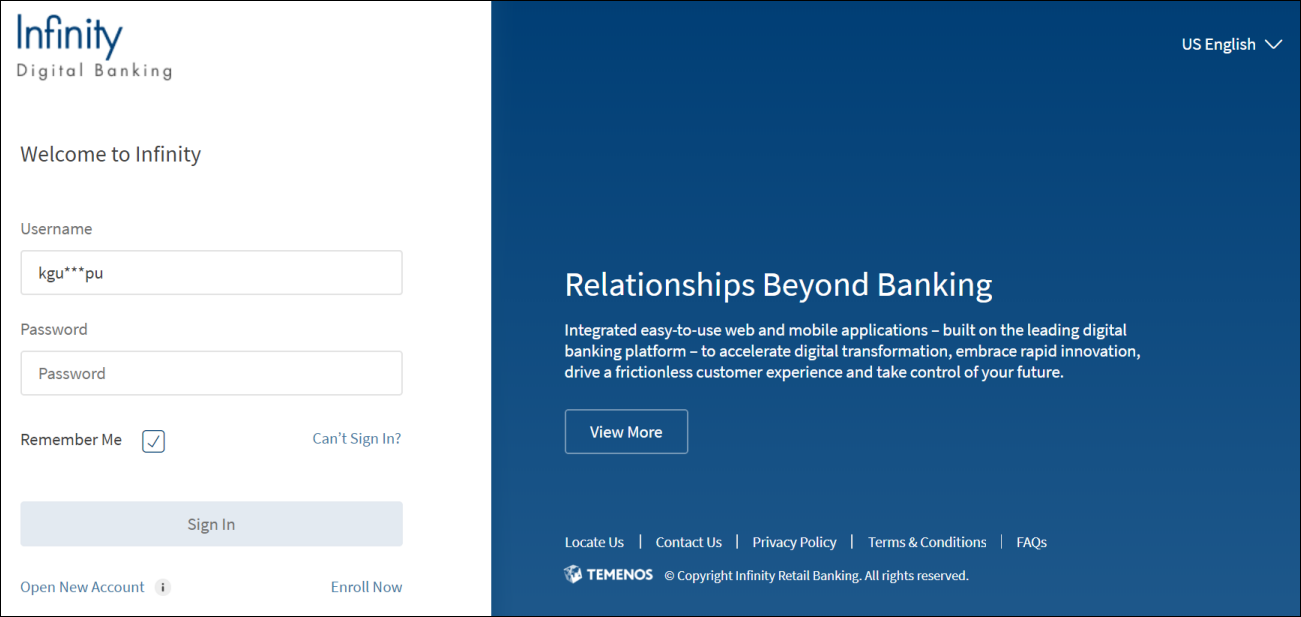
Remember Me
Select the Remember Me check box for the application to remember the user name and display during subsequent logins. In case more than one user name is saved, you can choose your user name for signing in. The application retains the user name on a previously used device, masks the user name, and displays as a non-editable field while displaying on the next login (for example, abcxxxxxxx). Multiple people can use the Remember Me feature on the same device/browser.
A user can choose a user name from the list of user names prompted by the browser. After the user name is selected, the user can enter the password for the account and sign in. A user can disable Remember Me for own account to remove it from the list.
Sign In
After entering the user name and password, Click Sign In.
When you sign in the first time, it is mandatory to agree to the terms and conditions of the bank. Select the I accept the Terms & Conditions check box, and click Continue. The application displays the account summary dashboard screen.
Multi Factor Authentication (MFA): If MFA is configured and depending on the bank configuration, you must provide additional authentication such as providing the secure access code or answering the security questions to sign in to the application.
For one time password (OTP)
- Select the mode of contacts such as the registered phone or the registered email ID for receiving the secure access code. You can either select both or any one mode of contact to receive the secure access code. The secure access code is sent to your registered mobile number and email ID or anyone based on your selection.
- Enter the secure access code received to your mobile or email ID. Verify the OTP entered.
In case you have not received the OTP, you can use the OTP resend option to receive the OTP again. - If you enter an incorrect OTP or do not provide any OTP response, the app requests you enter the correct OTP. If you enter an incorrect response more than five times (configurable), the app displays an error message and navigates you back to the Sign In screen.
- After the OTP is verified successfully, the application displays the account summary dashboard screen.

For Security Questions
- A set of security questions is displayed. Answer the security questions and click Continue to proceed further.
- If you enter an incorrect answer or do not provide any answer, the app requests you provide the correct answer. If you enter an incorrect answer more than two times (configurable), the app displays an error message and navigates you back to the Sign In screen.
- If the answers provided are correct, the application displays the account summary dashboard screen.

NOTE:
- The account will be locked in case of multiple incorrect password entries. The default invalid attempts is set at five attempts. The application prompts the user about the number of attempts left - You have entered an incorrect password 3 times. Your account will be locked after 2 more incorrect attempts. The lock is applicable to all channels at a user level in case of multiple incorrect entries on any channel within a specified duration.
- In case a user account is locked, the application displays an appropriate message.
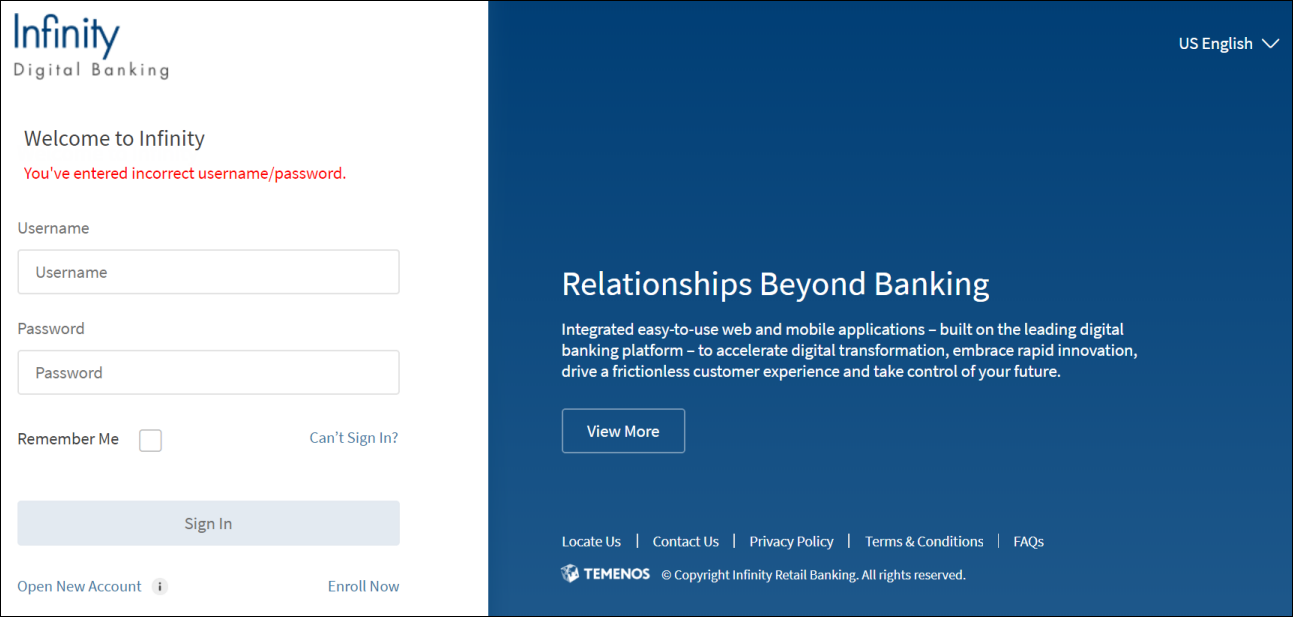
- The application displays an error message if the information provided is incorrect. In that case, click Can't Sign In? to retrieve the user name or reset the password in case you have forgotten.
- If the login password is about to expire, a pop-up appears immediately after you sign in to the application. The password expiry warning threshold is managed in the Spotlight application.
You can also do the following on the Sign In screen:
- Retrieve the username or reset the password (Can't Sign In) in case you have forgotten any of them.
- Locate a neareby ATM or branch based on your current location or call your banking service for any queries.
- View the privacy policy of the bank.
- View the terms and conditions to use the banking application.
- Access FAQs and Help pages to use the application features.
- Change the language of the application.
- If you are not an existing customer of the bank and want to get started, open a new retail account such as savings, check and more. The account opening flow is not available for business users in the current release.
- Enroll for digital banking.
Configuration
- In the case of multiple unsuccessful login attempts, the user's account is locked. The account is unlocked after the predetermined time period or when the user resets the password.
- The credential policies for updating user name and password are managed in the Spotlight application.
- The multi-factor authentication during login is configured in the Spotlight application.
- If the login password is about to expire, a pop-up appears immediately after you sign in to the application. The password expiry warning threshold is managed in the Spotlight application.
APIs
The following APIs are shipped as part of this feature:
| API |
|---|
| checkUserEnrolled |
| requestEnrollOTP |
| verifyOTPPreLogin |
| lockCard |
| createOrganization |
| updateOrganization |
| getCustomerActionLimits |
| getOrganizationGroupActionLimits |
| getAccountActionCustomerApproverList |
| updateDBXUserName |
| updateDBXUserPassword |
| updateUserProfileImage |
| deleteUserProfileImage |
| getUserProfileImage |
Add Bookmark
save your best linksView Bookmarks
Visit your best links BACK
BACK


Are you sure you want to log-off?