

| Bookmark Name | Actions |
|---|
Opening a New Account
A business user with appropriate role and necessary permissions can use this feature to open a new retail account such as Saving, Checking or a Credit Card on behalf of the business owner.
Menu path:
- Online Banking: Side Menu > Accounts > Open New Account. The application displays the Select Product screen.
- Mobile Banking: Menu > Apply for New Account. The application displays the Select Product screen.

Do the following to open a new account:
- Select the required product from the Select Product screen.
- You can select a specific product or multiple products from the products list. You can also view details of every product if you want to learn more about that product services, features, and fees.
- If you are using online banking application, select the terms and conditions check box.
- Click Continue. The application displays a confirmation message screen to submit the selected products.

- If required, click Edit to go back and modify the product selection. Submit the details.

- The application displays a screen to confirm the details. Click Yes.

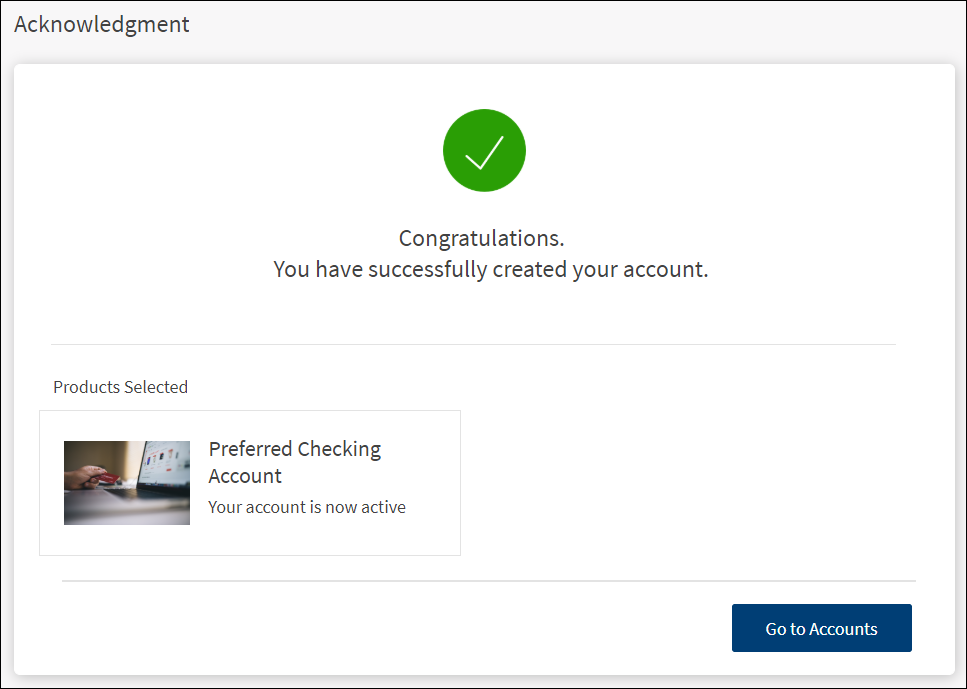
- The application displays an acknowledgment screen with a confirmation message that the account is created successfully, and also lists the accounts that you selected.
- Click Go to Accounts to navigate to the accounts dashboard.
The application displays the accounts dashboard screen. Select Show All Accounts option from the list to view all the newly added accounts.
Add Bookmark
save your best linksView Bookmarks
Visit your best links BACK
BACK


Are you sure you want to log-off?