| Bookmark Name | Actions |
|---|
E-Statement
The Statements display the list of all the transactions you have made in the selected time period.
Enable the e-statements feature for any account from the Account Settings feature. When you enable e-statements, you will stop receiving the hard copy of statements to the registered address and you will start receiving the soft copy of the statements to your registered email ID.
Additionally, the application contains View Statements or Statements feature enabled for all the eligible accounts. You can view the statements for the selected account instantly.
Menu path:
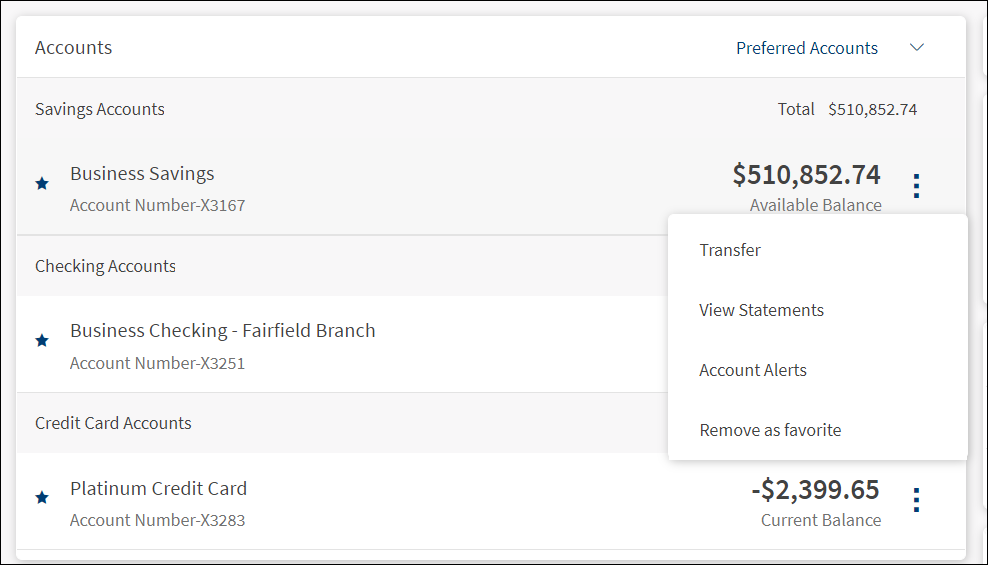
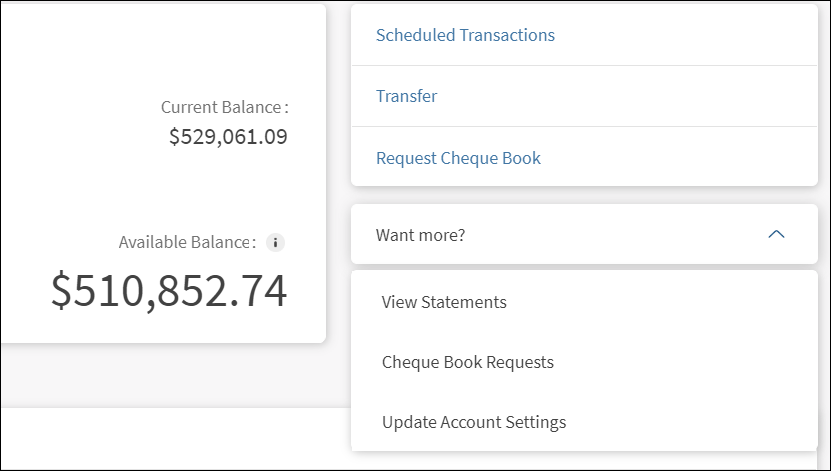
- Online Banking: Dashboard > Accounts list > click on the required accounts contextual menu
 > View Statements. Alternatively, click the required account and click View Statements from the Want More? list. The application displays the View Statements screen.
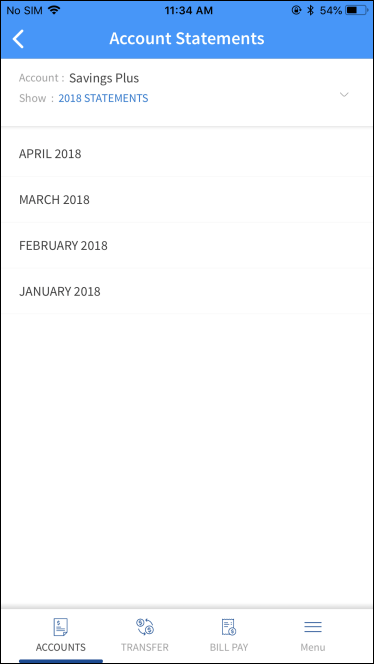
 - Mobile Banking: On the account dashboard screen, tap on the required account. The application displays account summary screen with Statements as one of the contextual buttons.
Online Banking
Mobile Banking
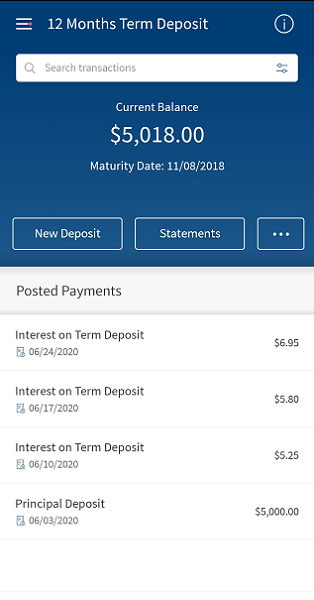
Use the Statements feature to download the statement of the required month for the selected account.
You must specify the following:
- Select Account: The selected account is displayed in the Select Account list, by default.
- Select Year: Select the required year from the list.
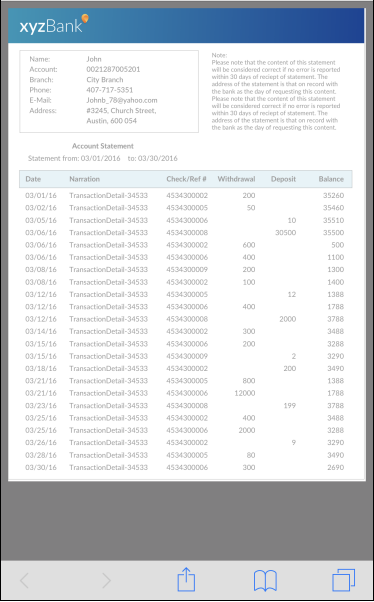
- Click the month to view the statement (in PDF format) of the selected month. You can print or download the statement based on the options provided by the browser.
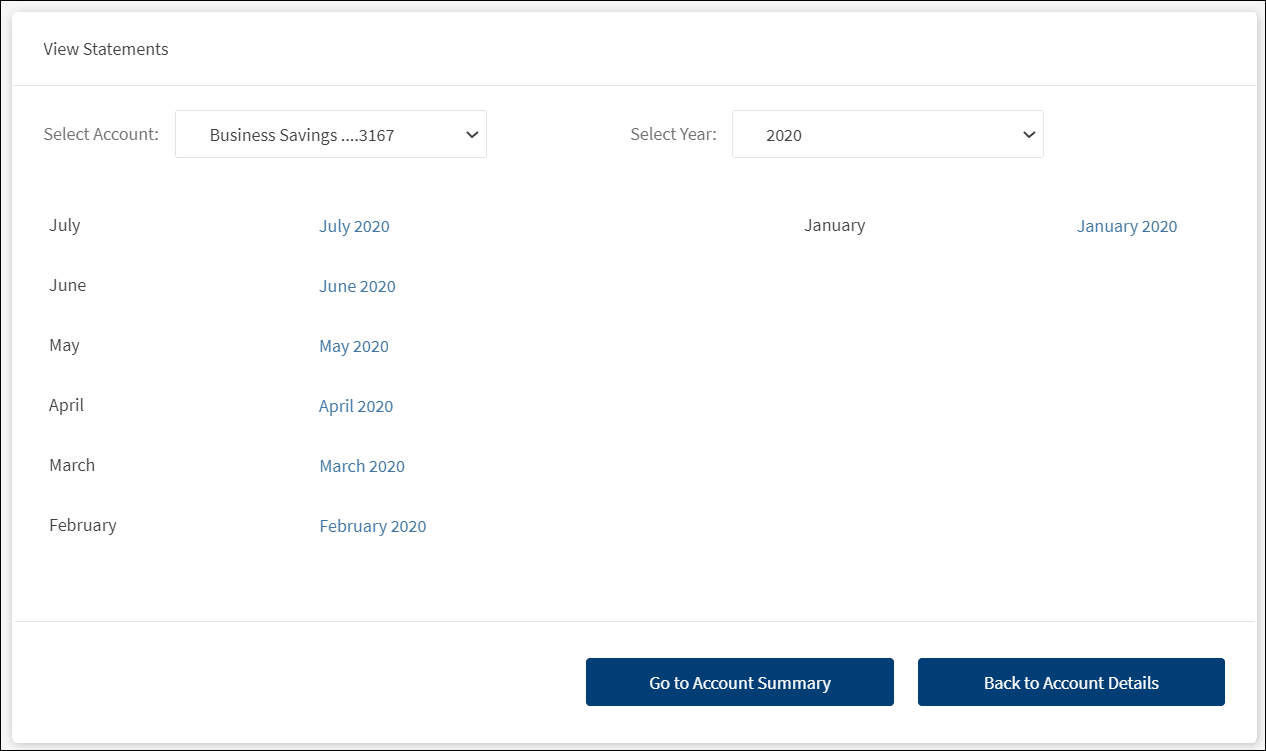
- Click Go to Account Summary to navigate to the dashboard screen or click Back to Account Details to navigate to the account details screen of the selected account.
Add Bookmark
save your best linksView Bookmarks
Visit your best links BACK
BACK


Are you sure you want to log-off?