| Bookmark Name | Actions |
|---|
Advanced Search for Transaction
Use the feature to search for transactions that match specific criteria such as date, amount, keywords, type, and more, for any of your accounts. You can also download or print the search results.
Menu path:
- Online Banking: On the side menu, click Accounts > My Accounts. The application displays the list of your favorite accounts. You can click Show All Accounts to view all your accounts. Click any account. The application displays the Account Details screen.
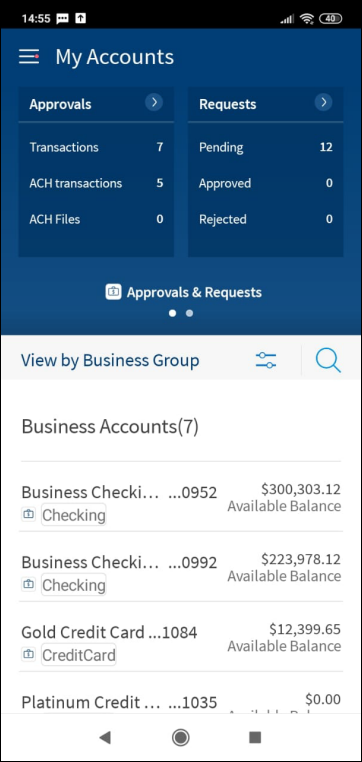
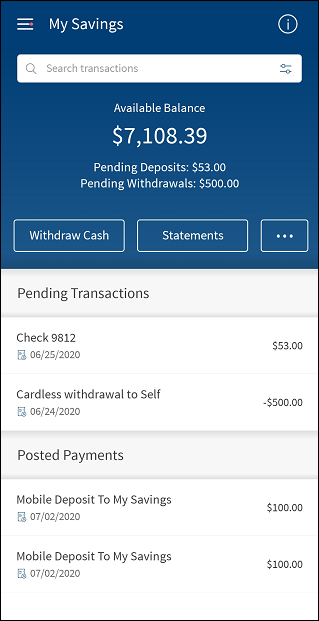
- Mobile Banking: On the account dashboard, select the required account. The application displays the Account Summary screen. On the Account Summary screen, tap Search to search for transactions in the selected account based on search criteria.
Search for Transactions
Use the search option to search for specific transactions.
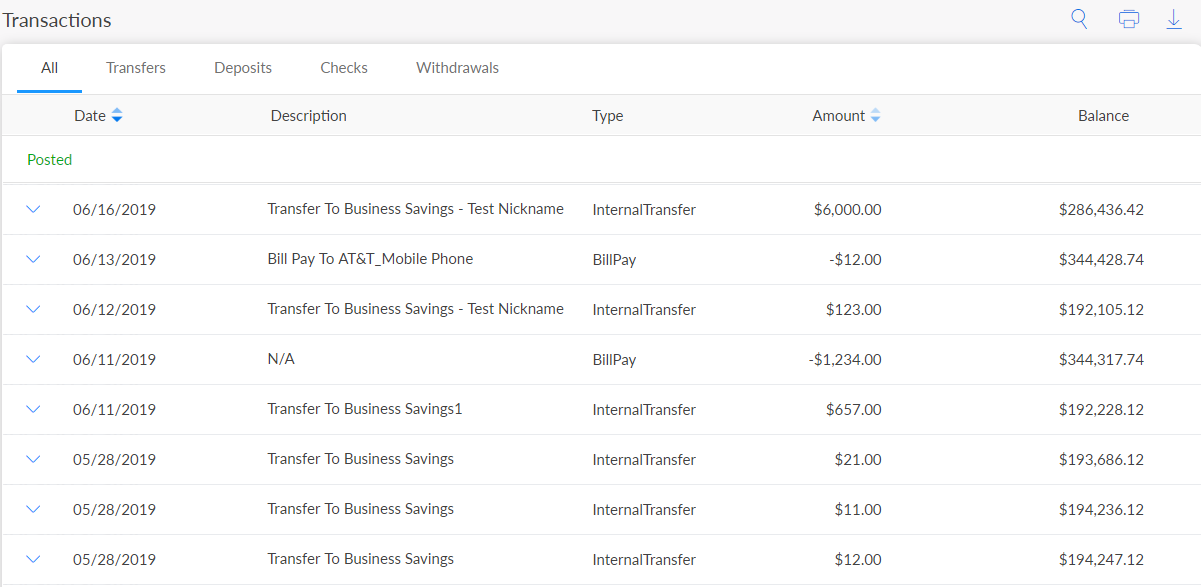
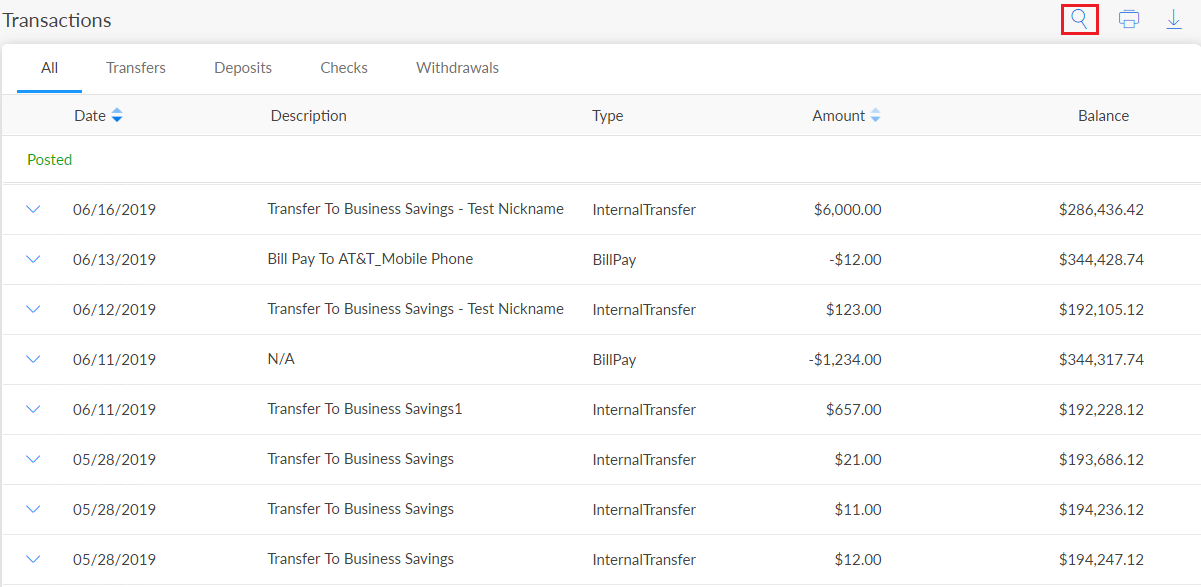
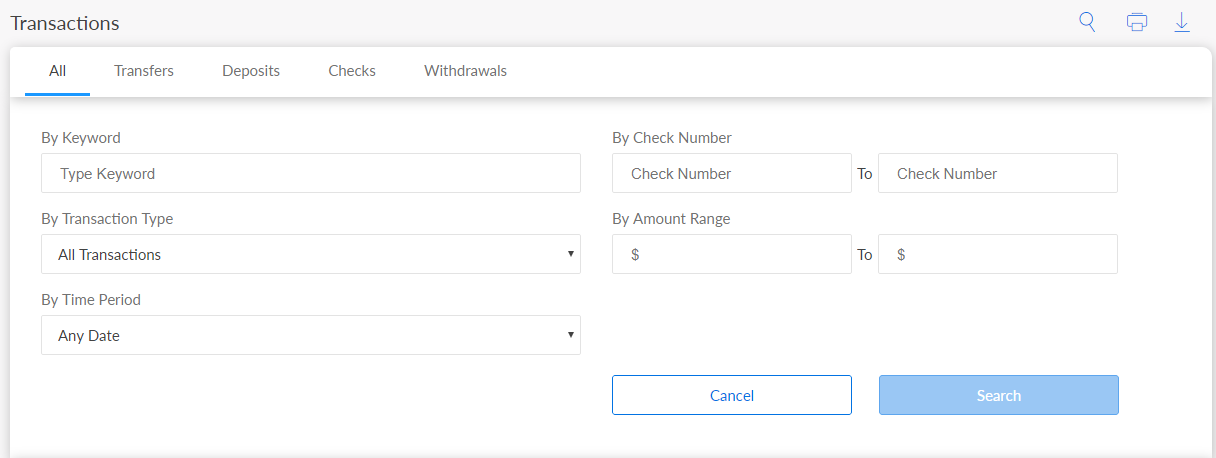
On the Account Details and Transactions screen, under Transactions click the Search icon.
In case you are using mobile banking application, tap on the advanced search icon to access advanced search options.
Online Banking
Mobile Banking
Specify any of the following criteria in the advanced search section:
- Enter an appropriate keyword, such as Bill Pay to Western Electrical, in the By Keyword field.
- Enter a specific check number range to view the transaction details for those checks.
- Select the required transaction type from the list to search on the basis of types of transactions such as Deposits or Transfers.
- Enter the specific amount or amount range to view transactions on the basis of the amount.
- Select the required time range to search for transactions based on a certain time period, such as Last 7 Days. If you select the Custom Date Range option, the app displays the By Date fields. You can specify a particular date range and search for transactions.
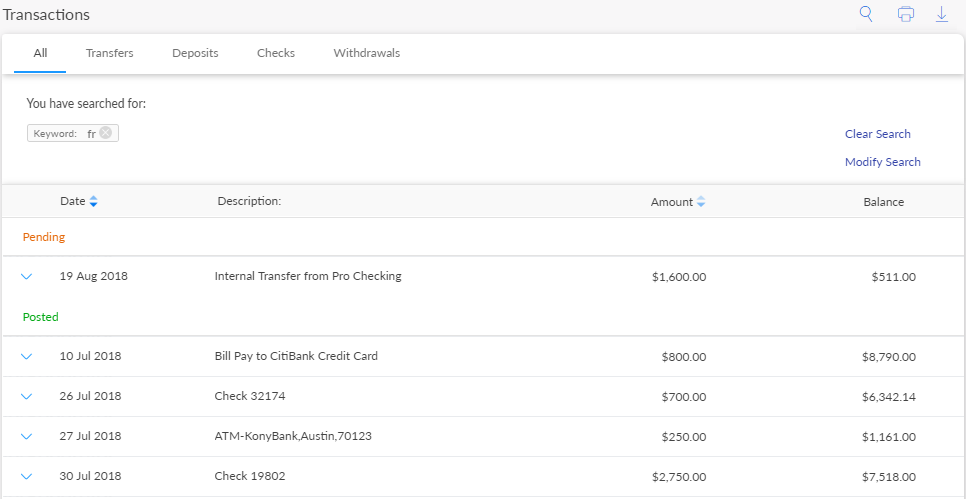
Search for the records and the application displays all the transactions based on the specified search criteria.
NOTE: The application displays an appropriate message in case there are no transactions to retrieve.
In case you are using an online banking application, click Clear Search if you want to clear the current search. The application removes the current search criteria. If you want to modify the current search, click Modify Search. The application navigates you to the advanced search criteria section.
Print Transaction Search Results
You can take a printout of your current search results. Click the Print icon under the transactions section. This feature is applicable only for online banking application.
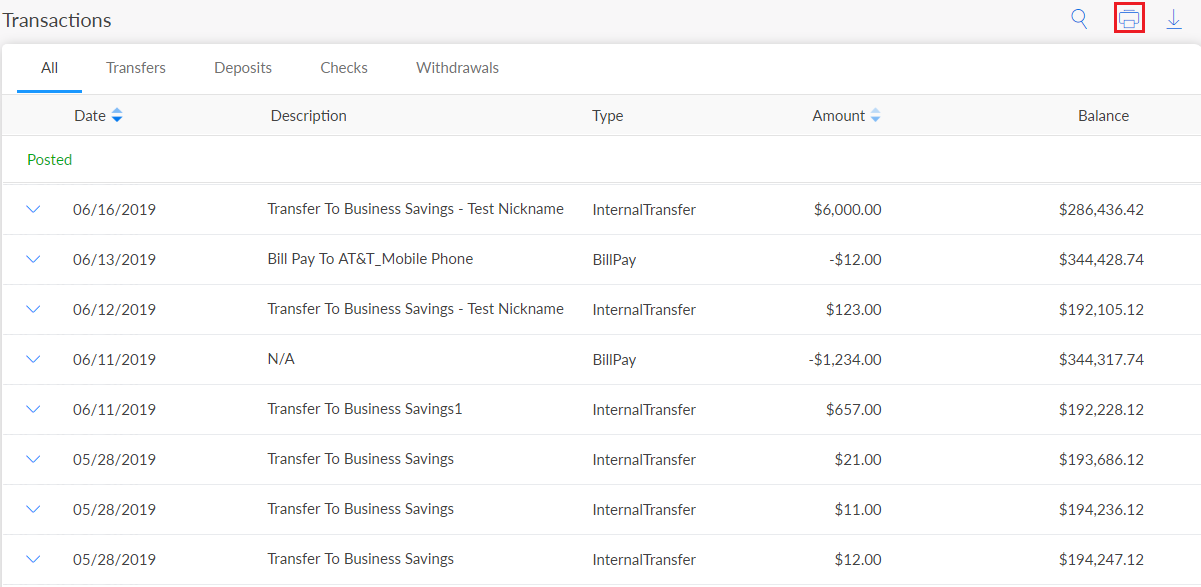
The application displays a Print Preview screen. You can customize the printing process and click Print. The application prints the transactions from all the pages of the search results along with the account details.
Download Transaction Search Results
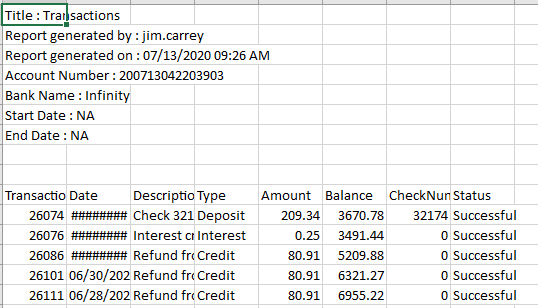
You can download a group of transaction retrieve based on the search criteria like Date Range, Transaction Type, Amount Range, and so on.
Click the Download icon to download the transactions. The Download Transactions pop-up screen is displayed.
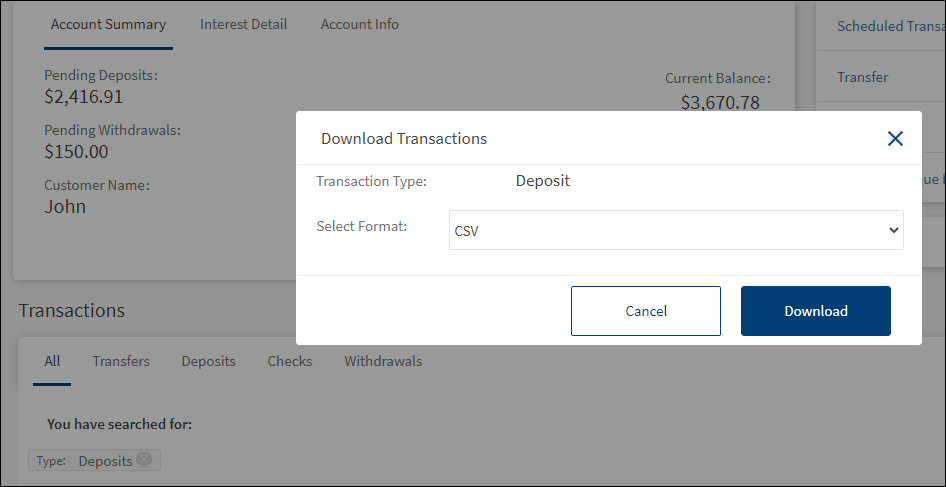
Specify the following details to download the transactions:
- Select Format. Click the list and select the format to download the transactions in the selected format. The available download formats are:
- CSV
- Excel
-
Click Download to download the transactions within the selected criteria.

NOTE: Cancel the process at any time. The changes are not saved.
Add Bookmark
save your best linksView Bookmarks
Visit your best links BACK
BACK


Are you sure you want to log-off?