| Bookmark Name | Actions |
|---|
Transfer
The Make Transfers feature can be used to transfer funds between accounts on the Transfer Money screen. You can initiate a new fund transfer to your ownaccount in the same bank, recipients in the same bank, recipients in other banks that you have added, recipients in international banks, to P2P recipients, and wire transfers.
Menu path: Online Banking
On the top bar, click Transfers and then click Transfer. The app displays the Send Money screen.
Menu path: Mobile Banking > Transfers
The app displays the Transfer From screen.
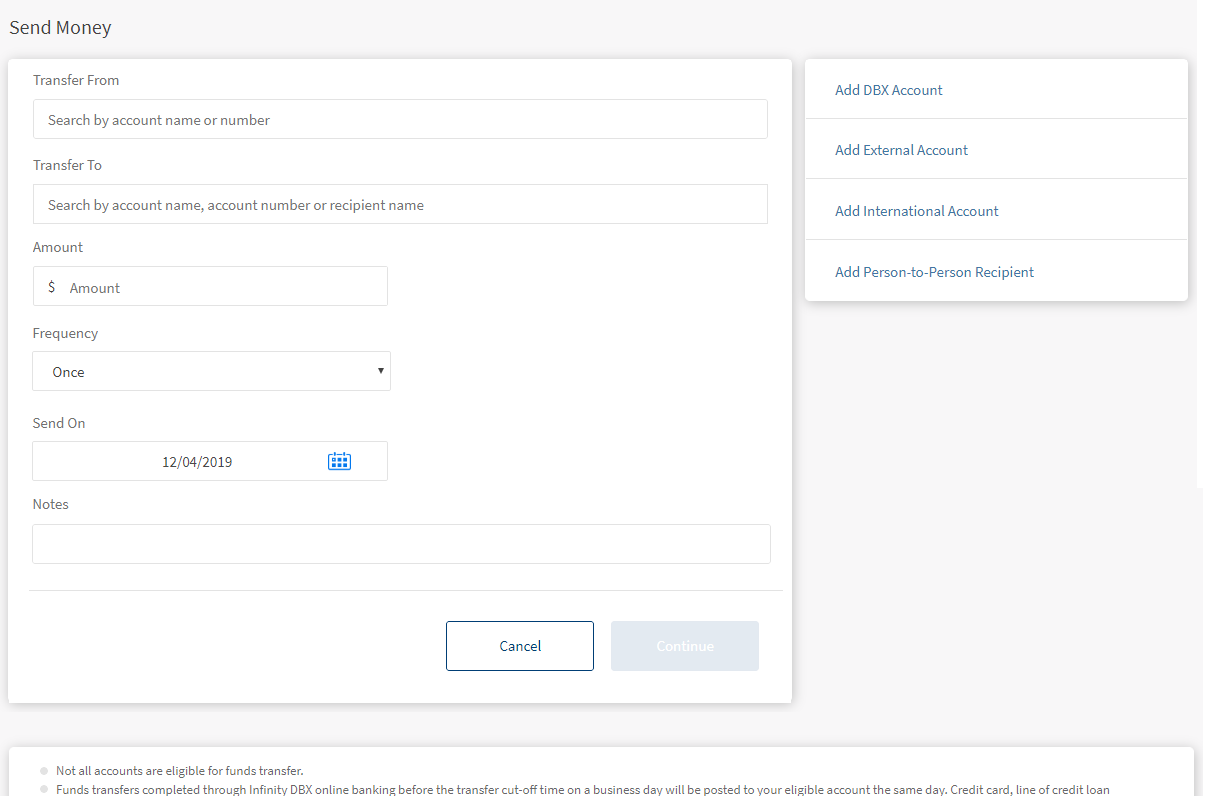
Funds can be transferred to eligible accounts only. Eligibility is decided by the account type maintained by the bank and is controlled from the core banking system.
Make Transfer
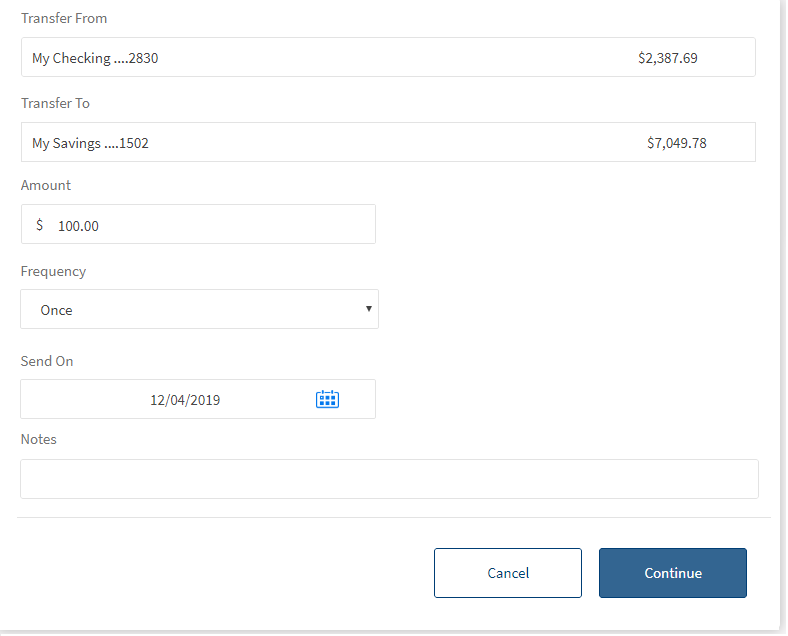
Enter the information as applicable to initiate a fund transfer:
- From account. Select the account from the list. Only eligible accounts are displayed in the list. The app displays an appropriate message if the list is empty.
- To account. Select the account from the list. Only eligible accounts are displayed in the list. The app displays an appropriate message if the list is empty.
The list of eligible P2P recipients are also displayed in the list. Select a p2p recipient to perform a P2P transfer.You can also make a transfer to your loan account. The list of loan accounts are displayed. Select the loan account to perform a transfer.
- Currency. Select the currency type to make the payment. You can select currency only for international transfers. Once you select the international recipient in the To account this option is enabled. Choose a currency type from the list of currency types. Depending on the selection, the currency symbol is displayed next to the amount field.
- Amount. Enter the amount to be transferred and click Continue. You cannot enter an amount greater than the available balance. This field is not applicable if you have selected a credit card account or loan account in To account.
- For Credit Card: Select any one of the following fields:
- Current Balance. Select this option to transfer current balance amount to the credit card from the selected account.
- Statement Balance: Select this option to transfer the monthly statement balance amount to the credit card.
- Minimum Due Balance. Select this option to transfer the minimum due balance amount to the credit card.
- Other Amount. Select this option to transfer other amount to the credit card.
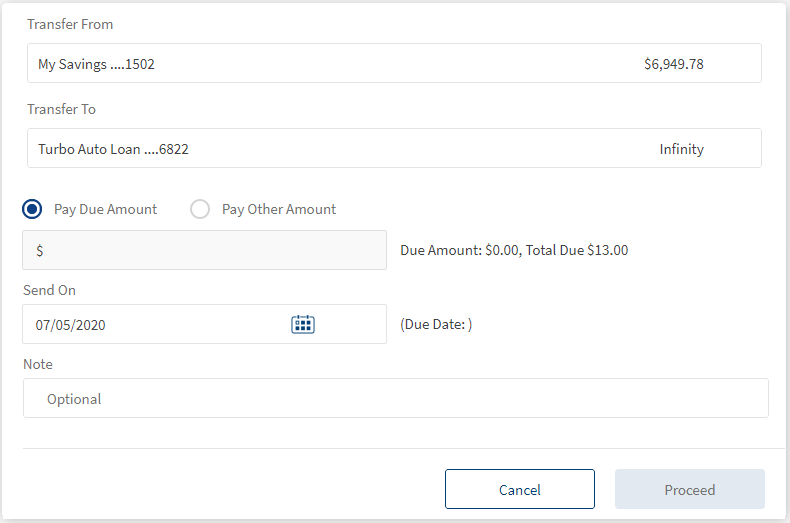
- For loan account, the Pay Due amount is pre-populated for the loan. You can select Pay Other Amount and enter the amount.
- The below steps are optional. By default, after selecting the amount you will be redirected to Verify Transfer Details screen.
-
Frequency. Select the frequency from the list.
- By default, the app selects the frequency as once and the current date. You can change the frequency and the date if the transfer is a scheduled or a recurring transfer.
- This field is not applicable if you have selected a credit card account in the To account field. By default, the app selects the frequency as Once.
- For loan account, the current date is selected as default and the due date is displayed. You can choose any other date as pay on date.
- Scheduled Transfer or Recurring Transfer. You can choose to set the transfer as a recurring transfer (for example, daily, weekly, monthly). In that case, select if the recurrence has to be on a specific date and select a date from the calendar, or if it is the number of occurrences and enter the occurrence value (for example, 24 times).
- Daily
- Weekly (every 7th day from the selected start date)
- Every Two Weeks (every 14 days from the selected start date)
- Monthly (every month on the selected date, cannot select 31st of the month in this case)
- Quarterly
- Half Yearly
- Yearly
- Send On. In online banking, select the transfer date from the calendar. By default, the current date is selected as the transfer date.
- Notes. Add notes if required.
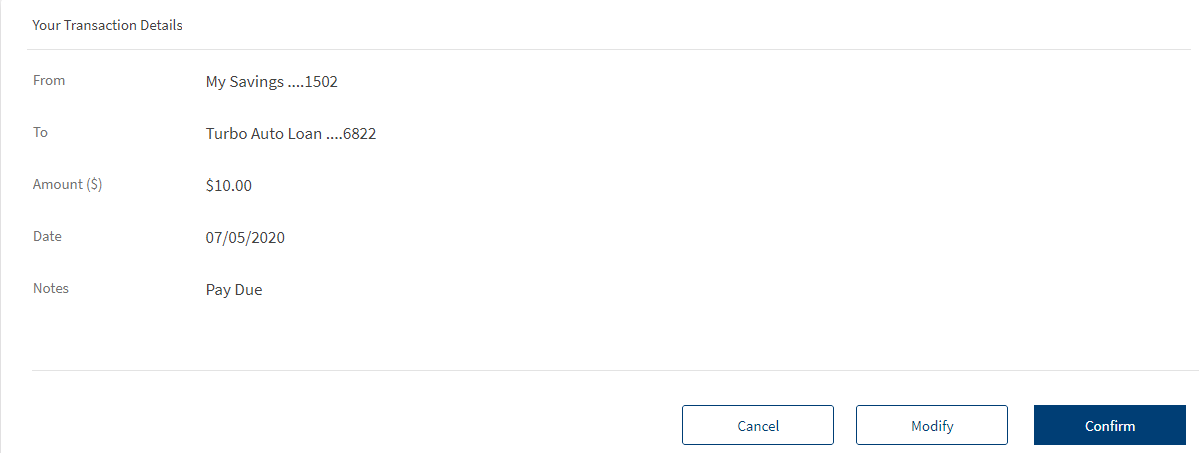
- Verify Transfer Details. Confirm the details. If you have specified valid data in all the fields, the app displays the Confirm screen with provision to modify the details if required.
In mobile banking, tap on From or To accounts to change the selected accounts if required. - Once the details are confirmed, click Confirm.
- An acknowledge screen if the transaction amount exceeds the threshold value defined by the bank an authentication screen is displayed. Depending on the bank configuration, you must either provide the secure access code that is sent to your registered mobile number and email ID or must answer the security questions.
NOTE: Only one OTP resend request is allowed per transaction.
- The authentication type and the threshold value for transferring the money are configured in the Spotlight application.
- Once the authentication details are entered, click Transfer.
- If the transfer fails due to some reason (for example, if you have insufficient funds in the selected account), the app displays an alert along with an appropriate message.
- If the session is timed-out during a transfer and leaves the window open, you have to initiate the transfer again.
By default, the current date is selected as the recurring transfer start date. The other frequency options are:
OLB Make Transfer
OLB - For International Transfer
OLB - For Credit Card

OLB - For P2P Transfer

OLB - For Loan Payment
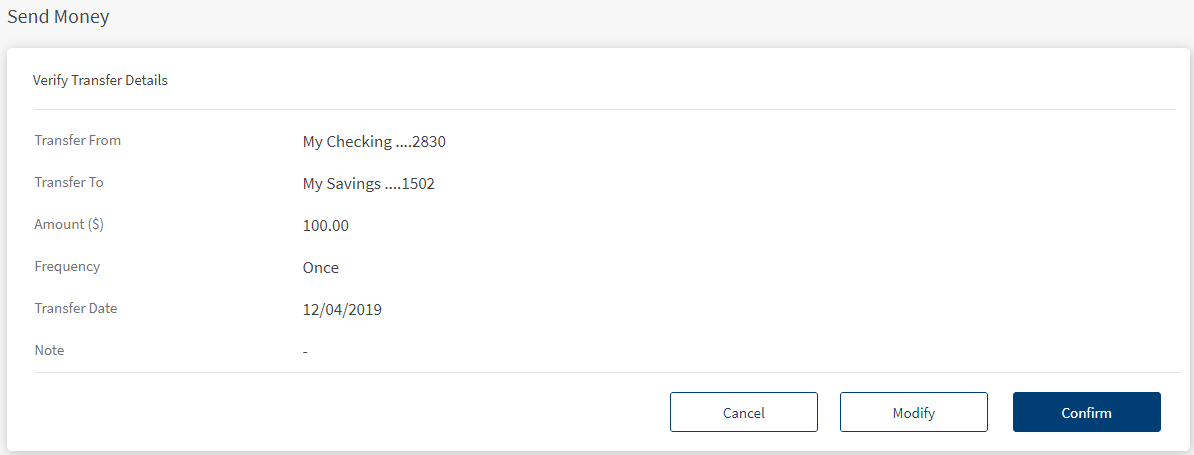
OLB - Loan Payment - Confirmation screen


Mobile Screens


The app displays the acknowledgment screen with transaction details, unique reference number to the transaction, and provision to do the following:
- Make a new transfer
- View Accounts (Accounts Dashboard)
- Print the transfer acknowledgment
- Modify Transfer (for recurring transfers)
Acknowledgment Screens
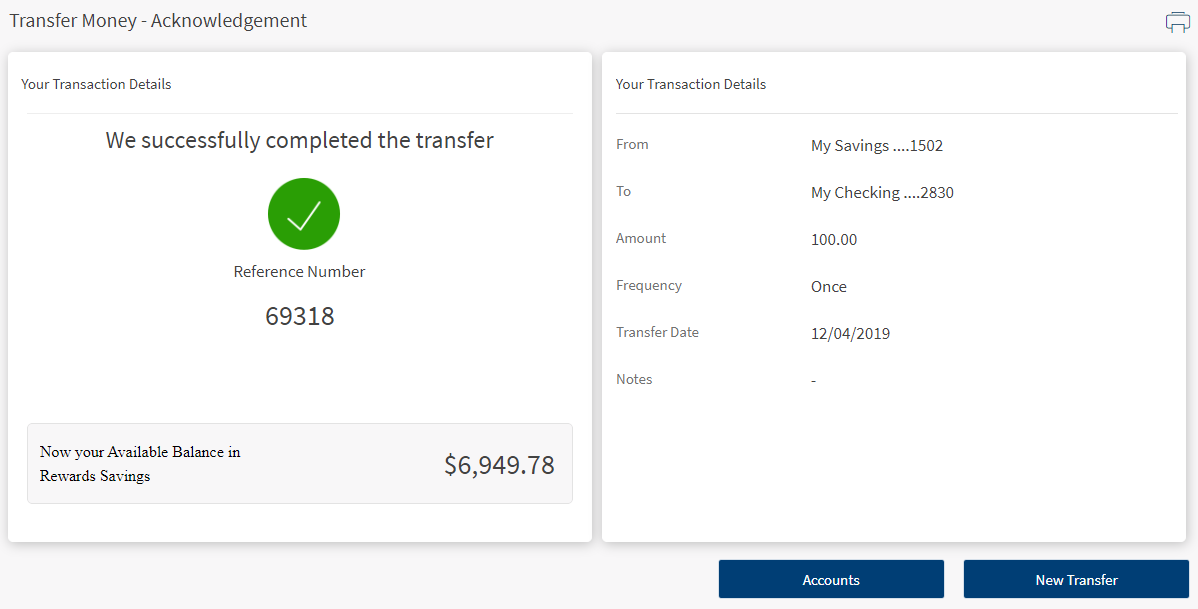
Recurring Transfer
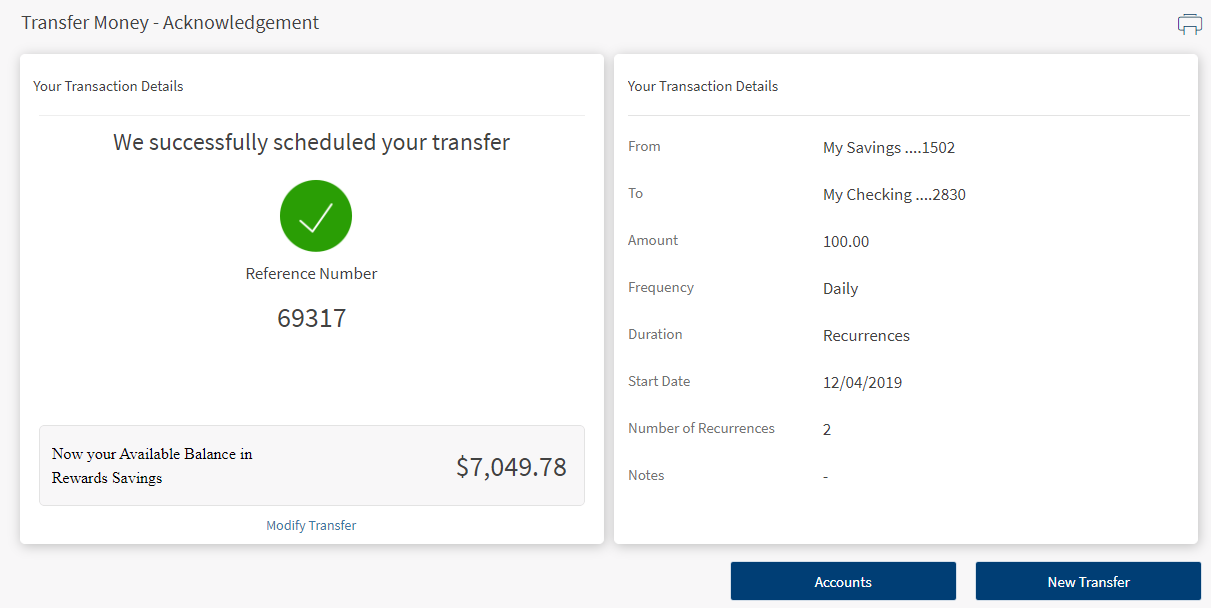
P2P Transfer
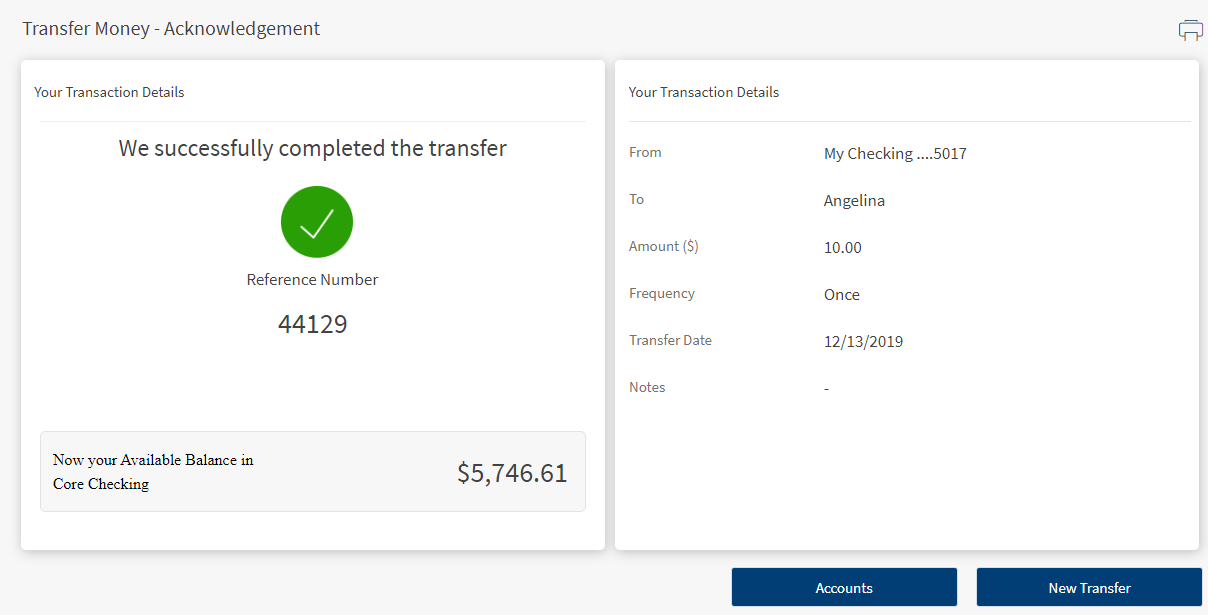
Error and Validations
- When the transfer to a loan is initiated, the next due amount is pre-filled in the "Amount" field. You cannot modify the due amount.
-
The Bank/FI's can add a limit on the number of transfers or maximum amount that can be made/transferred to a loan account in a month.
-
The payment may not be reflected immediately in the loan details or transaction section. It may take 2-3 business days to be reflected in your loan account.
-
If the "From" account does not have the enough balance to make the payment, the following message is displayed, "Your account balance isn't sufficient to make this payment.
- In case the due amount is zero, the following message is displayed, "Currently there are no pending dues on your account".
-
In case the selected date is later than the "Next Payment Date" associated with the loan account, the following message is displayed "The scheduled date is later than the due date. Making payments after the due date may incur penalty. Do you wish to continue?"
- You cannot make a payment more than the total over due amount. If you select "Pay Other Amount" and enter the overdue amount, the following message is displayed "Your account balance isn't sufficient to make this payment."
Add Bookmark
save your best linksView Bookmarks
Visit your best links BACK
BACK


Are you sure you want to log-off?