| Bookmark Name | Actions |
|---|
Extension for Mandatory Field Validations
This doc explains how to customize a mandatory field to make it an optional field. Consider the Last Name field in the Personal Information module. It is a mandatory field. To make it an optional field, you must make the following configurations:
To customize a field in order to make it mandatory or optional, you need not make any changes on the server-side. The spotlight configurations are fetched and validated by Java services.
Client Application Extensions
To make a mandatory field an optional field, you must create a Form Controller Extension of the Form that is associated with the field and override the required functions. In this case, you must extend the frmPersonalInfo form controller. To do so, follow these steps in your Infinity Onboarding Visualizer Project.
- In the Project explorer, expand the Modules section.
- Right-click the require tab and select New Require module. A new JS file is created.
- Rename the JS file to
PersonalInfoControllerExtn. - Define a new function in the extension file to override the implementation of the original function.
- Original Function:
isPersonalInformationValid: function() { var firstName = this.view.UserInformation.atbxFirstName.tbxAnimatedKA.text.trim() == "" ? false : true; var lastName = this.view.UserInformation.atbxLastName.tbxAnimatedKA.text.trim() == "" ? false : true; var email = this.view.UserInformation.atbxEmail.tbxAnimatedKA.text.trim() == "" ? false : true; var dob = this.view.UserInformation.DateInput.getText().length === 10 ? true : false; return firstName && lastName && email && dob; }, - Function to be defined in the
PersonalInfoControllerExtnfile is as follows.isPersonalInformationValid: function() { var firstName = this.view.UserInformation.atbxFirstName.tbxAnimatedKA.text.trim() == "" ? false : true; // removing the check for the last name //var lastName = this.view.UserInformation.atbxLastName.tbxAnimatedKA.text.trim() == "" ? false : true; var email = this.view.UserInformation.atbxEmail.tbxAnimatedKA.text.trim() == "" ? false : true; var dob = this.view.UserInformation.DateInput.getText().length === 10 ? true : false; return firstName && email && dob && birthCountry; },
- Original Function:
- To remove the Last Name field from the data validation payload, you must define the validateFormData function in the
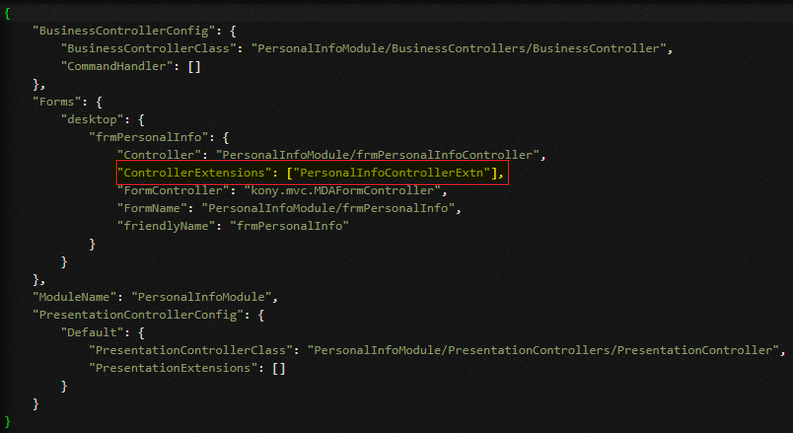
PersonalInfoControllerExtnfile as follows.validateFormData: function() { if (!this.isValidDOB()) { this.view.UserInformation.lblError1.setVisibility(true); this.view.UserInformation.lblError1.text = kony.i18n.getLocalizedString("kony.nuo.PersonalInfo.enterValidDOB"); this.view.UserInformation.DateInput.flxSeparator.skin = applicationManager.getConfigurationManager().getConfigurationValue("underlineErrorSkin"); return false; } else { var obj = "PersonalInfo"; var dataJSON = { "FirstName": this.view.UserInformation.atbxFirstName.tbxAnimatedKA.text, //Removing LastName from data validation JSON // "LastName": this.view.UserInformation.atbxLastName.tbxAnimatedKA.text, "Age": this.isValidDOB(), "Email": this.view.UserInformation.atbxEmail.tbxAnimatedKA.text, "MobileCountryCode": this.view.UserInformation.filterDropdown.tbxDropdownKA.text, "MobileNumber": this.view.UserInformation.atxtPhoneNumber.tbxAnimatedKA.text, }; var dataValidator = applicationManager.getDataValidationHandler(); var response = dataValidator.validateData(dataJSON, obj); if (Object.entries(response).length === 0) { return true; } else { this.showWidgetErrors(response); return false; } } } - Link the new extension file to your ModuleConfig file of the Personal Information module. To do so, go to Project > Reference Architecture Extensions > PersonalInfoModule > Config > ModuleConfig.
Add the following line of code in the Forms method:"ControllerExtensions": ["PersonalInfoControllerExtn"]

Configuring Spotlight
After you define the required functions in the client application, you must delete the Last Name key from the Infinity Onboarding Bundle in the Spotlight app. To do so, follow these steps.
- Open the Spotlight app.
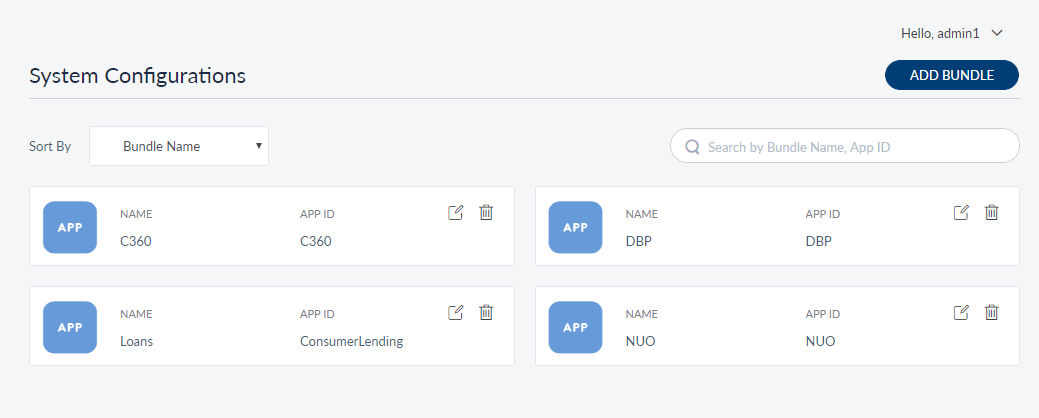
- From the left pane, select System Configurations. The System Configurations page appears with list of bundles.
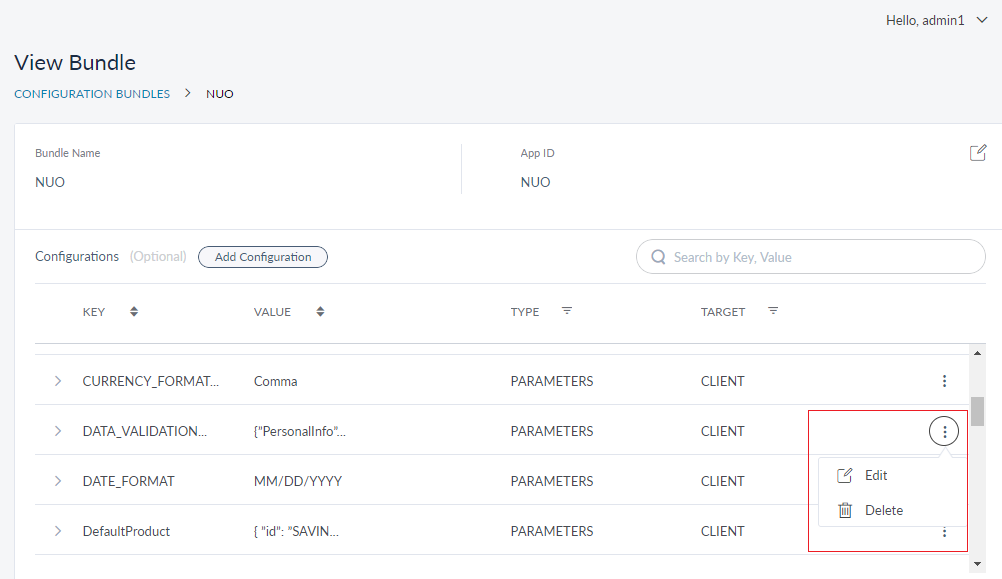
- Open the Infinity Onboarding bundle, named NUO Bundle. The View Bundle page appears that contains the details of the Infinity Onboarding keys.

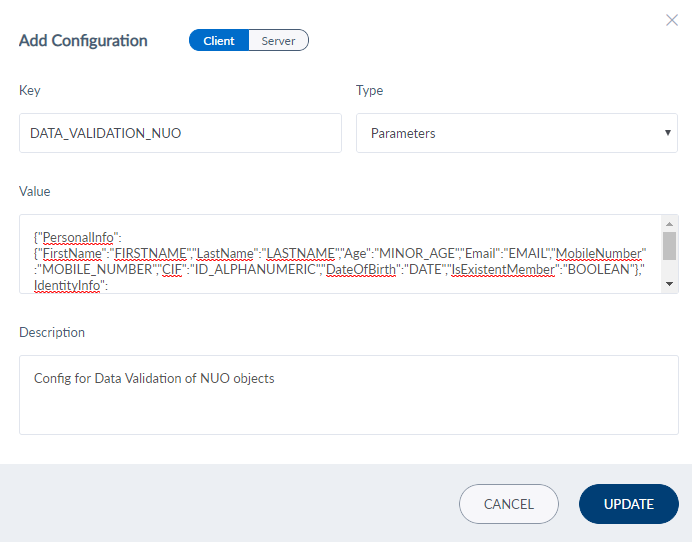
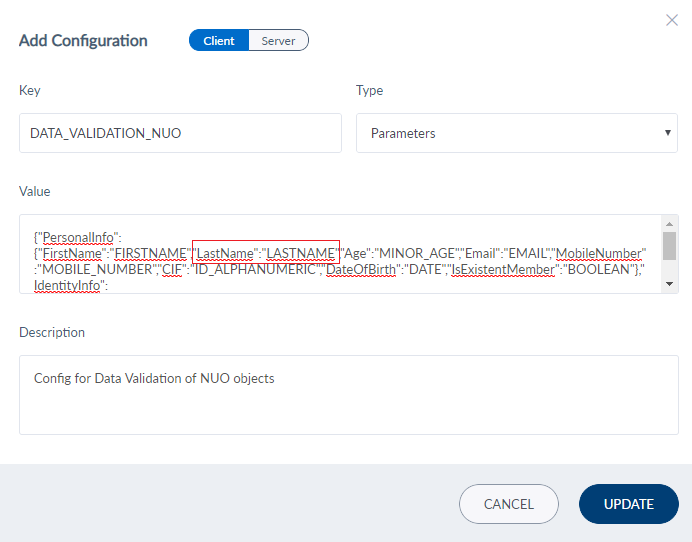
- Search for the DATA_VALIDATION_NUO key and select Edit from the contextual menu. The Add Configuration window appears.

- From the Value field, remove the Last Name field along with the validation rule and click Update.

- After updating the DATA_VALIDATION_NUO key, click Update in the View Bundle page.
For more information about adding configurations in the Spotlight app, click here.
The DATA_VALIDATION_NUO is as follows.
{
  "PersonalInfo": {
    "FirstName": "FIRSTNAME",
    "Age": "MINOR_AGE",
    "Email": "EMAIL",
    "MobileNumber": "MOBILE_NUMBER",
    "CIF": "ID_ALPHANUMERIC",
    "DateOfBirth": "DATE",
    "IsExistentMember": "BOOLEAN"
  },
  "IdentityInfo": {
    "IdNum": "ID_ALPHANUMERIC"
  },
  "AddressInfo": {
    "Country": "NAME",
    "State": "NAME",
    "Zipcode": "ZIPCODE"
  }
}
NOTE: In the Spotlight app, each field can be associated with either a rule from the common rule set or a custom rule. To create or use the rules for data validation, refer to Data Validation.
Add Bookmark
save your best linksView Bookmarks
Visit your best links BACK
BACK


Are you sure you want to log-off?