| Bookmark Name | Actions |
|---|
Deploying Service Request Microservice on Azure
This section explains how to deploy the Service Request microservice on the Azure cloud. To do so, you need to perform the following tasks:
Configuration
Setting up Azure Command Line
To set up the Azure Command Line Interface, follow these steps.
- Download and install the Azure CLI from here.
- After installing the Azure CLI, sign-in to Azure Portal from CLI by using the following CLI command:
az login -u <username> -p <password>
Deployment Artefacts
The folder structure of the Service Request microservice is available as a single release bundle. For example, ms-servicerequest-package-azure-<release.xxx>.zip.
This bundle contains the following files:
ms-servicerequest-package-azure-<release.xxx>.jar-
Azure Script files:
- install.sh/install.bat: This script is used to deploy the Service Request microservice in the Azure environment.
- destroy.sh/destroy.bat: This script is used to stop the Azure services and delete them from the Azure environment.
Deploying Service Request Microservice on Azure
Prerequisites
Before deploying the Service Request microservice on Azure ensure that you meet the following prerequisites:
- Install the Azure Command Line Interface. For more information about the installation, click here.
- Install Maven.
- Install Python 3.
- If you are executing the sh scripts, install Linux Box or WSL or Mac OS.
NOTE: gitBash is not supported for the Azure CLI.
To deploy the Service Request microservice on Azure, follow these steps.
- Download the generated zip file from the target folder to the installation directory.
- Extract the zip file.
- In Command Prompt, go to the installation directory.
- The folder name inside target/azure-functions must be the same as the functionApp name that you provided in the script.
- Modify the installation-specific details such as resource group, location, and DB details in the install.sh/install.bat script.
This script expects an event hub connection for both Transact (des) and Account Aggregation. In the case of Account Aggregation, execute the account aggregation script and provide the event hub details.
In the case of Transact (des), if the event hub is present, modify the event hub connection details for t24AmsApp in the script.
Ignore the errors related to the JSON decoding. - After you modify the install-specific details, execute either
install.shorinstall.bat.After successful installation, the functions are created in Azure.
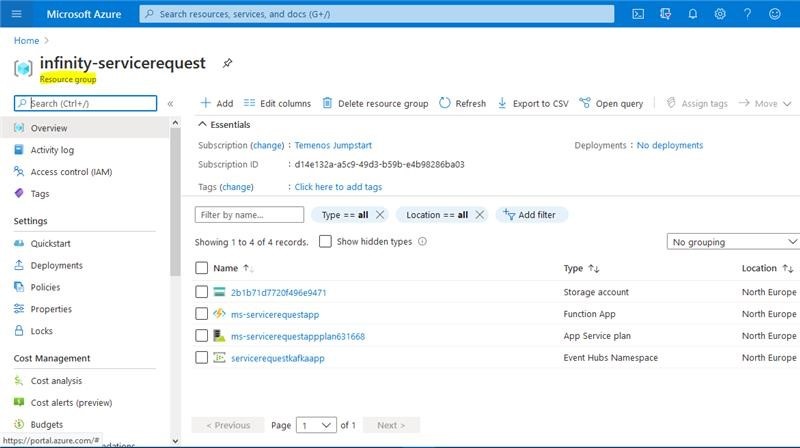
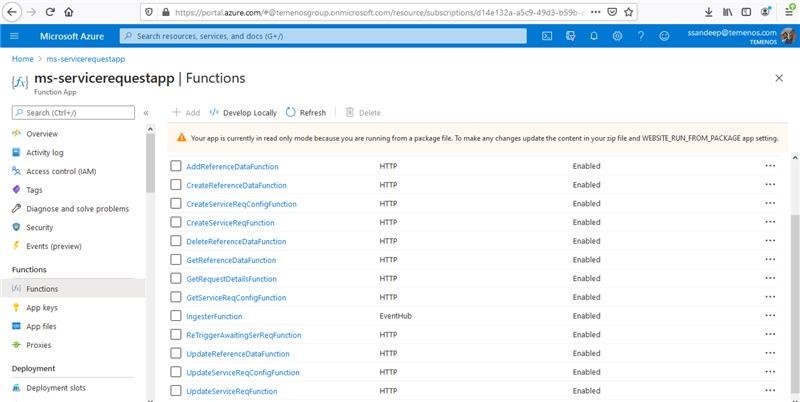
- Sign-in to the Azure portal and verify whether the Resource Group and the Function Apps are created.
Resource Group

Function App

Add Bookmark
save your best linksView Bookmarks
Visit your best links BACK
BACK


Are you sure you want to log-off?